If some URLs return a 404 error while the rest of your WordPress website works normally, the cause may be outdated rewrite rules, conflicting permalink structures or incorrect server configuration.
These issues often occur after you change permalink settings, register a custom post type or taxonomy, modify WooCommerce URLs, install a plugin, or migrate the website to another server.
To identify the source of the problem and narrow down the possible solutions, first determine whether WordPress or the web server displays the error when a URL fails to load the expected content.
Why Do WordPress URLs Return 404 Errors After Changing Permalinks?
When troubleshooting a 404 error, first check whether it affects every URL on your site or only specific URLs. This quick check can help you narrow down the possible cause.
| What happens | Possible cause |
|---|---|
| All posts and pages return 404 errors, but the homepage works | Outdated rewrite rules or incorrect server rewrite configuration |
| Only URLs for one custom post type (e.g. WooCommerce products) return 404 errors | Conflicting or incorrectly registered rewrite rules |
| The new URL resolves correctly, but the previous URL returns a 404 error | Missing redirect from the previous URL |
| URLs show different content in different browsers or for logged-out visitors | Caching, proxy configuration, or another routing issue |
Use the table as a troubleshooting guide. The listed causes are possible explanations, not definitive diagnoses.
How WordPress Permalinks and Rewrite Rules Work
WordPress uses rewrite rules to interpret human-readable URLs and determine which content to load from the database.
When you register a custom post type or taxonomy, its rewrite slug determines the base path in the URL. This is the part that appears before the individual post or term slug.
For example, if your custom post type is named Book and you set the rewrite slug to publication, WordPress generates its permalinks like this:
https://example.com/publication/a-sample-cpt-permalink
If you do not specify a rewrite slug, WordPress uses the post type name as the default base, resulting in a URL like this:
https://example.com/book/a-sample-cpt-permalink
To learn how to change rewrite slugs, see our articles on custom post type permalinks and custom taxonomy permalinks.
How Rewrite Rules Match URL Paths
A rewrite rule typically contains a regular expression that matches part of the requested URL path and maps it to WordPress query variables.
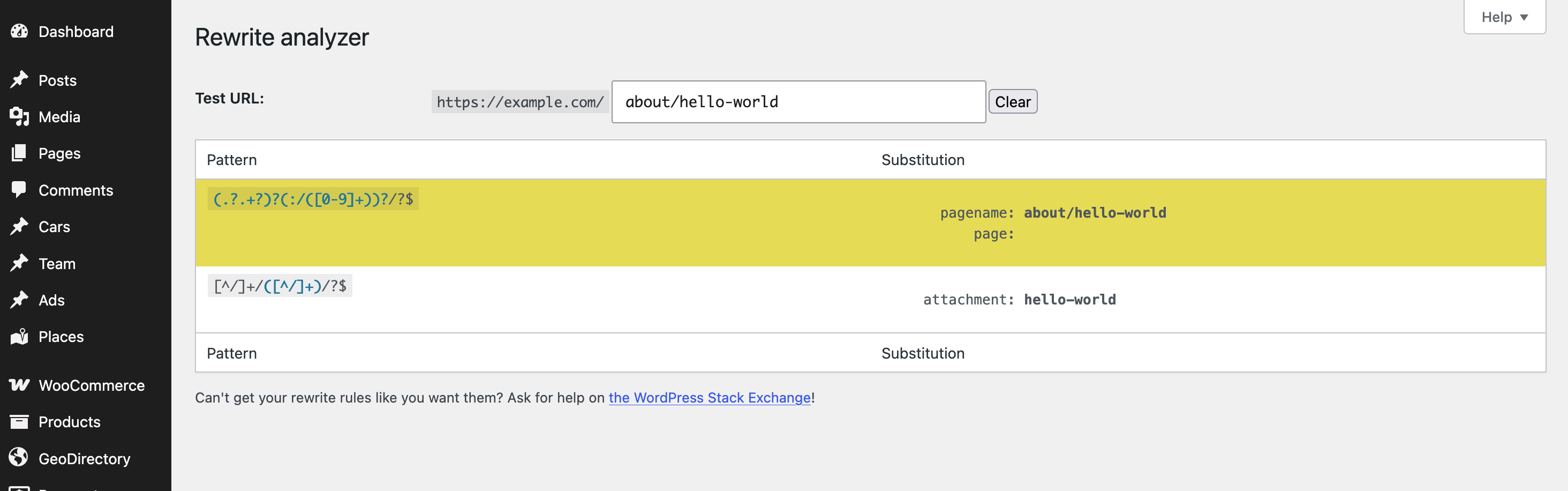
WordPress generates rewrite rules based on registered content types, permalink settings, and rule priorities. For standard pages, these rules include patterns that start with:
(.?.+?)(?:/([0-9]+))?/?$ → index.php?pagename=$matches[1]&page=$matches[2]This pattern matches URLs such as /about/hello-world/, where the page slugs appear directly in the URL without a separate base for the content type.
Custom post types and taxonomies use their own permalink structures and rewrite rules, so WordPress handles their URLs differently.
When rewrite rules for different content types match the same URL path, WordPress may load the wrong content or fail to find a matching object, resulting in a 404 error.
Common Causes of WordPress Permalink Conflicts
Outdated Rewrite Rules
WordPress stores rewrite rules in the database, but it does not always refresh them after a plugin or theme update, when you register a new custom post type, or after a server migration.
When this happens, URLs may return a 404 error even though the content is still available. To refresh the rewrite rules, go to Settings → Permalinks and click Save Changes without changing any settings.
If you cannot access the WordPress dashboard, you can also flush the rewrite rules using WP-CLI or directly in the database. If the 404 errors persist, check the possible causes below.
A Page and a Custom Post Type Use Overlapping URL Structures
Consider a WordPress website with a page at /cars/ and a custom post type that uses cars as its rewrite base.
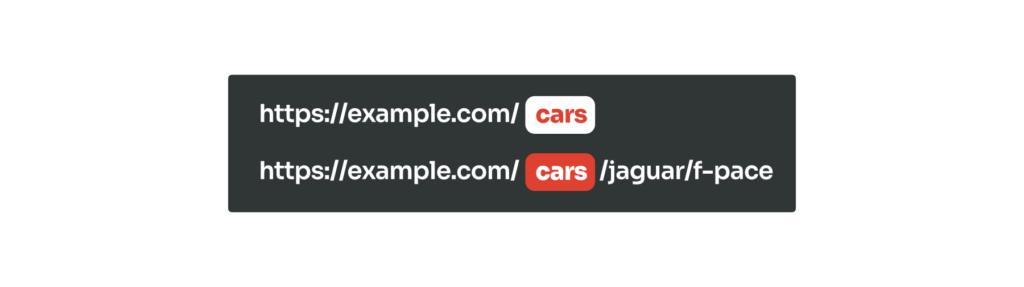
When you visit /cars/, WordPress may return a 404 error even if the page is published. This can occur when the custom post type's rewrite rules take precedence over the page's URL, causing WordPress to interpret the URL as a request for the custom post type archive instead of loading the page.
To avoid this problem, many themes and plugins use specific slugs, such as portfolio-item, for their custom post types.
The simplest solution is to give the page and the custom post type different slugs. If both must use the same slug, you will need custom rewrite logic or a permalink plugin that supports duplicating permalink structures.
A Custom Post Type Uses / as Its Rewrite Slug
A common cause of rewrite rule conflicts is setting a custom post type's rewrite slug to /, which removes its URL base.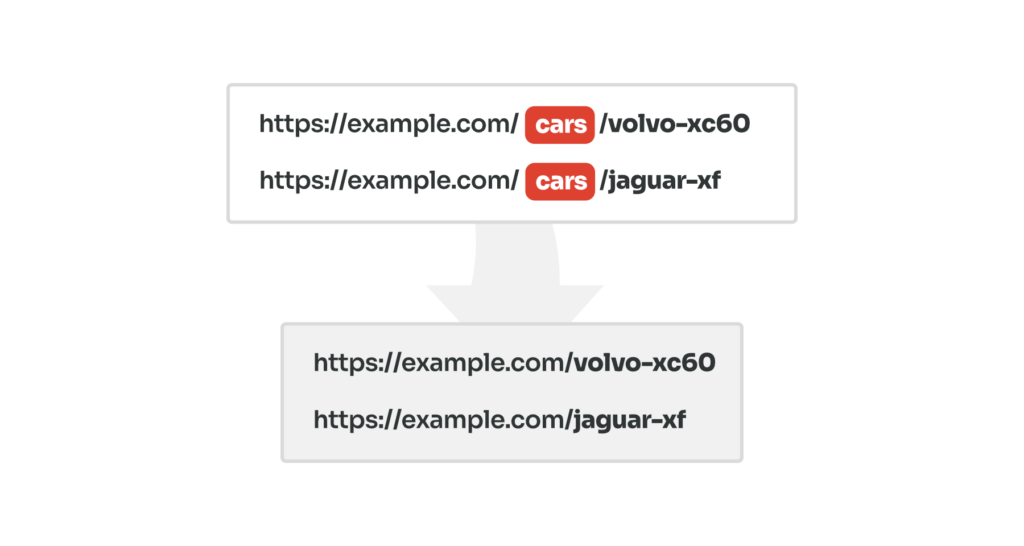
It may look like a simple way to remove the custom post type base and you can find many WordPress Stack Exchange discussions recommending this approach.
A conflicting rewrite slug can interfere with WordPress's built-in rewrite rules for posts and pages, causing broken URLs and 404 errors.
When a custom post type has no distinct rewrite slug, WordPress may resolve URLs in one of two ways depending on rule priority. In both cases, part of the content may become unavailable:
- WordPress may treat your pages and posts as custom post type items, so those pages and posts return 404 errors.
- Or WordPress may ignore the custom post type's rewrite rules, so the custom post type items return 404 errors instead.
To fix this issue, use a distinct rewrite slug for each content type. If you need root-level custom permalinks, you can either use a code snippet that resolves the requested URL to the correct content object or install a permalink plugin that lets you remove rewrite slugs from custom post types and taxonomies.
Incorrect WooCommerce URL Settings
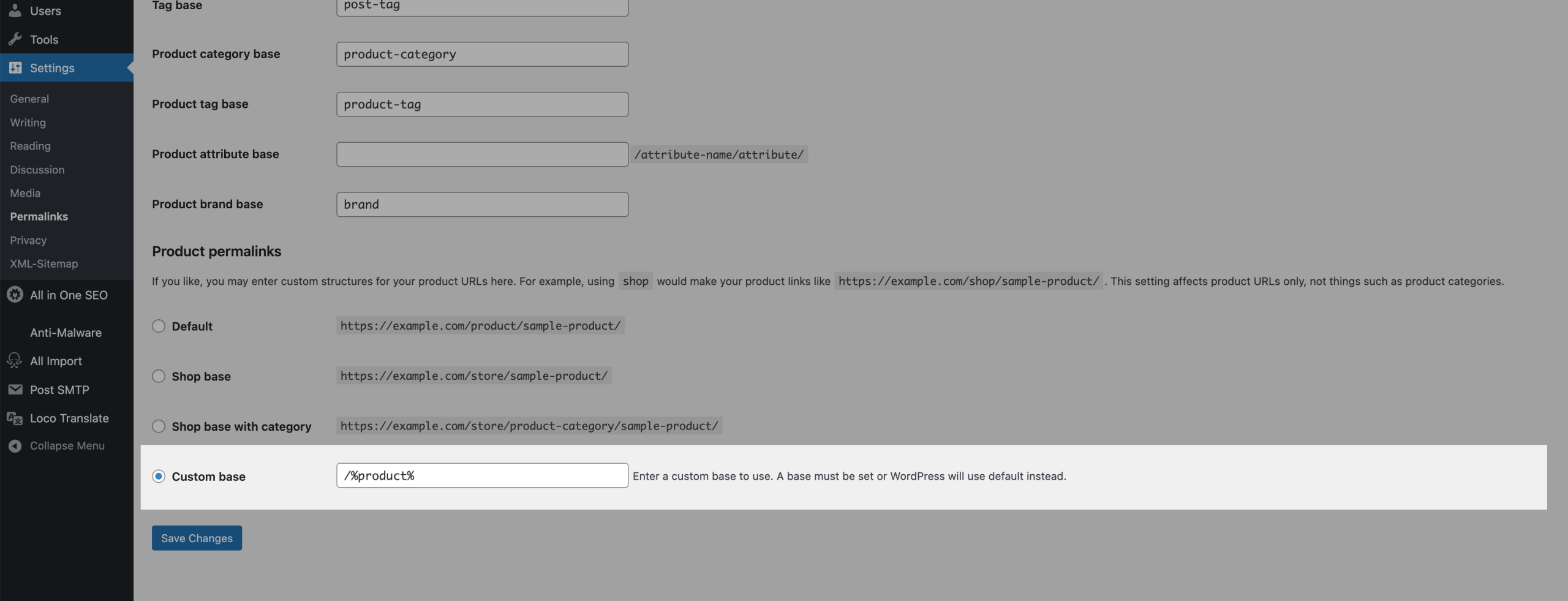
Removing the /product/ or /product-category/ base, or using the same base (such as /shop/) for products and product categories, can cause 404 errors instead of showing the correct shop pages.
This issue can be difficult to identify because WordPress does not warn you that changing or removing these rewrite bases may affect existing URLs.
Like other WordPress content types, WooCommerce products, categories, and tags rely on rewrite rules to determine which content to display for each URL, as explained in the previous sections.
Check your permalink settings and make sure that products, product categories, and product tags have distinct URL structures. Avoid using . as the product or category base to remove the original base.
A Previous URL Has No Redirect
Changing a slug or the global permalink structure changes your content's URL. Visitors, external websites, and search engines may continue to use the old address.
If the old URL no longer works and no redirect exists, visitors may see a 404 error.
To avoid this, create a permanent redirect from the old URL to the new one if the content has moved. You can do this in your .htaccess file or with an SEO or redirection plugin. Set one destination for each old URL, and avoid redirect chains or loops.
Invalid Cache or Server Rewrite Configuration
A 404 error may also result from cached responses at the server or browser level. Open the affected page in an incognito or private browsing window. If the page loads correctly, clear your browser and server cache as needed.
If the problem persists and the 404 page appears as plain text without any styling, as shown in the examples below, the problem may lie in your server configuration.


Apache
On a typical Apache server, WordPress needs an .htaccess file with rewrite rules and the Apache mod_rewrite module enabled to support pretty permalinks.
The exact configuration may vary depending on whether WordPress runs in a subdirectory, uses multisite, or operates in a hosting environment with custom rules. For a standard single-site installation, the rules are usually similar to WordPress's default .htaccess file:
The .htaccess file may exist but lack the required write permissions, preventing WordPress from updating it. A third-party plugin may also have modified or removed the rewrite directives, overwriting existing rules.
If the server returns 404 errors for URLs other than the homepage, back up the .htaccess file and try restoring the rewrite rules using the code above.
NGINX
NGINX does not natively support .htaccess files. For WordPress to handle requests for pages that do not correspond to existing files or directories, NGINX typically uses a try_files directive to route those requests to index.php.
If your website runs on NGINX, make sure the server configuration and WordPress-related NGINX configuration files are correct. You can check them yourself or ask your hosting provider for help.
WordPress provides sample NGINX configuration files and additional instructions on this page.
Frequently Asked Questions
Can Permalink Conflicts Affect Elementor and Bricks Editors?
Yes. URL conflicts can prevent both Elementor and Bricks editors from opening correctly because both builders rely on loading the correct preview URL. If another taxonomy or post type uses the same permalink format, WordPress may resolve the request to the wrong content.
As a result, Elementor or Bricks may fail to load and display messages such as "Invalid post type" or "The preview could not be loaded".

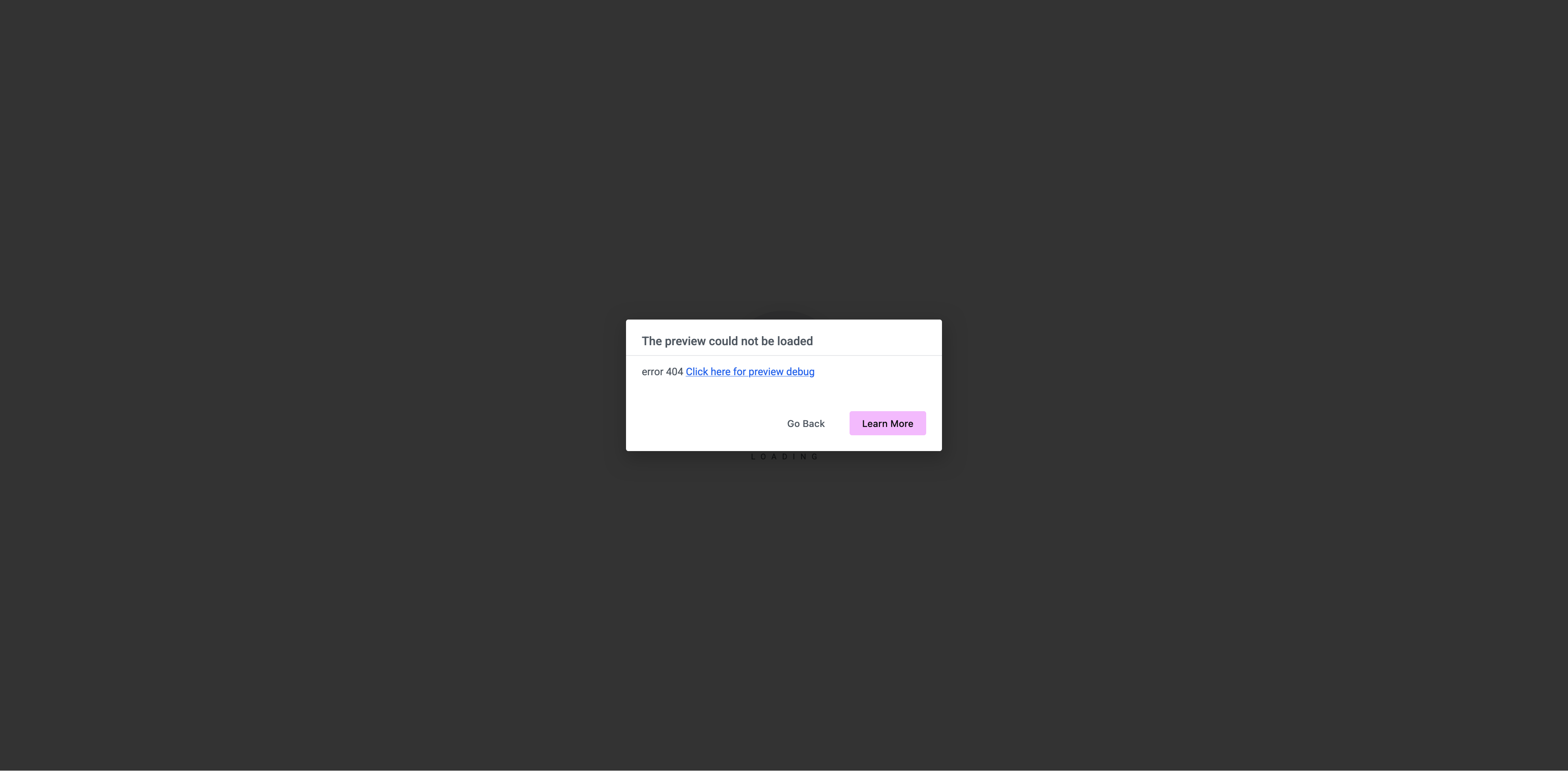
The conflict may also affect pages on the front end, causing more URLs to return a 404 Not Found error. If the editor does not open, check whether the same problem affects other website URLs.
If you use Elementor, you can apply a code workaround to restore access to the editor.
Leave a Reply