Out of box, WordPress gives you limited control over custom taxonomy permalinks. You can change the slug of individual taxonomy terms, which is sufficient for simple URL adjustments.
If you need more control over their URLs, WordPress does not provide built-in permalink settings that let you remove the taxonomy base or define a custom structure from the admin dashboard.
For these changes, you can write custom code that extends WordPress's permalink functionality, or use a dedicated plugin. Custom Post Types Permalinks is a popular option for customizing custom post type URLs, but it does not support custom taxonomy URLs.
If you need to customize both, you will need a plugin that supports taxonomies as well. Permalink Manager Pro is one of the few plugins that offer this functionality.
What Can You Change in Custom Taxonomy Permalinks?
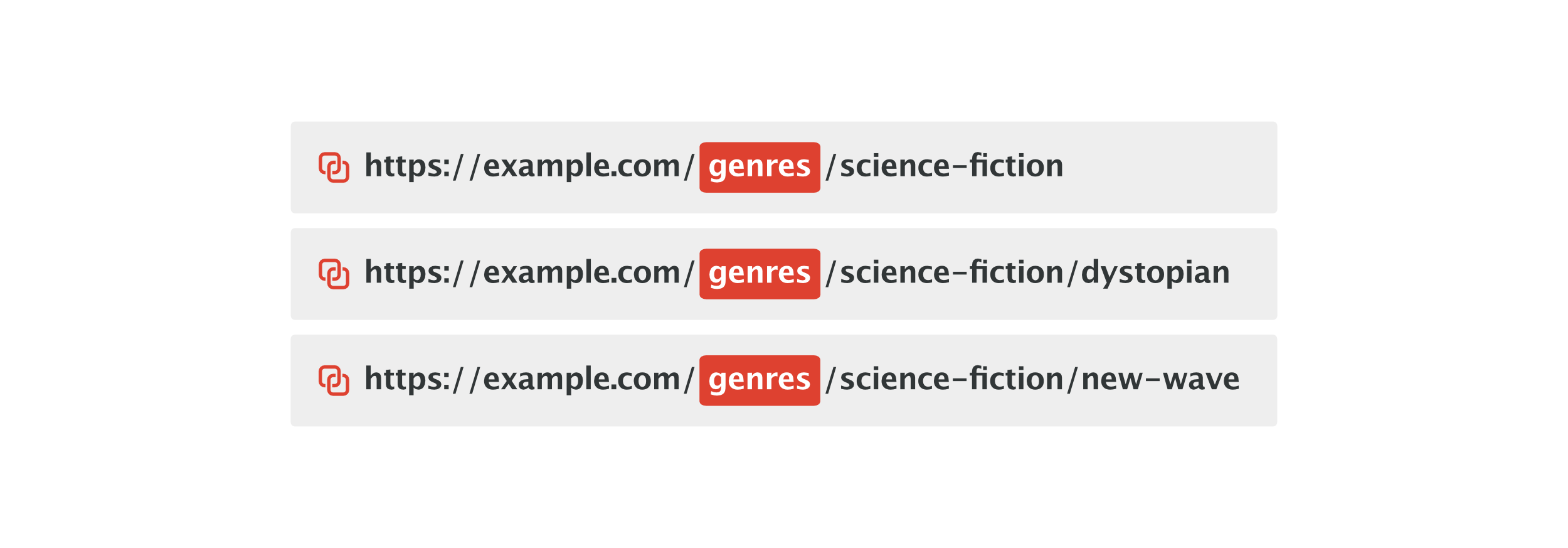
A custom taxonomy URL contains two parts after the domain name. The "taxonomy slug" identifies the taxonomy (group of terms). The "term slug" identifies the specific term (category) within that taxonomy.

For example, in:
https://example.com/genres/science-fiction/genres is the taxonomy base, while science-fiction is the term slug.
Each individual slug can be changed separately for each term (category). The taxonomy base (slug), which defines the URL structure, is set together with the other custom taxonomy parameters, such as the title and labels.
Changing a taxonomy permalink can negatively affect SEO because it can invalidate URLs that have already been indexed by search engines.
If you change any part of the URL structure without handling the old URLs correctly, visitors and search engine crawlers may receive a 404 error when they access them.
How to Customize Taxonomy URLs in WordPress
Edit a Single Term's Slug
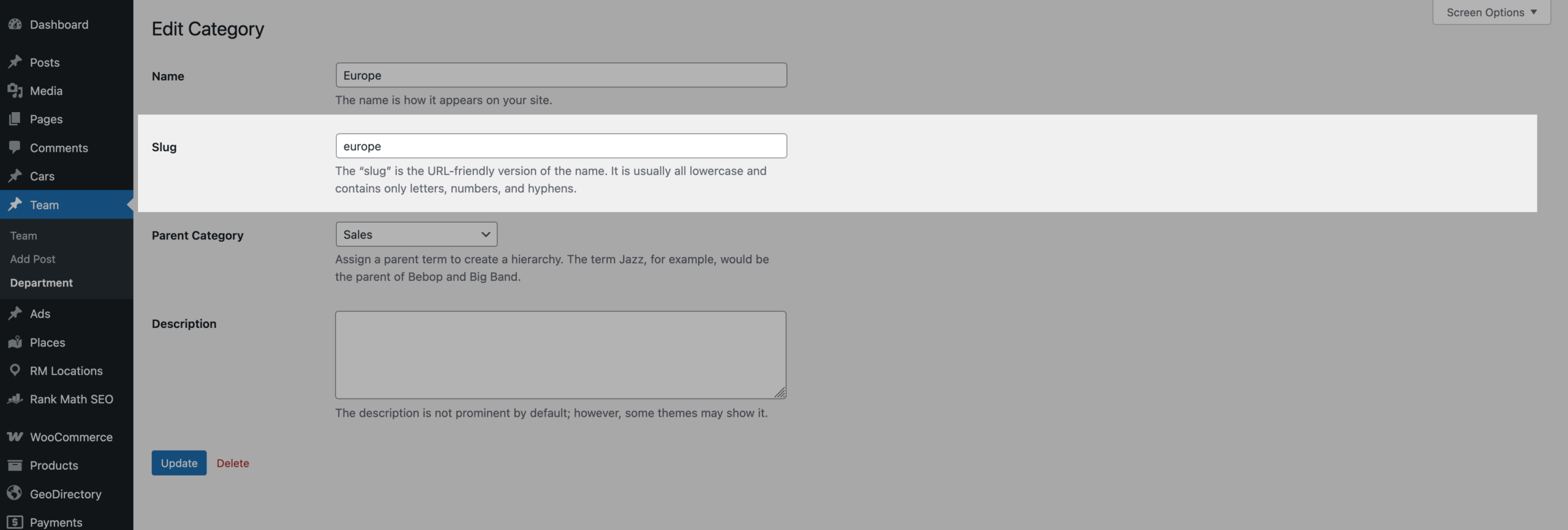
You can manually edit the slug of each taxonomy term in the WordPress admin panel. This is usually enough for simple URL changes when you only need to change the part generated from the term title without changing the permalink structure.
For example:
https://example.com/genres/science-fiction/can be changed to:
https://example.com/genres/sci-fi/To edit a term slug:
- Open WordPress admin dashboard.
- Go to the relevant taxonomy, for example "Team -> Department"
- Select the term you want to modify.
- Enter the new value in the "Slug" field and click "Update" to save your changes.
If the taxonomy is hierarchical and that term has child terms, those URLs update as well to reflect the new parent slug. For example, changing a parent term slug from "europe" to "eu" would update a child term URL from:
https://example.com/department/europe/poland/to:
https://example.com/department/eu/poland/
Change the Taxonomy Base (Rewrite Slug)
The taxonomy slug, also called the rewrite slug, is the base prefix WordPress uses in the URLs of all terms within a taxonomy. For example, changing the taxonomy base from genres to types changes the URL of every term in that taxonomy from:
https://example.com/genres/science-fiction/to:
https://example.com/types/science-fiction/The easiest way to set a new taxonomy permalink structure is to change the taxonomy base in the tool or code you used to register and configure the taxonomy.
For taxonomies created with ACF, Pods, or a similar plugin, you can usually change the rewrite slug from the plugin settings in the WordPress admin dashboard.
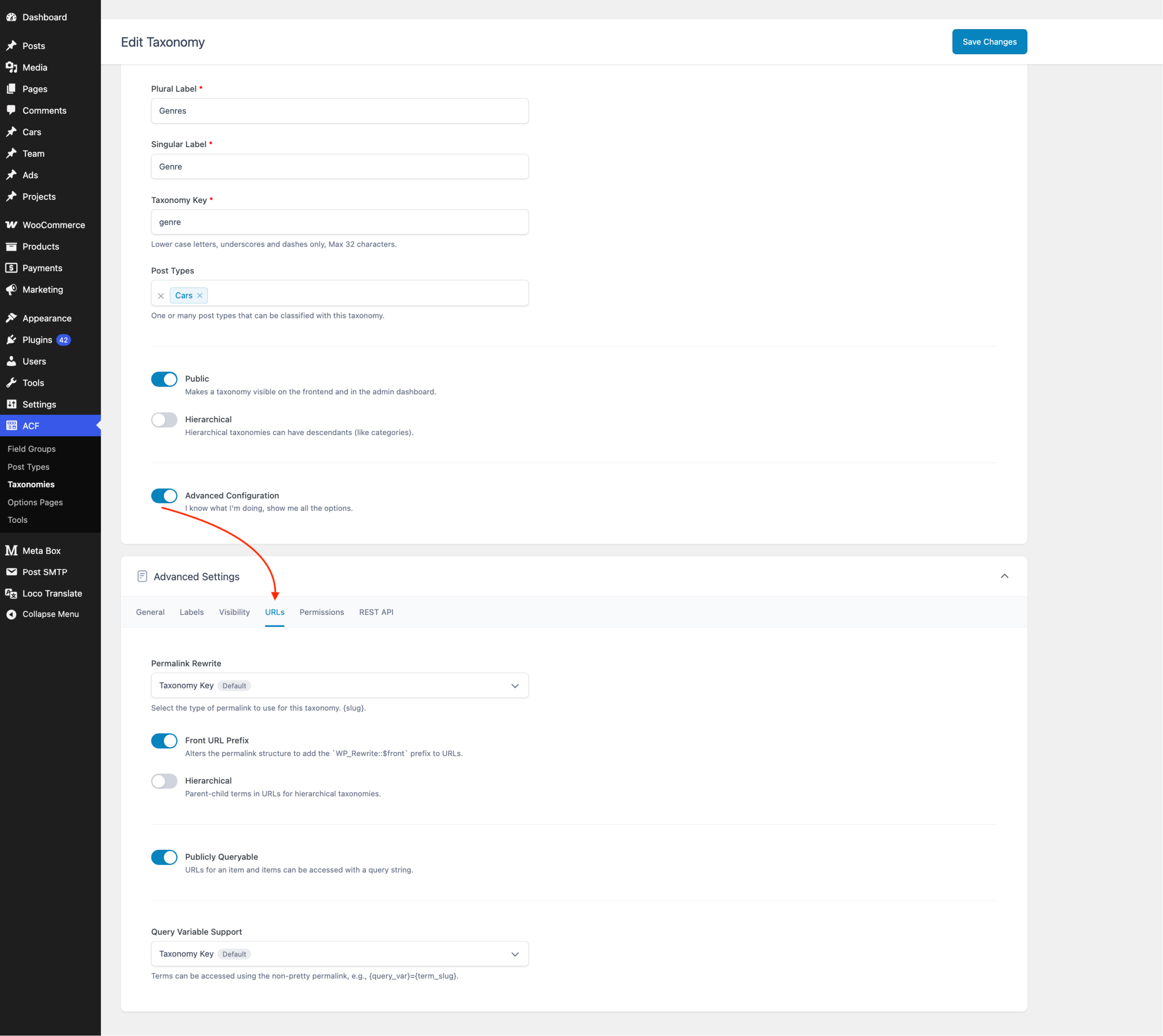
If you registered the custom taxonomy using register_taxonomy(), you can do this directly in your code by setting the slug value in the rewrite argument:
function pm_register_taxonomy() {
	$args = array(
		'labels' => array( 'name' => 'Genres' ),
		'public' => true,
		'hierarchical' => true,
		'rewrite' => array(
			'slug' => 'types', // <== Set a new permalink base here
			'with_front' => false,
			'hierarchical' => true
		),
	);

	register_taxonomy( 'genre', array( 'book' ), $args );
}
add_action( 'init', 'pm_register_taxonomy' );
You can also override the slug for any taxonomy using register_taxonomy_args filter, regardless of whether it was registered in your code or by a plugin or theme:
function pm_change_taxonomies_slug( $args, $taxonomy ) {
	if ( $taxonomy === 'sample-custom-taxonomy' ) {
		$args['rewrite']['slug'] = 'new-permalink-base';
	}

	return $args;
}
add_filter( 'register_taxonomy_args', 'pm_change_taxonomies_slug', 10, 2 );How to Fully Customize Custom Taxonomy URLs with Permalink Manager
If you need to set custom permalinks or create a more advanced permalink structure for custom taxonomies, Permalink Manager Pro is one of the few permalink plugins that supports this out of the box.
It allows you to overwrite the default WordPress permalinks with fully custom formats directly from the admin dashboard, without writing any code.
It also redirects old URLs to their new versions automatically, which helps prevent 404 errors after you change existing taxonomy URLs.
Set a Custom Permalink for an Individual Term
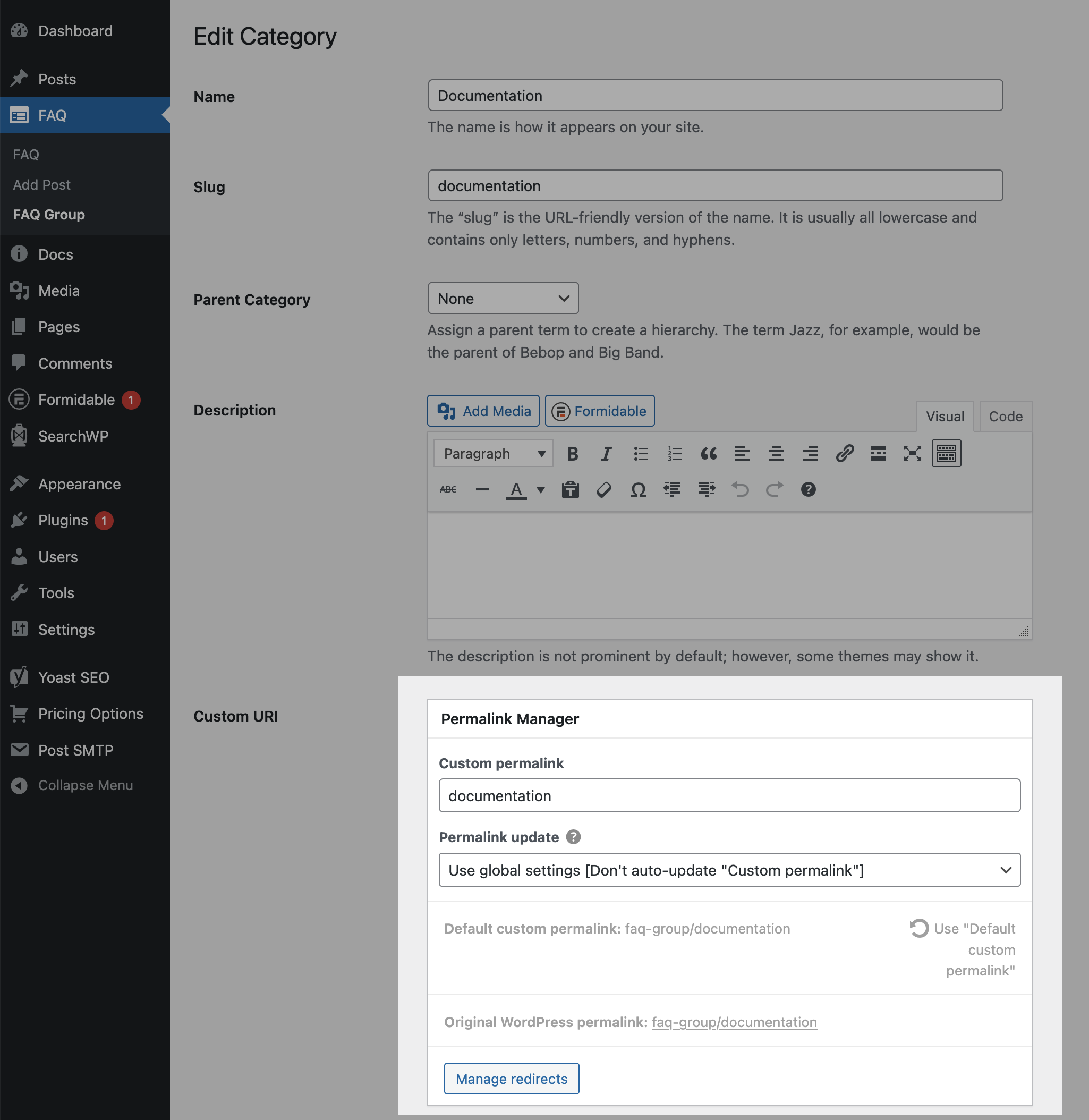
Using Permalink Manager Pro you can change the full URL of an individual taxonomy term, not just its slug, from the same edit screen where you edit the term's title and description.
To access the custom permalink editor:
- Open your WordPress dashboard.
- Go to the taxonomy that contains the term you want to edit.
- Click the term you want to update.
- Enter the new value in the "Custom Permalink" field and save the term.
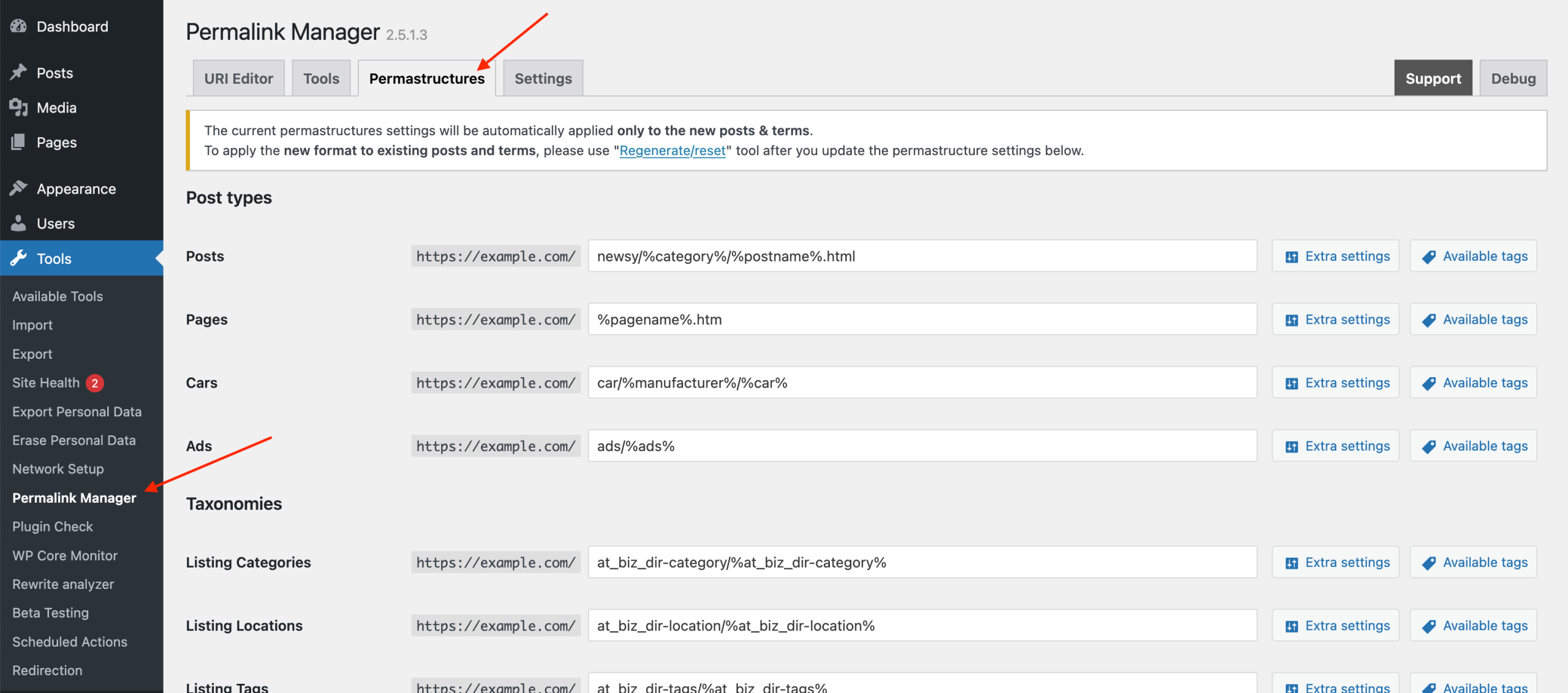
Change the Permalink Structure Without Code
Changing taxonomy rewrite settings can be complicated when taxonomies are registered by different plugins, themes, or custom code, especially when the plugin that registers the taxonomy does not provide an admin option to edit the permalink settings.
Permalink Manager provides a no-code solution that lets you change or overwrite custom taxonomy permalink structures directly from the WordPress admin dashboard.
You can use it to set-up fully customized URL structures, such as removing the custom taxonomy slug or using the same permalink structure for multiple content types.
Advanced URL Structures
Remove the Taxonomy Slug from Term URLs
By default, WordPress includes the taxonomy rewrite slug in every custom taxonomy term URL. For example:
https://example.com/property-type/seaside-houses/WordPress does not provide a built-in option to remove the taxonomy base from custom taxonomy URLs, so you cannot directly change it to:
https://example.com/seaside-houses/The taxonomy base is not only a visual part of the URL. WordPress also uses the URL structure to determine what type of content a request refers to. For example, you may have:
/articles/for posts;/product/for custom post type items;/genres/for custom taxonomy archives;
WordPress can use these URL patterns to distinguish between different content types, which helps it resolve requests efficiently and avoid unnecessary database queries.
To remove a custom taxonomy base without URL conflicts or 404 errors, you need either a custom code solution or an additional plugin that can work around the limitations of WordPress rewrite rules.
One plugin that can remove the taxonomy slug from term URLs is Remove Taxonomy URL. It may be a good option for smaller websites, but its URL parsing process uses additional SQL queries to identify the matching taxonomy term, which can affect page load times on larger websites.
Add Taxonomy Terms to Custom Post Type URLs
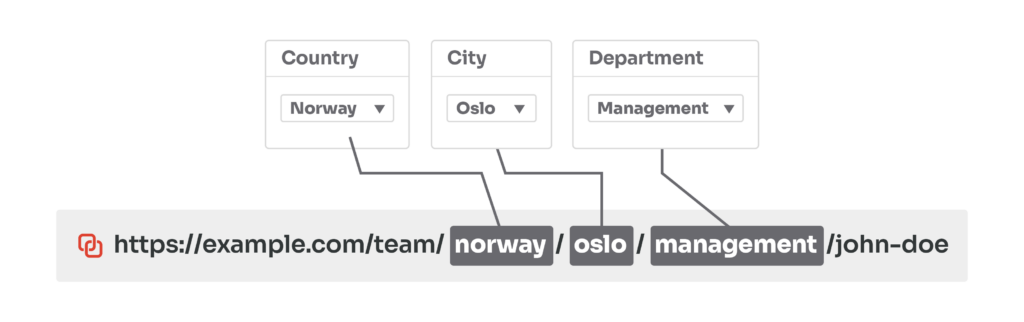
A custom taxonomy can be useful not only for taxonomy archive URLs, but also as part of a custom post type permalink. For example, a team custom post type might normally use a URL like:
https://example.com/team/john-doe/To provide more context for the URL, you can include the team member’s location and department as additional URL elements:
https://example.com/norway/oslo/management/the-hobbit/or:
https://example.com/team/norway/oslo/management/the-hobbit/Changing the taxonomy's rewrite slug is not enough to create this structure. WordPress needs to recognize the taxonomy value as a dynamic part of the custom post type URL so it can resolve the URL to the correct custom post type item.
You can implement this structure with custom rewrite rules, but maintaining them can become difficult when a site uses multiple taxonomies or custom post types.
FAQ
Why Does Taxonomy Archive Show a 404 Error After Changing Permalinks?
Sometimes, after changing the custom taxonomy permalink format, the expected URLs do not work and display a 404 page instead. This usually happens because the old rewrite rules are still active in the database.
Rewrite rules in WordPress are cached in the database and do not update on their own after permalinks change. To flush them, open "Settings -> Permalinks" in the admin panel and click "Save Changes" with no other changes applied.
You usually need to flush rewrite rules after:
- Changing the rewrite slug inside
register_taxonomy() - Enabling or disabling the 'hierarchical' rewrite setting parameter
What Is a Custom Taxonomy in WordPress?
A taxonomy is a way to group content. WordPress ships with two built-in ones: categories and tags. A custom taxonomy is a way to organize content beyond the default categories and tags.
Each term within a taxonomy gets its own archive page, which functions as a listing page for all content assigned to that term. They are really helpful when you are working with custom post types and want to structure them in a way that makes better sense for your content.
When you register a custom taxonomy in WordPress, it is non-hierarchical by default unless you explicitly change that setting.
- A hierarchical taxonomy allows parent and child terms, just like standard Categories. For example, you could have a "Location" taxonomy. Inside it, you have "USA" (parent) and "New York" (child).
- Non-hierarchical taxonomies behave like Tags. All terms stay on the same level, without parent-child relationships. For example, an "Actors" taxonomy usually lists individual actors, where none of them belongs under another.
If you set up a taxonomy as hierarchical, with parent and child levels, WordPress reflects the parent-child structure in the URL. That means a term "New York" nested under "USA" would appear in the URL as /usa/new-york/.
Leave a Reply