Have you changed a theme, installed a plugin, or registered a new custom post type and suddenly started seeing 404 errors?
Flushing the rewrite rules makes WordPress regenerate them based on your current permalink settings and the content types registered by your plugins and theme.
This guide explains what rewrite rules are, when you need to flush them, and how to do it using the WordPress admin, WP-CLI, PHP, or the database.
How to Flush Rewrite Rules in WordPress
Flush via WordPress Admin Dashboard (Easiest)
This may not be obvious if you are not familiar with WordPress, but as long as you have admin access, the easiest way to flush the rewrite rules is through the built-in "Permalinks" settings page.
WordPress does not provide a separate control for flushing rewrite rules and it will regenerate the rewrite rules regardless of whether any permalink settings were changed.
- Open the WordPress admin panel.
- Go to Settings > Permalinks.
- Click Save Changes without changing the permalink settings.
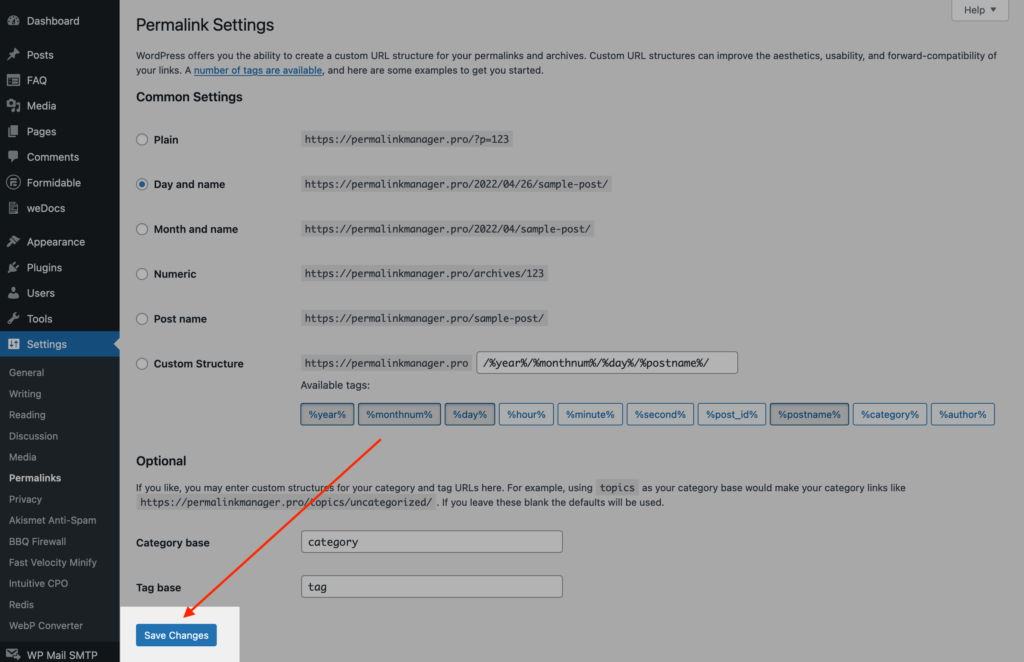
Saving the permalink settings causes WordPress to regenerate its rewrite rules. On Apache servers, WordPress may also update the .htaccess rules used to process pretty permalinks.
Flush via WP-CLI Command Line
If you use WP-CLI in your workflow, you can flush the rewrite rules with a single command:
wp rewrite flushBy default, this command refreshes the rewrite rules stored in the database. On an Apache-based server that uses an .htaccess file, add the --hard flag to update the file as well:
wp rewrite flush --hardReset Rewrite Rules via Database (phpMyAdmin)
If you do not have access to the admin dashboard but can access the database used by the site, you can clear the rewrite rules directly from the database.
The generated rules are stored in the rewrite_rules option in the wp_options table. The table prefix may differ from wp_, so use the prefix configured for your website.
To remove the stored rewrite rules using phpMyAdmin:
- Open phpMyAdmin and select the database used by WordPress.
- Open the
wp_optionstable, replacingwp_with your actual database table prefix (if necessary). - Find the row where option_name is
rewrite_rulesand delete it.
The same result can be achieved using a single SQL query:
DELETE FROM wp_options
WHERE option_name = 'rewrite_rules';
Deleting the stored rules forces WordPress to rebuild them from the current configuration instead of using the previously stored set.
What Are Rewrite Rules in WordPress?
WordPress rewrite rules define how URL structures are connected to content types and database requests. When a visitor opens a permalink, WordPress checks the URL against the available rewrite rules.
If the URL matches a rule, WordPress converts the URL pattern into a query, loads the correct template, and displays the exact page the visitor asked for.
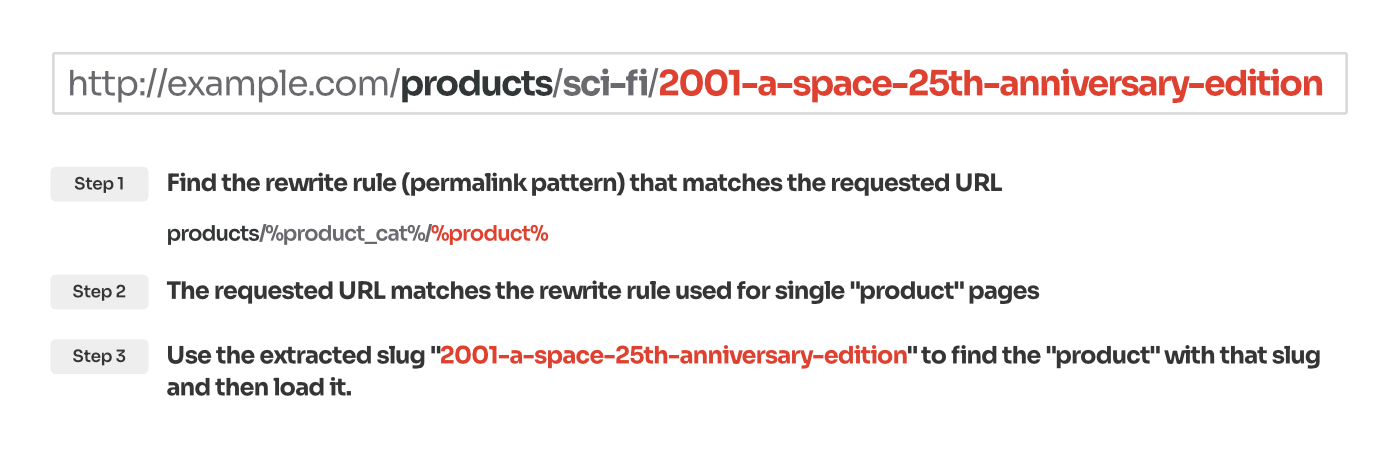
For example, a URL such as:
https://example.com/sample/page
can match the URL structure used by standard pages.
WordPress extracts the page slug and looks for a page with that slug in the database. If a matching page is found, WordPress displays it. If no matching page exists, it returns a 404 error.
For built-in content types such as posts, pages, categories, and tags, WordPress generates rewrite rules automatically. Custom post types and taxonomies also use separate rewrite rules unless they are configured as non-public or set not to use pretty permalinks.
These rewrite rules help WordPress identify the content type from the permalink structure in the requested URL. Based on this information, WordPress can determine where to search for the requested content before running a database query.
When Should You Flush Rewrite Rules?
WordPress may need its rewrite rules flushed after changes that affect URL structures or content types. Common examples include:
- Changing the permalink structure through the WordPress permalink settings.
- Adding or modifying custom post types or taxonomies.
- Installing or updating plugins or themes that register or modify URL structures.
- Migrating a WordPress website to another server or hosting environment.
- Changing redirects or other URL-related settings.
Why Does Flushing Rewrite Rules Fix 404 Errors?
Changes such as installing a plugin, activating a theme, or registering a custom post type or taxonomy can add new URL structures to your website. These changes do not automatically regenerate the rewrite rules used for URL routing.
If a visitor opens a URL that uses a new structure, WordPress cannot determine which content to load from the database. The request then results in a 404 Page Not Found error.
This happens because WordPress caches rewrite rules in the database to avoid regenerating them on every request. Rebuilding the rules on each request would add unnecessary server overhead and may increase page load time.
Flushing the rewrite rules can fix issues caused by outdated rules. WordPress removes the existing rules from the database and generates a new set based on the current permalink settings.
However, this does not resolve conflicts between permalink structures. If two content types use the same URL pattern, the conflicting rules will still be present after the flush.
What If Flushing Rewrite Rules Does Not Fix the 404 Errors?
If the errors remain after you flush the rewrite rules, the issue likely lies elsewhere. The appearance of a 404 error page can help identify whether the problem is caused by WordPress rewrite rules or by the web server configuration.
- The 404 page uses your theme’s layout, with your logo, menu and footer:
WordPress processed the request but could not match the URL to any content. The usual cause is two content types sharing the same URL structure, such as a page and a custom post type with the same slug, or a URL that was changed without a redirect.See what causes permalink conflicts and how to fix them.
- The 404 page shows plain text instead of your website’s normal layout:
This indicates that the web server may have rejected the URL before WordPress could handle it. On Apache, check whether the.htaccessfile exists, is writable, and has not been overwritten by a plugin. On NGINX, check that the server configuration sends requests to index.php.For troubleshooting steps, see how to fix server-level 404 errors on Apache and NGINX.
Leave a Reply