Elementor's content editor may fail to load if rewrite rules or permalink settings for different post types or taxonomies conflict on your WordPress website.
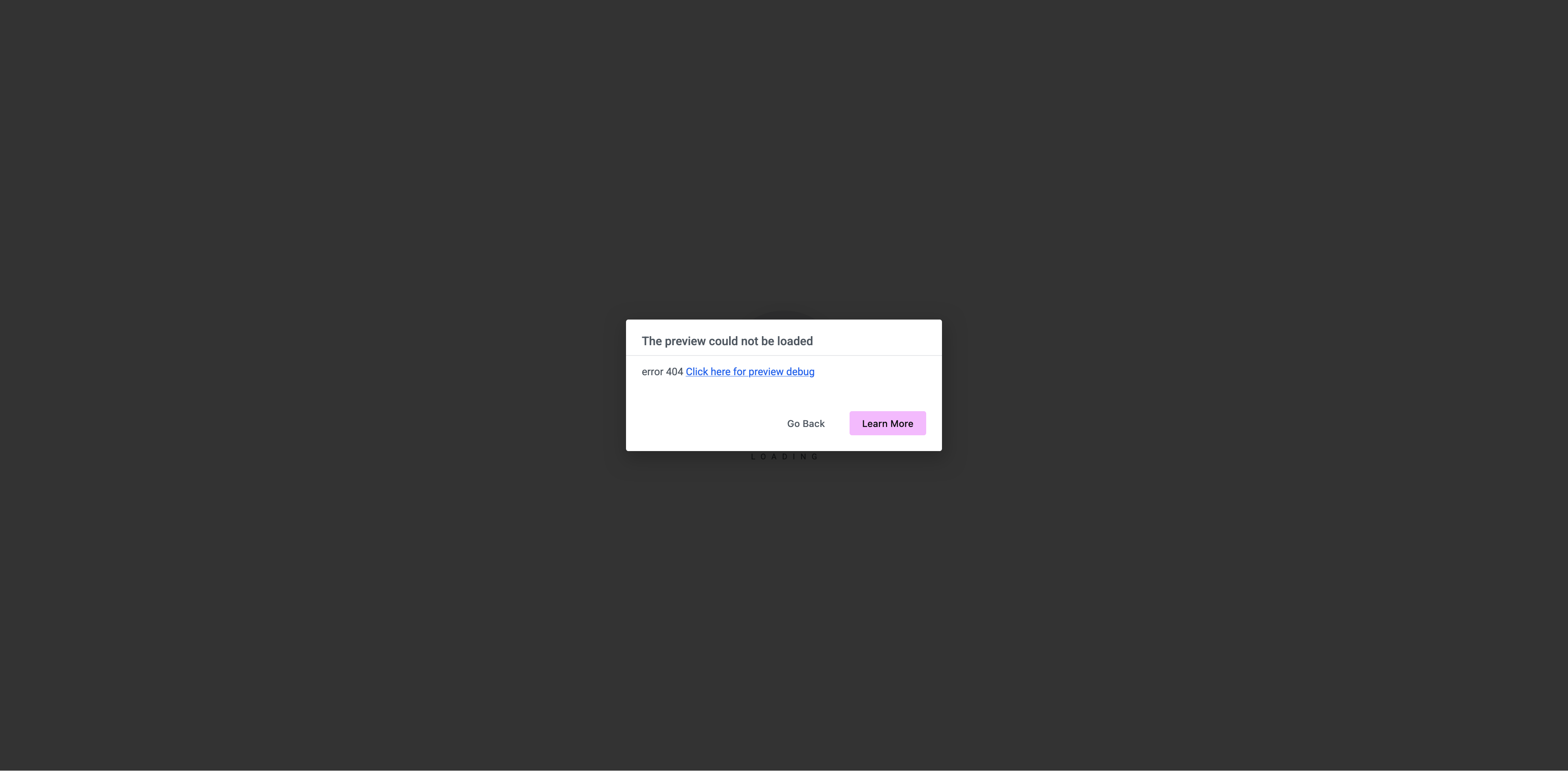
This usually happens when two or more content types use the same or similar URL structure. When Elementor tries to open the Editor, WordPress may not be able to determine which page the preview URL should point to. Elementor then shows the "The preview could not be loaded" error.
This is not the only possible cause of this error. It can also result from PHP or JavaScript errors, memory limits, and other issues. The code snippet below can help you determine whether a URL conflict is causing the problem and restore access to the Elementor editor.
When WordPress Permalink Settings Break Elementor Preview URLs
When you edit a page or post, Elementor loads the content using its actual permalink. It does this through a preview URL that WordPress normally resolves, for example:
https://example.com/my-page/?elementor-preview=123&ver=1661758449
When WordPress processes this URL, it must determine which post type or taxonomy the URL refers to. This can cause problems on websites that use multiple custom post types and taxonomies with overlapping permalink structures.
In such cases, the URL may match more than one rewrite rule. If WordPress cannot resolve the URL correctly, the request may load the wrong content, trigger a redirect, return a 404 error, or redirect to a different URL.
This can prevent Elementor from loading the editor preview and may result in symptoms such as:
- Elementor loading indefinitely
- A "The preview could not be loaded" error
- A 404 error response
- Elementor loading the wrong content
How to Fix Elementor Preview Broken by URL Conflicts
Finding out why the Elementor editor fails to load is not always easy. Before overriding the preview URL with a code snippet, try the quick checks below.
In many cases, flushing the rewrite rules or enabling "Safe Mode" can help identify the source of the problem and point you in the right direction.
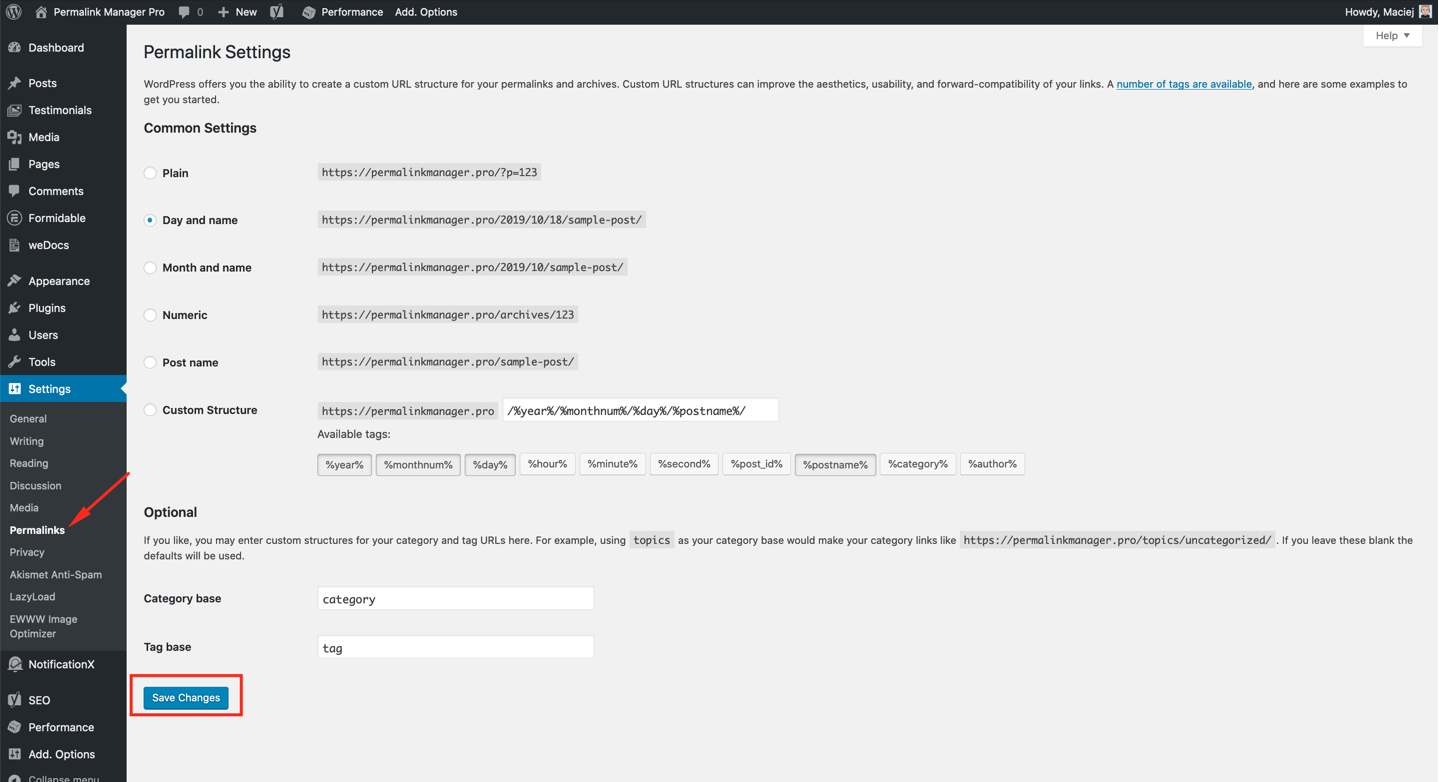
Flush Rewrite Rules First
Sometimes, the conflict comes from stale rewrite rules rather than an permalink conflict. In these cases, simply flushing the rewrite rules may be enough to resolve the issue.
Use Elementor Safe Mode
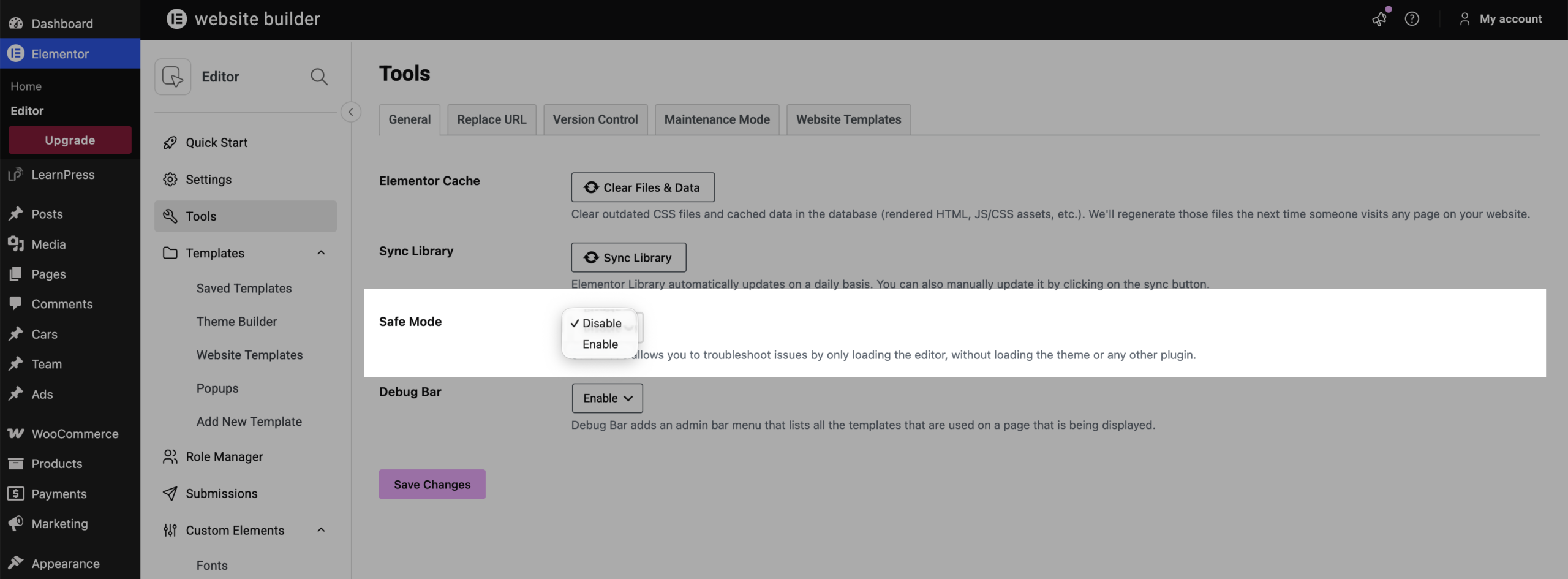
Elementor includes a useful Safe Mode that can help you troubleshoot issues by loading the editor without scripts added by your active theme or third-party plugins.
To troubleshoot the issue, enable this option in "Elementor → Editor → Settings → Tools" and try editing the affected page again.
- If the editor works in Safe Mode, a plugin or theme is likely causing the problem. To find out which plugin is causing the issue, the simplest approach is to deactivate the plugins one by one and try to open Elementor without Safe Mode enabled.
- If the editor still does not work with Safe Mode enabled, the issue may be related to your server configuration or a URL conflict.
Check Available PHP Memory
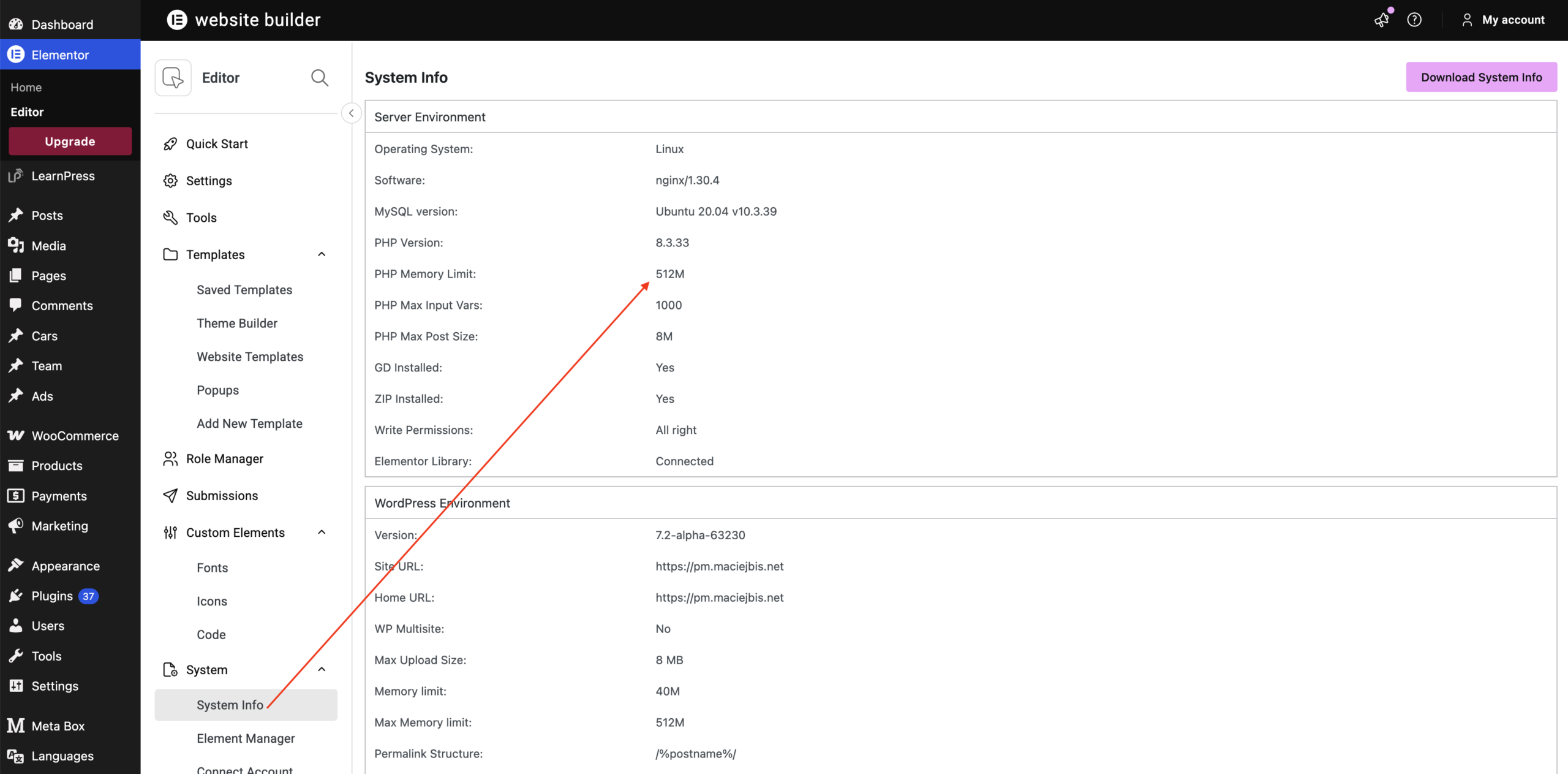
A common issue with Elementor, especially on websites with many active plugins, is insufficient PHP memory. This is worth checking if other pages in your WordPress admin area are also taking a long time to load.
You can check the available PHP memory directly in the plugin settings under "Elementor → Editor → Settings → System".
How to Debug the Elementor Preview URL
If the problem persists after the above troubleshooting step, you can try to override the Elementor preview URL and force WordPress to use it without relying on conflicting rewrite rules or permalink settings.
The code also disables WordPress's canonical redirect while the Elementor preview is loading. This prevents WordPress from changing the preview URL and potentially blocking the Elementor editor from opening.
If the editor opens correctly after you implement the snippet, the problem is caused by conflicting rewrite rules that interfere with the Elementor editor.
The Code Workaround
Please note that this snippet is only a workaround. It can help you determine whether a URL conflict is preventing Elementor from loading the editor.
For a permanent fix, identify the post types, taxonomies, plugins, or custom rewrite rules causing the conflict and adjust their permalink settings.
Leave a Reply