The MyListing theme registers its own custom post types and taxonomies. By default, you have very little control over how their URLs are structured. Listings, categories, regions, and tags all use the standard permalink format defined by WordPress.
This article explains how Permalink Manager lets you customize MyListing permalinks, including how to incorporate region and category information into listing URLs.
It also includes a small code snippet that replaces taxonomy term URLs with the URL of a selected custom landing page, helping you avoid an extra redirect that can affect both SEO and the user experience.
How Permalink Manager Improves MyListing Permalinks
Once activated, it allows you to define custom permalink structures for all post types and taxonomies registered by the theme. Instead of using the default URLs generated by the theme, you can define your own structure.
This allows you to create cleaner, more organized URLs like /restaurants/new-york/joes-pizza/, and use the same format throughout your site without editing each item individually.
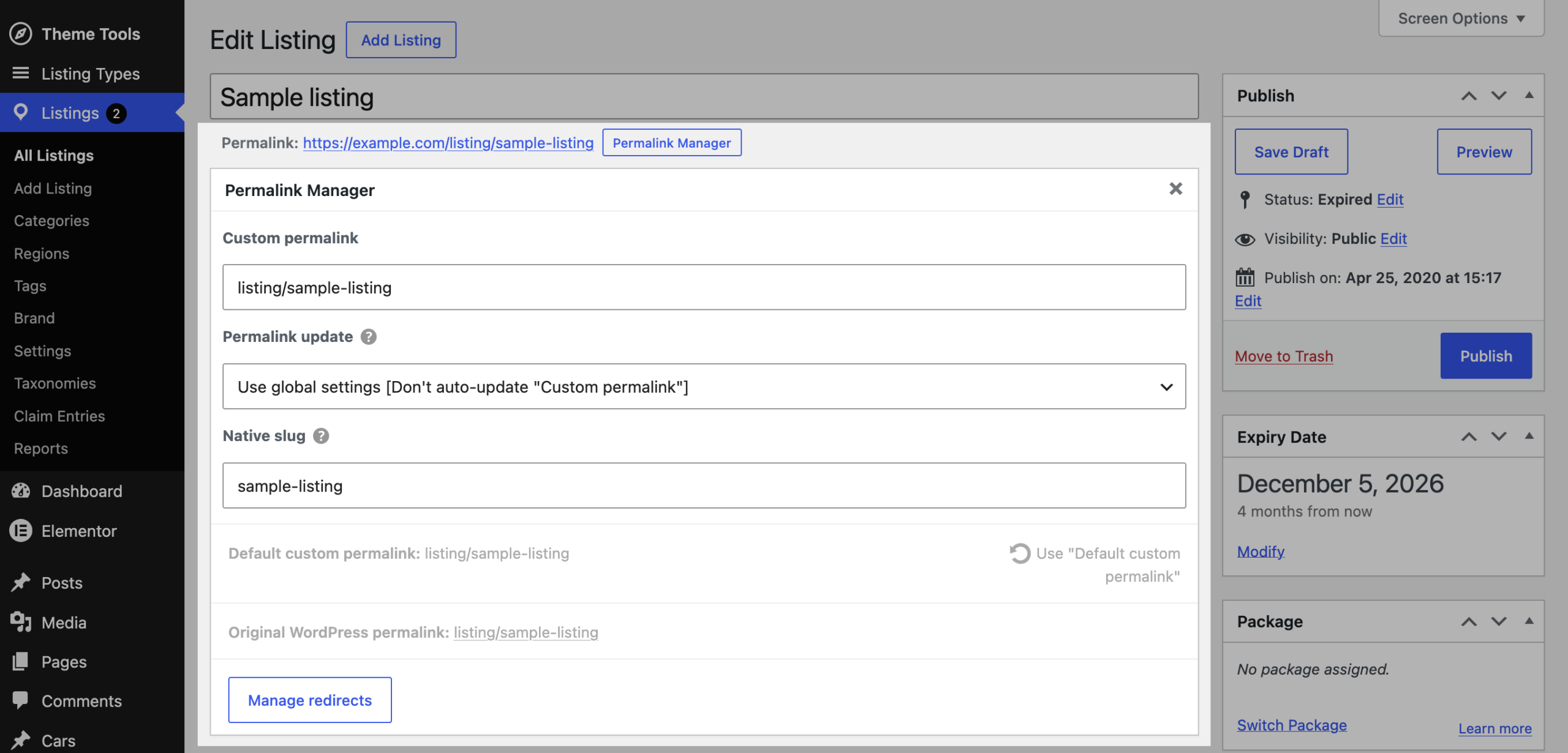
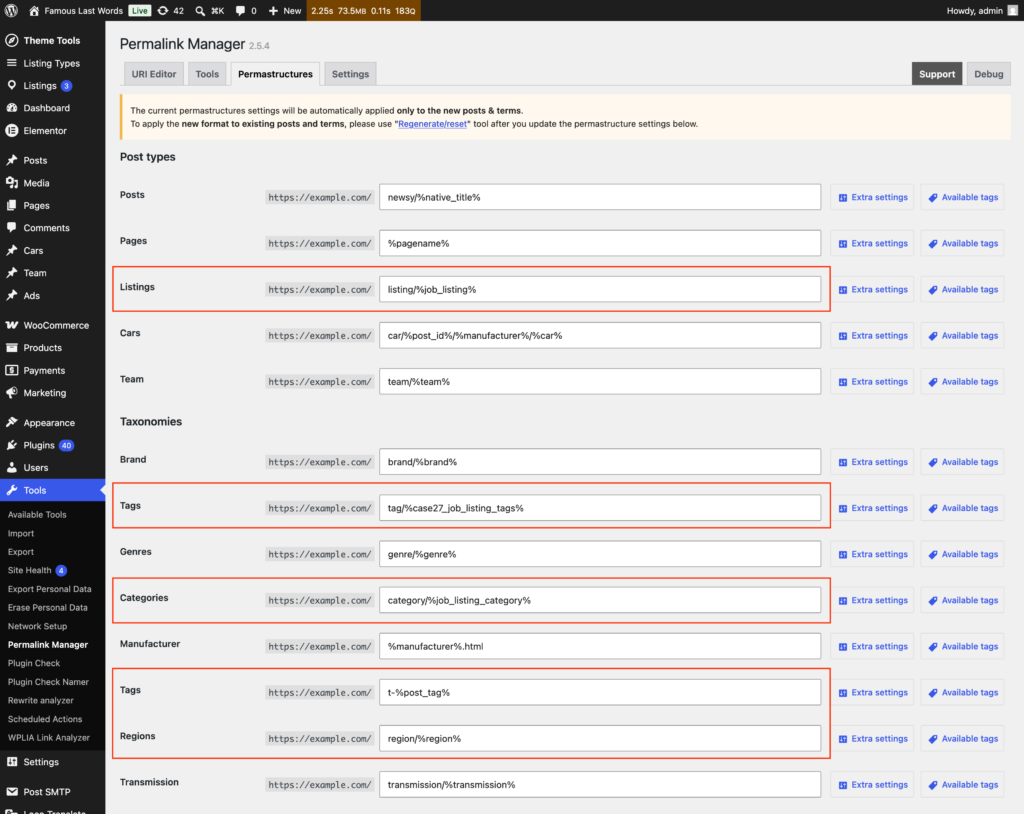
The plugin supports not only individual listings using the job_listing post type, but also all MyListing taxonomies, including categories, tags, regions, and any custom taxonomies created through the theme settings.
If needed, you can also override the permalink for a specific listing item or term when you need a custom URL.
Adding Region and Category Data to Listing URLs
When configuring permalink formats for MyListing listings or their taxonomies in Permalink Manager, you can use more than just the listing name. The job_listing post type supports extra tags that let you add taxonomy slugs and custom field values to the generated URLs.
These are the tags available for listings:
| Permastructure tag(s) | Replaced with |
|---|---|
%listing-type% or %listing_type% |
The listing type's name. |
%listing-type-slug% or %listing_type_slug% |
The raw listing type slug. |
%listing-location% or %listing_location% |
The listing's location. |
%listing-region% or %listing_region% |
The full slug of the listing's assigned region term (with its parent terms included). |
%listing-category% or %listing_category% |
The full slug of the listing's assigned job_listing_category term (with its parent terms included). |
You can use tags with either a hyphen or an underscore. Both %listing-type% and %listing_type% refer to the same tag.
Custom Landing Pages for Taxonomy Terms
Normally, visitors opening a taxonomy page from an archive are taken to the standard Explore page. If you prefer not to use the default layout from the MyListing theme, you can take advantage of the included Custom Landing Page option.
This feature works with listing categories, regions, tags, and custom taxonomies. It allows you to create a separate landing page for each individual term, so visitors are shown the page you have selected instead of the default archive page.
You can build these pages using Elementor, the Block Editor, or any other page builder you already use.
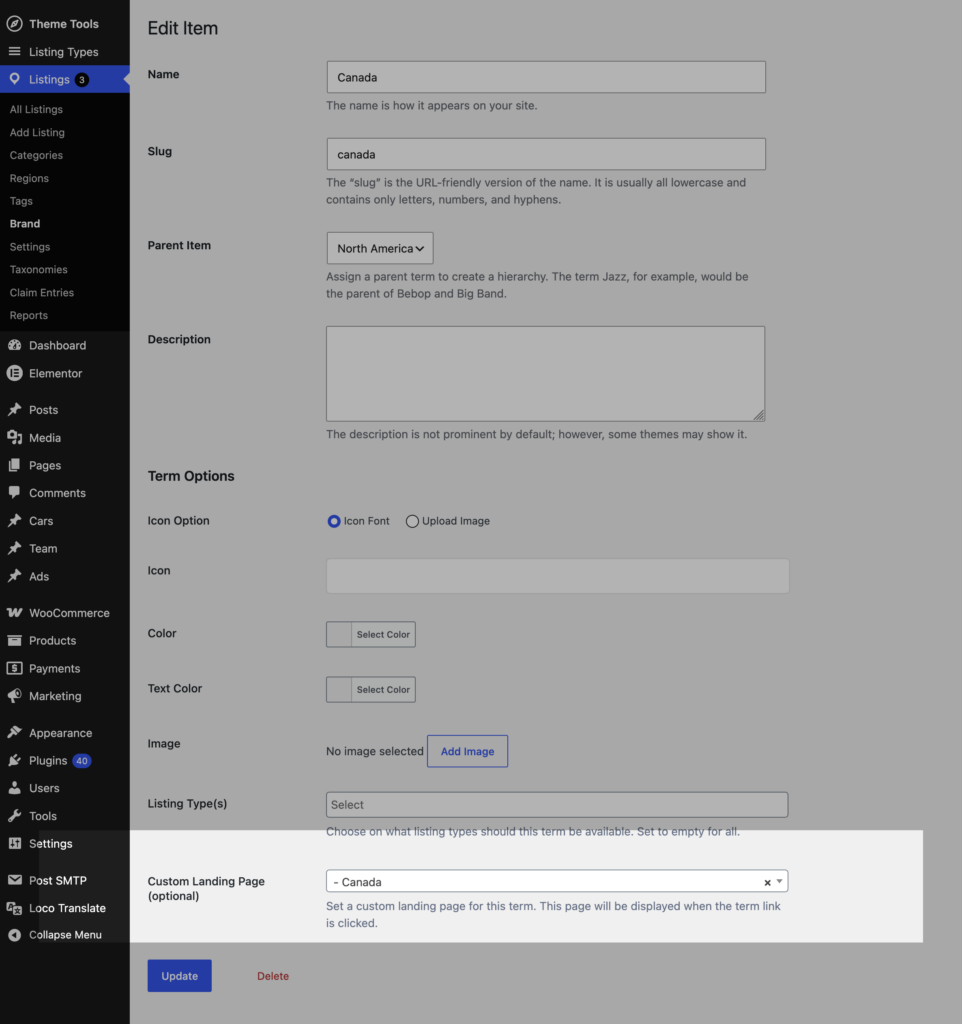
The main drawback is how MyListing handles these pages. It redirects the archive URL to the landing page, which requires an additional browser request. This adds extra load time and can negatively affect the browsing experience and SEO.
The snippet below changes how the term URL works. Instead of sending visitors through a redirect, it updates the URL itself with the WordPress term_link filter and points it directly to the landing page.
This solution avoids an additional request and does not depend on any external plugin, club memberships or paid subscriptions.
How to Prevent Taxonomy Archive Redirects with Custom Landing Pages
This snippet changes how taxonomy term URLs work when a Custom Landing Page is selected. This prevents the link from triggering the MyListing theme’s archive-to-page redirect.
Add the snippet to the functions.php file of your MyListing child theme.
/**
* Point MyListing taxonomy terms that have a custom "Landing Page" assigned
* directly to that page, avoiding the theme's extra 301 redirect.
*/
add_filter( 'term_link', function ( $term_link, $term, $taxonomy ) {
	// Limit this to the taxonomies registered by the MyListing theme
	$ml_taxonomies = array( 'job_listing_category', 'region', 'case27_job_listing_tags' );

	if ( function_exists( 'mylisting_custom_taxonomies' ) ) {
		$ml_taxonomies = array_merge( $ml_taxonomies, array_keys( mylisting_custom_taxonomies() ) );
	}

	if ( ! in_array( $taxonomy, $ml_taxonomies, true ) ) {
		return $term_link;
	}

	// Read the landing page assigned to the term (same meta key MyListing uses)
	$landing_page_id = get_term_meta( $term->term_id, '_landing_page', true );
	if ( $landing_page_id && is_numeric( $landing_page_id ) ) {
		$landing_page_url = get_permalink( absint( $landing_page_id ) );
		if ( ! empty( $landing_page_url ) ) {
			return $landing_page_url;
		}
	}

	return $term_link;
}, 10, 3 );
Leave a Reply