If your WordPress website redirects a mistyped or incorrect URL to the wrong page, the built-in WordPress canonical redirect functions may be responsible.
The same WordPress content can sometimes be available at more than one URL. Search engines may then treat these URLs as separate pages, which can split ranking signals and lead to duplicate content problems.
Canonical redirects are designed to prevent this by redirecting alternative URLs to the preferred URL. However, this behavior does not work correctly in every setup. This article explains how canonical redirects work, and how to disable them when needed.
Key Takeaways
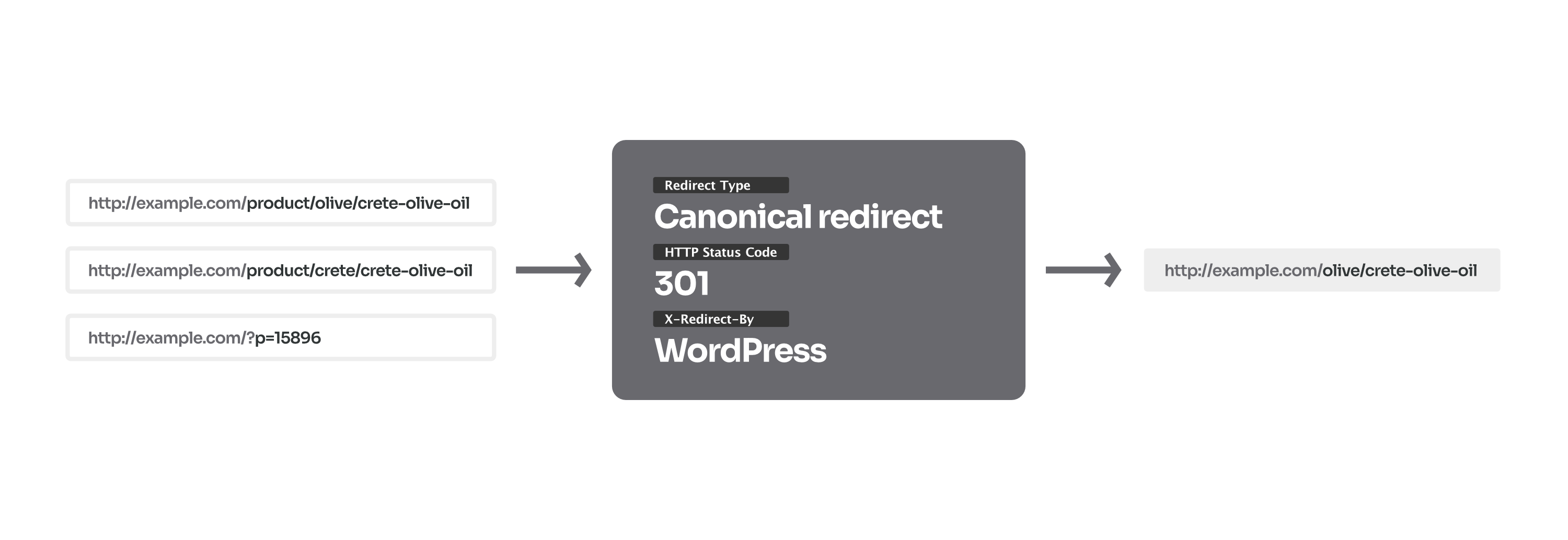
- The main canonical redirect is handled by , which redirects non-canonical URL variants to the preferred one.
- WordPress can also redirect mistyped URLs and old post slugs through and functions.
- There is no dedicated admin setting to disable these built-in redirects, but they can be disabled with extra code snippet.
Why WordPress Can Serve The Same Content Under Many URLs?
WordPress uses a system of rewrite rules (based on regular expressions) to determine what content a visitor is trying to access. When WordPress processes a URL, it only considers the "slug" (the specific name of the post or term in the URL) and searches its database for a match.
This helps when a visitor enters a malformed or incomplete URL, or when tracking parameters or referral tags are appended to the original address, for example:
https://example.com/sample-page/
https://example.com/sample-page?ref=instagram
https://www.example.com/sample-page/1/
The problem is that this approach relies on loose matching. Under certain conditions, when WordPress finds a matching slug, it can load the page from an alternative URL even when the URL is incomplete but the slug is correct.
For visitors, this usually makes no noticeable difference if they reach the page they were looking for. Search engines, however, need to know which URL version you want them to treat as the primary one for indexing and displaying in search results. This signal comes from the canonical tag and the canonical redirect.
What Is a Canonical Redirect in WordPress?
By default, WordPress adds a meta tag to the HTML source that tells search engines which URL should be treated as the preferred one. If the same page can be accessed through multiple URLs, WordPress redirects visitors from the other URL variants to the preferred URL with the redirect_canonical() function.
This helps prevent duplicate content issues and preserves SEO value ("juice") from backlinks when URLs are updated or changed. It also helps search engines avoid crawling multiple near-identical or outdated URLs, which can waste crawl budget.
Without a clearly defined canonical URL, search engines may interpret each URL variant as a separate page, which can lead to duplicate content issues and dilute ranking signals across multiple URL variants.
How Does Canonical Redirect Work in WordPress
WordPress uses the redirect_canonical() function to prevent duplicate content by sending visitors from alternative URLs to a single canonical permalink. It runs on the template_redirect action, before any template files load.
You can test the canonical redirect by opening any post or page using its default ID-based URL, which contains the post ID in the query string.
Default ID-based URL:
https://example.com/?p=123
If the canonical redirect is enabled, WordPress recognizes this URL as an alternative URL for the same content and redirects the visitor to the canonical permalink:
Canonical permalink (redirect target):
https://example.com/canonical-permalink-of-page-with-id-123/
How to Identify Canonical Redirects
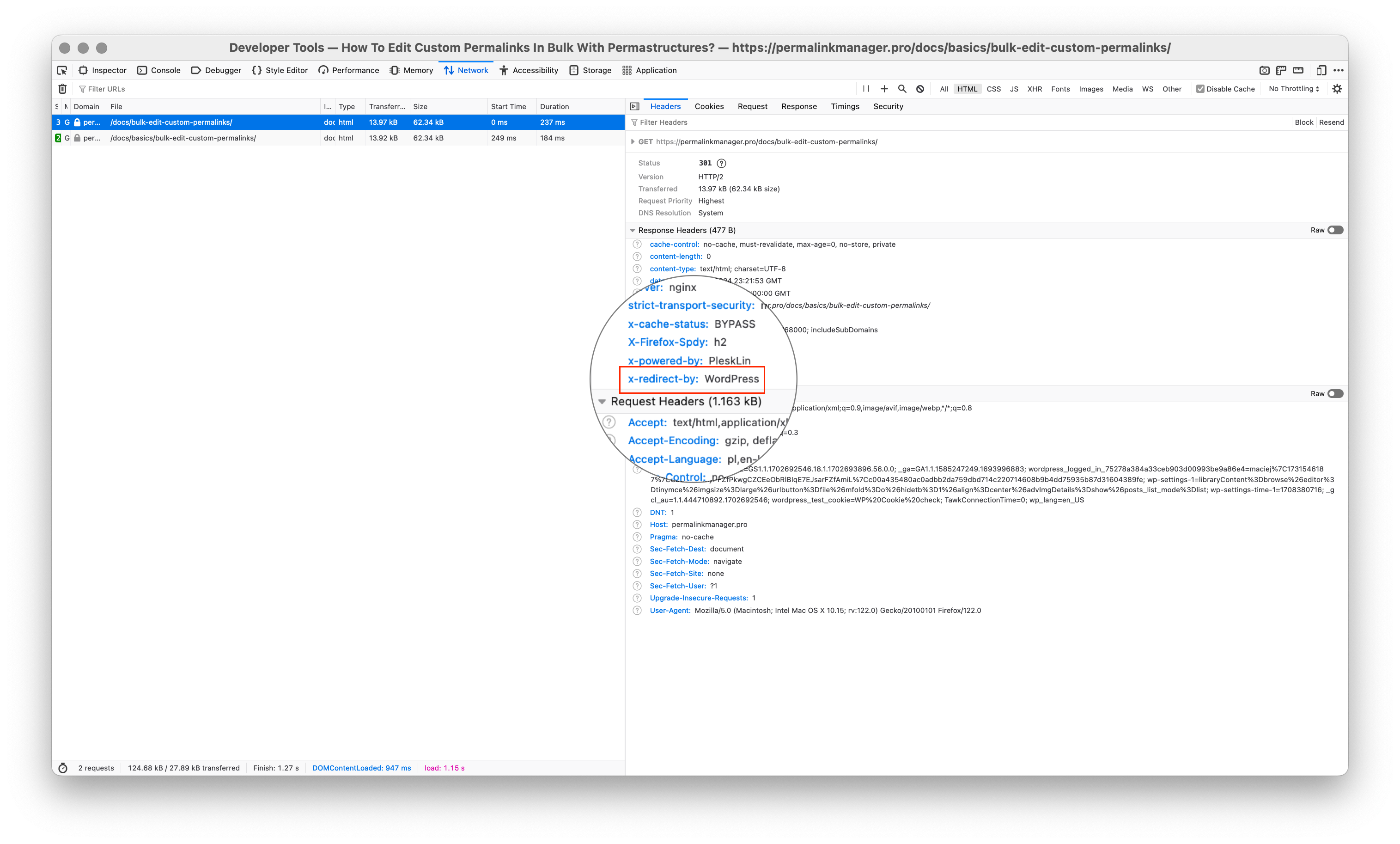
WordPress adds an extra HTTP header to redirects triggered by its core, including canonical redirects. You can use this header to identify and troubleshoot redirect loops and other invalid redirects.
If the HTTP response does not include the X-Redirect-By header, or its value is anything other than WordPress, you can rule out the built-in canonical redirect as the source of that redirect.
How to Disable Canonical Redirect
The canonical redirect is enabled by default, and WordPress does not provide a dedicated setting in the admin dashboard to disable it.
WordPress hooks this function to the template_redirect action. The simplest way to disable the canonical redirect is to unhook it from that action with the following code snippet.
remove_action( 'template_redirect', 'redirect_canonical' );If this does not work, you can also "deactivate" it using dedicated
redirect_canonical
filter:
add_filter( 'redirect_canonical', '__return_false' );Why WordPress Redirects Mistyped and Invalid URLs
The WordPress.org documentation barely covers this, but alongside the built-in canonical redirect, two additional functions extend it to help prevent 404 errors:
redirect_guess_404_permalink()
and
wp_old_slug_redirect()
.
| Function | Primary Goal | How it Works |
|---|---|---|
redirect_canonical
| Enforces a single canonical URL to prevent "duplicate content" issue. | When a page is requested through a non-canonical (alternative) URL variant, the visitor is redirected to the canonical permalink. |
redirect_guess_404_permalink
| Finds the closest matching content when a URL would otherwise return a 404 error. | When the requested URL does not match any content, WordPress tries to find a post with a similar slug and redirects the visitor to it instead of returning a 404 "error". |
wp_old_slug_redirect
| WordPress stores previously used slugs and redirects any old URL containing them to the current permalink. |
The additional functions are designed to handle edge cases and redirect visitors when the standard canonical redirect does not apply, such as when they mistype a URL or follow an outdated link.
How WordPress Guesses the Correct Page from a 404 Error
The redirect_guess_404_permalink() function runs when you request a URL that does not exist and would normally return a 404 error, for example because of a typo or a broken link. If the function finds a similar URL, it redirects you to that page and tries to correct the requested address.
URL with the typo:
https://example.com/product/shirits/cotton/pique-polo
Canonical URL (redirect target):
https://example.com/product/shirts/cotton/pique-polo
This "guess-redirect" feature can improve the user experience and reduce the chance that visitors leave your site after seeing an unexpected 404 error.
If you find that some URLs redirect visitors to incorrect pages or posts, or you simply do not need this behavior, you can disable it with a code snippet.
How WordPress Redirects Old Slugs to New URLs
By default, when you change a slug, WordPress uses the wp_check_for_changed_slugs() function to store the previous slug in the database as an
_wp_old_slug
custom field.
When someone visits a URL that WordPress does not recognize, wp_old_slug_redirect() checks whether the URL contains a slug that was previously used by any page. If it finds a match, WordPress redirects the visitor to the page’s current canonical permalink.
Here is a simple example of how this works. Let us assume we created a page called "Cape Verde" and WordPress generated the slug "cape-verde" from it.
Old URL:
https://example.com/africa/cape-verde/
Then we modified the title and native slug to "Cabo Verde" and "cabo-verde" respectively. The original slug "cape-verde" was kept in the database, and now anyone accessing the old URL (see above) will be forwarded to the new one (see below).
Redirect target URL:
https://example.com/africa/cabo-verde/
When Old Slug Redirect Can Fail
The built-in “old slug redirect” works well in most standard setups, but it is not a fully reliable solution. The main issue is that WordPress does not provide a convenient way to review or manage all stored old slugs from the admin dashboard.
It can also add unnecessary records to your database. WordPress stores old post slugs in the
wp_postmeta
table, and over time, these records can add up to hundreds or even thousands of DB rows.
There are a few other limitations you should keep in mind:
- If a slug is changed outside the WordPress editor, for example through a bulk update tool or a direct database import, WordPress does not record the old slug. The "_wp_old_slug" entry is never created, so the redirect does not fire.
- The redirect also requires an exact URL match. The native lookup checks whether the stored old slug matches the incoming URL precisely. Even a one-word difference is enough for it to fail.
- It also does not apply to content moved from another CMS. If posts were migrated from a different platform, there are no "_wp_old_slug" entries in the database, so WordPress has nothing to redirect from.
For these reasons, you may prefer to disable the built-in redirect and use a more reliable fallback redirect solution. This can give you better control over redirects while keeping your database free from unnecessary old-slug entries.
How to Disable Automatic Redirects for Mistyped and Old URLs
You can disable these functions if WordPress starts redirecting invalid URLs to random pages, or if you already manage URL redirects with another plugin or server-level rules.
They cannot be disabled from the WordPress admin dashboard, but you can turn them off by adding a simple code snippet to your website.
# Disable "old slug" redirection
remove_action( 'template_redirect', 'wp_old_slug_redirect' );
# Prevent "old slug" from being saved
remove_action( 'post_updated', 'wp_check_for_changed_slugs', 12);
remove_action( 'attachment_updated', 'wp_check_for_changed_slugs', 12 );
# Disable "guess 404 permalink" redirection
add_filter( 'do_redirect_guess_404_permalink', '__return_false' );
Frequently Asked Questions
Why Does My Old URL Still Appear in Google Search Results?
The old URL may still appear in Google search results after you activate the canonical redirect. This does not necessarily mean that the redirect is not working. Google will not immediately remove the old URL from its search results.
This delay is intentional. Websites can experience temporary technical issues or downtime, so Google gives site owners time to fix these issues before removing URLs from its index.
Google also crawls larger websites more frequently than smaller websites with less organic traffic. If your website receives little search traffic, Google may take longer to recrawl the affected URL.
Once you have set the correct canonical URL and activated the canonical redirect, Google should eventually remove the old URL from its search results. You can find more information about how Google handles redirects and indexing in the official Google Search Central documentation.
What Is A 301 Redirect?
Whenever you try to access any website address (URL), your browser sends a request to that URL's server. However, sometimes the server might tell your browser that this page has permanently changed to a new URL.
In the world of HTTP redirects, a "301" code simply indicates "moved permanently". Simply put, an HTTP redirect instructs your browser to go to a different URL rather than the one you intended to visit.
A 301 redirect can be useful for SEO when you move a page. Without a redirect, search engines may still find the old URL and index the new URL as well. This can cause multiple URLs to point to the same content and may affect your search rankings.
You can use a 301 redirect when you remove a page, too. Instead of showing visitors a 404 "Page Not Found" error, send them to a relevant page that provides similar content.
Leave a Reply