WordPress does not display the post slug in the admin list table by default, which makes it difficult to review slugs when you manage many posts, pages, or custom post types.
The Slug column is already available for categories, tags, and custom taxonomies, so you can review those slugs without any extra setup.
If you want to see a sortable Slug column for posts, pages, or custom post types, you need to add it with a small code snippet or install a free plugin that adds this feature.
Where WordPress Shows the Slug by Default
The Posts table (wp-admin/edit.php) does not include a dedicated Slug column, unlike the tables for categories and custom taxonomies. You can still check a post’s slug by opening the full content editor, but this requires a few extra clicks and lets you view only one slug at a time.
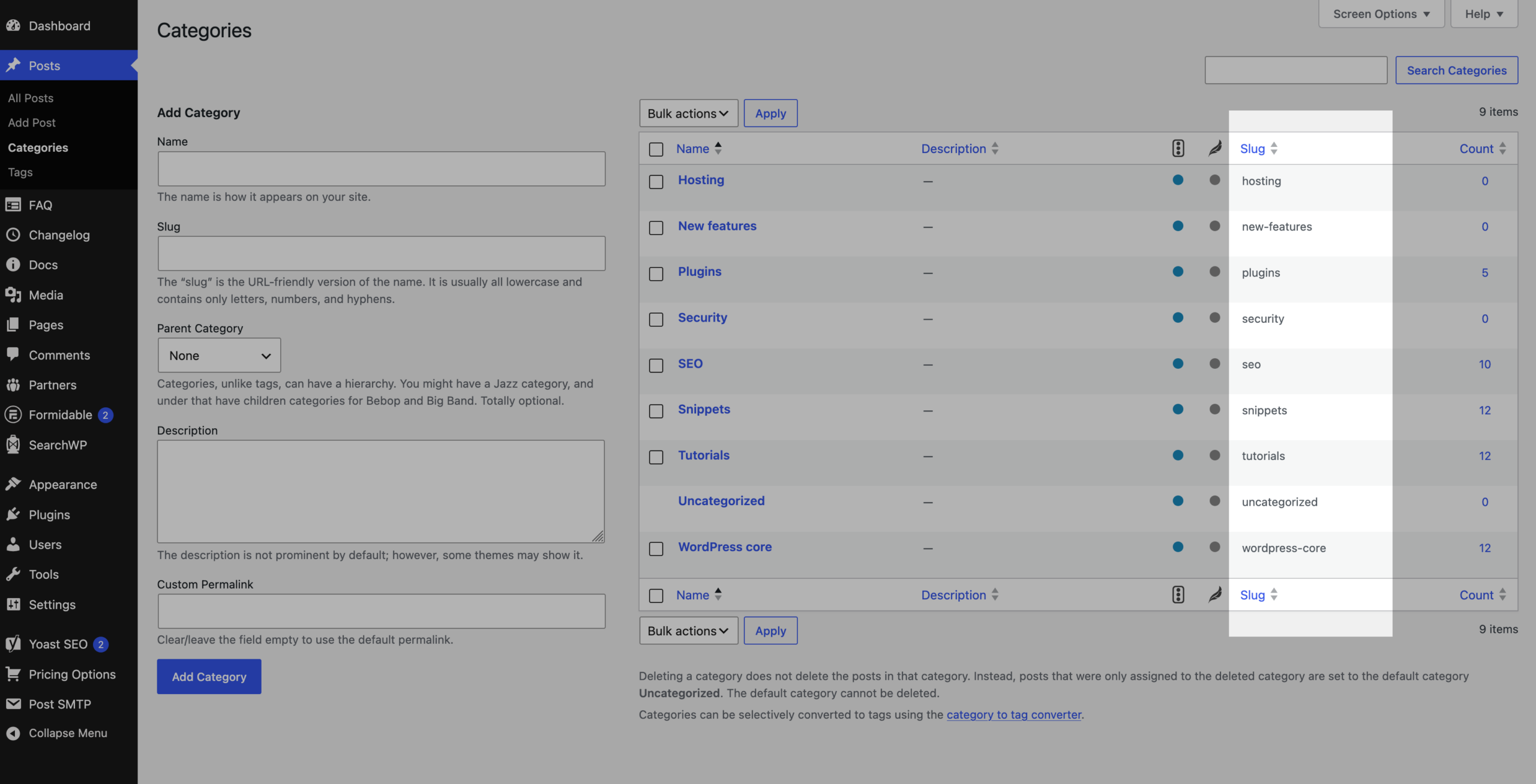
This is very inconvenient when you manage a website with many posts or custom post types. Without "Slug" column in the posts list table, you cannot quickly check whether a URL-friendly name matches the post title, spot incorrect slugs without opening each post separately.
How to Add a Sortable Slug Column Without a Plugin
To add the missing "Slug" column, you can use a lightweight code snippet based on WordPress hooks. The snippet adds the column to posts, pages, and custom post types, including WooCommerce products.
If needed, you can explicitly override the $post_types array in the pm_register_slug_column() function to limit the column to specific post types.
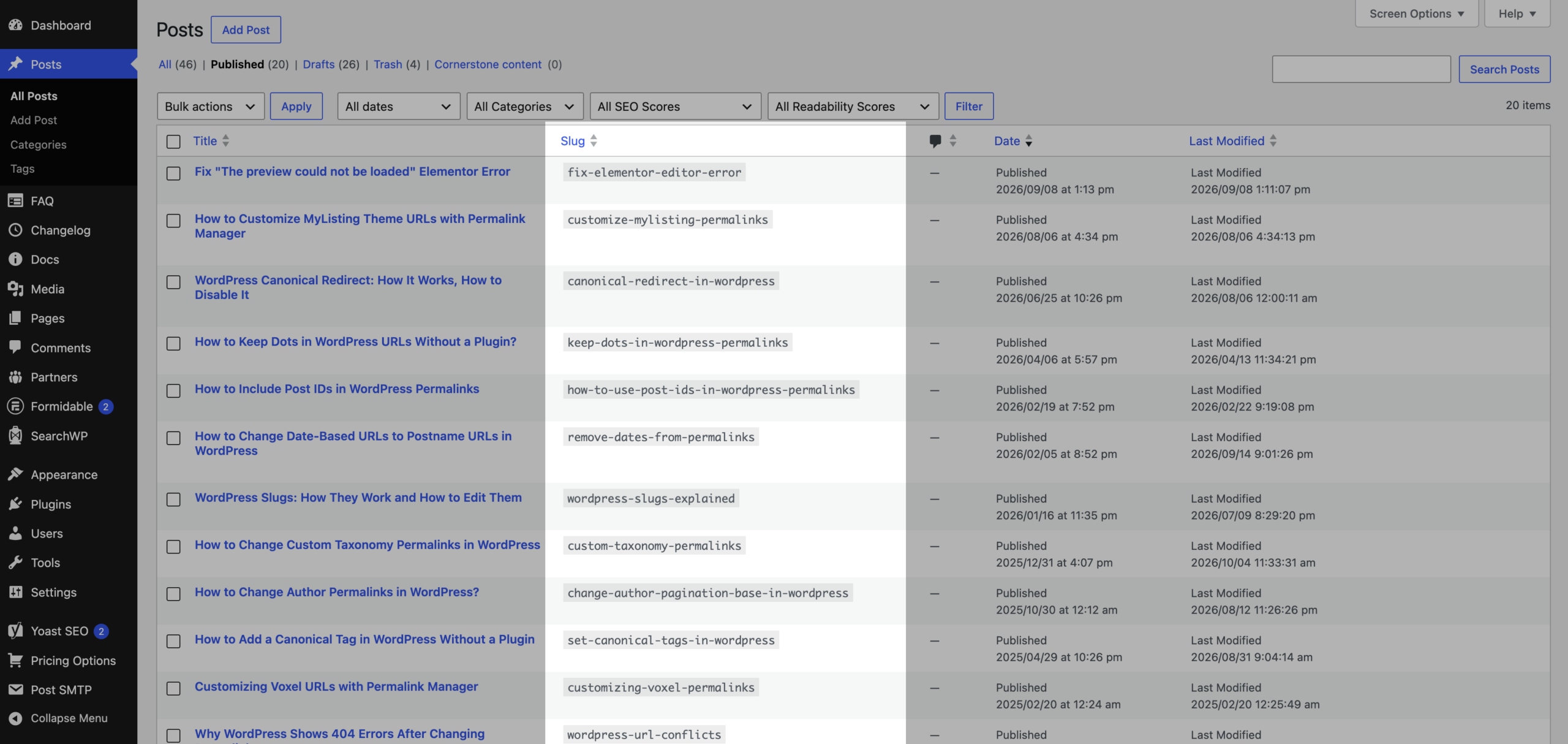
The Code Snippet
We recommend adding the code below to your child theme’s functions.php file. If you are not using a child theme, consider using a site-specific plugin instead of editing the parent theme directly.
This keeps your custom code separate from the theme and helps prevent it from being overwritten by theme updates.
Alternative No-Code Solution
The code snippet works without any extra plugin installed. If you prefer a no-code solution, you can use one of these free plugins from the WordPress.org repository:
- Admin Slug Column adds a sortable slug column to posts, pages, and custom post types, including WooCommerce products. It has no settings page, and you can hide the column in Screen Options.
- Admin Columns is a general-purpose tool for managing columns in WordPress admin tables. The slug is one of the many columns you can add. Sorting by custom columns requires the paid Pro version.
How to Check the Slug Without Code or a Plugin
If you only need to check a single slug, you do not need custom code or an additional plugin. You can review the slug directly from the admin dashboard, although it takes a few more clicks.
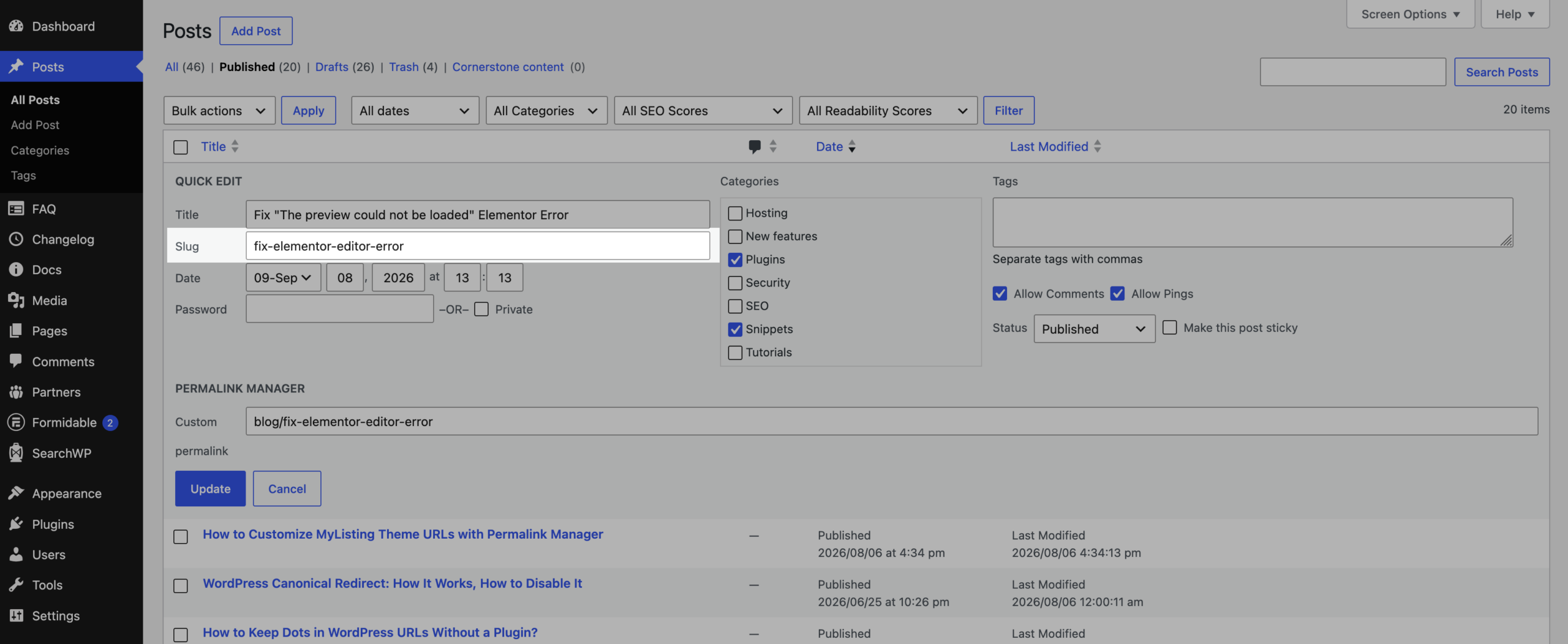
By default, WordPress does not display the Slug column for posts. You can still view the slug there. Hover over the post title, click Quick Edit, and look for the Slug field.
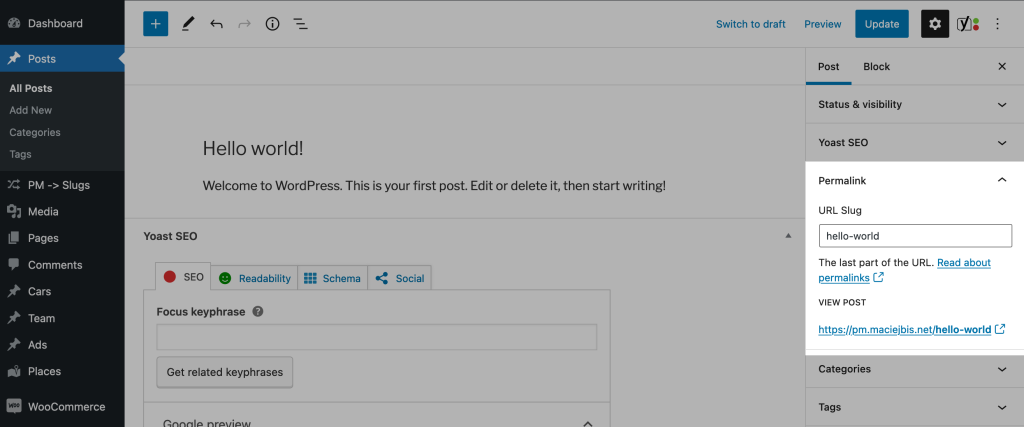
You can view the slug from the post editor as well. In the Block Editor, check the Permalink section:
In the Classic Editor, look for the URL below the post title.

Frequently Asked Questions
Will the Slug Column Slow Down the Admin Dashboard?
The impact is close to zero and can be considered negligible. WordPress loads the complete WP_Post object for each row in the list, and the slug is already included in that object. Reading the slug from the object cache does not require an additional database query.
Does the Snippet Work With Custom Post Types From Other Plugins?
Yes, it does. The snippet runs on the admin_init hook, which fires after plugins and themes have registered their post types. As a result, any custom post type that you can edit from the WordPress admin dashboard, such as WooCommerce products, will automatically display the column.
Leave a Reply