Voxel is a flexible theme with a straightforward interface and built-in page-building tools. It also provides settings that let you configure the URL bases for custom post types and taxonomies registered with the theme.
These options should be enough for most permalink changes. For more advanced URL structures, such as removing a post type or taxonomy base, using custom field values, or applying the same URL structure to different content types, a permalink plugin can provide the additional options you need.
This article shows you how to configure Voxel permalinks with its built-in settings and how to implement advanced URL structures with Permalink Manager.

Editing Voxel Permalinks Using Built-In Settings
If you only need to make basic changes to the permalink structure of Voxel-created post types and taxonomies, you can configure them from the dedicated Permalinks section in the settings of each registered content type.
This setting changes the URL structure of the custom post type and taxonomy, but it does not change the slugs of individual terms.
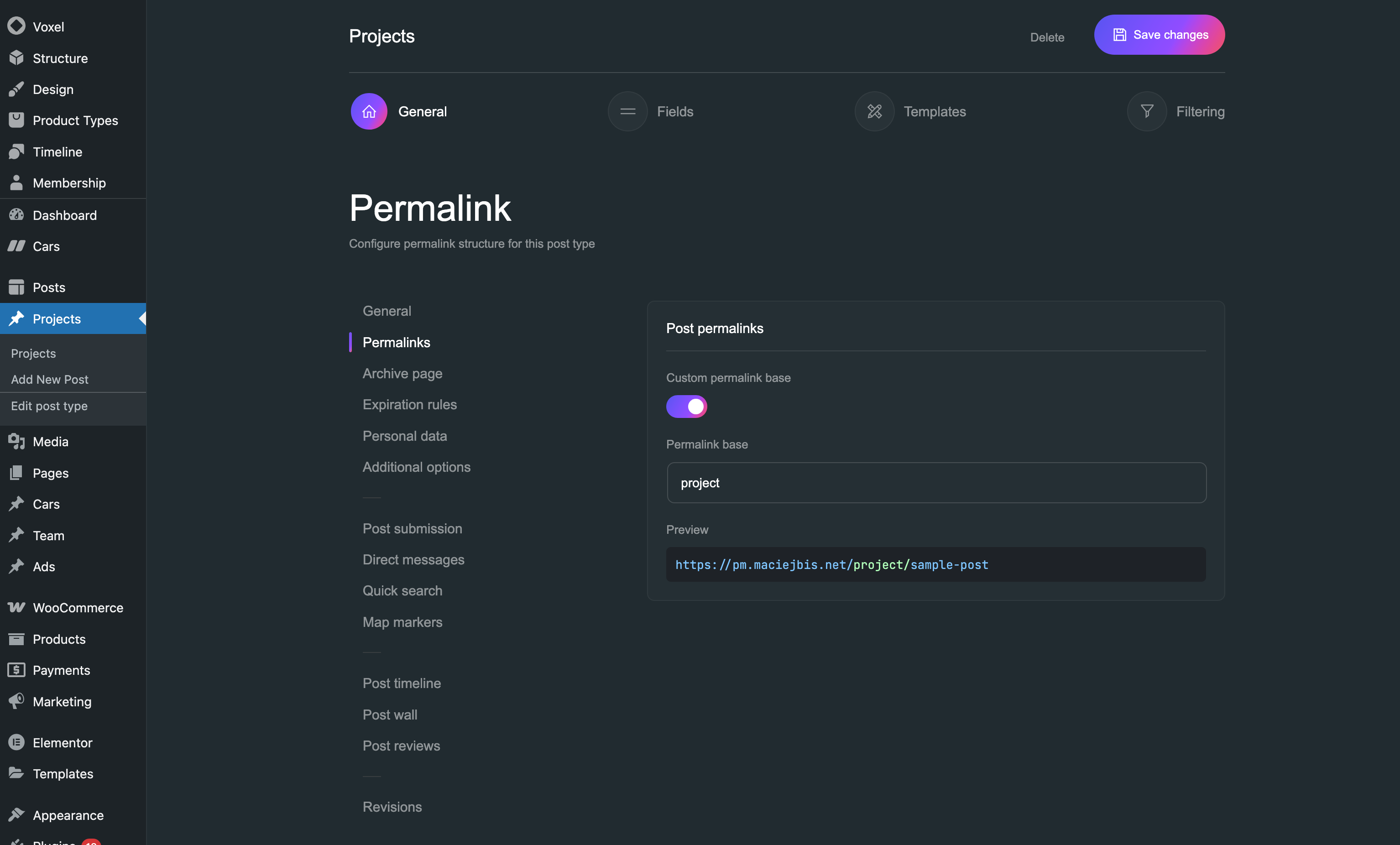
Changing the Permalink Base for Post Types
Custom post types permalinks and need unique base (rewrite slug) so WordPress can correctly match their URLs to the corresponding database records.
Voxel uses WordPress's standard permalink and rewrite system as well. For example, if you create a Projects custom post type, WordPress will generate URLs for individual projects like this:
https://example.com/project/sample-post/If you need to use a different permalink base instead of the CPT slug, you can change it in the "Edit post type" settings. Go to Structure → Post types, then select the post type and edit its permalink settings.
Changing the Permalink Base for Taxonomies
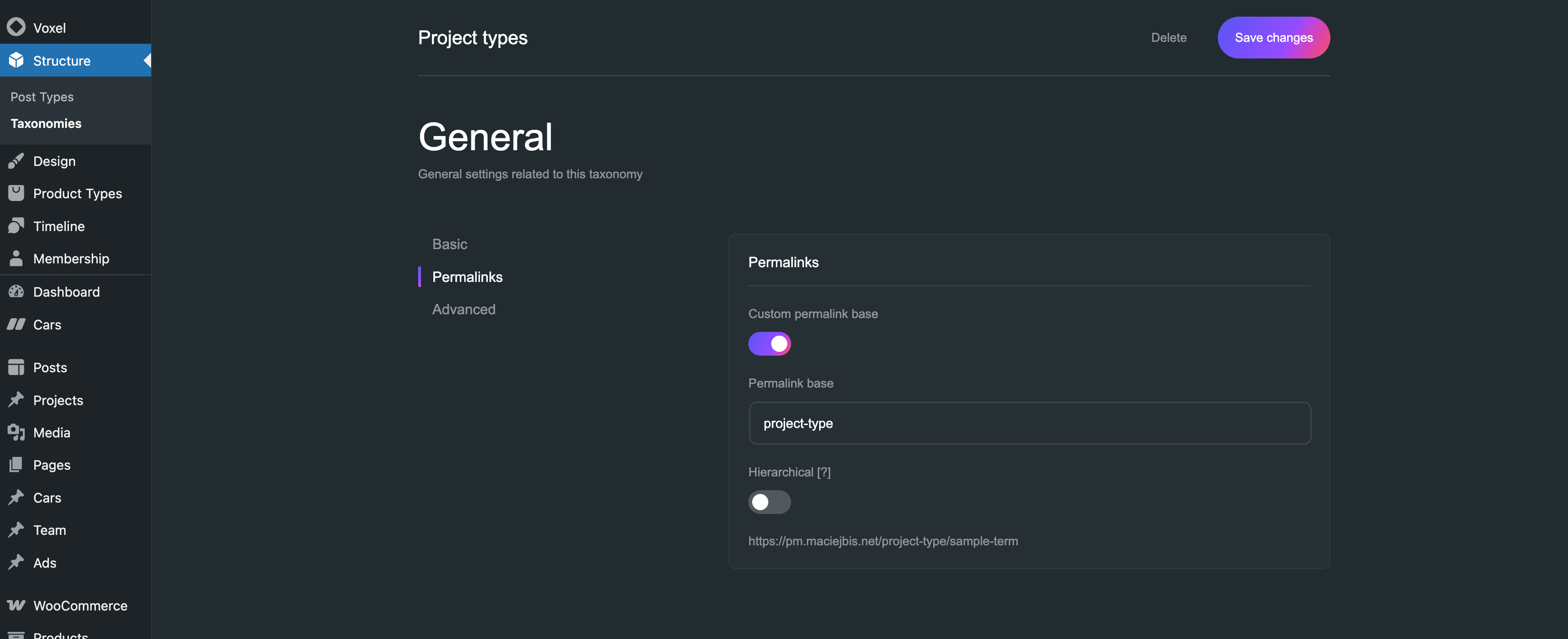
Custom taxonomies registered with Voxel, just like custom post types, have their own permalink bases, which appears before the individual term slug.
For example, a taxonomy named Location might use:
https://example.com/location/london/In this URL:
locationis the taxonomy base.londonis the individual term slug.
Changing the taxonomy base affects the URLs of all terms belonging to that taxonomy. If you change the base from location to area, the same term would use:
https://example.com/area/london/If you only need to change the base used by a Voxel taxonomy, open Edit Taxonomy page under Structure → Taxonomies.
Editing Individual Post and Term Slugs
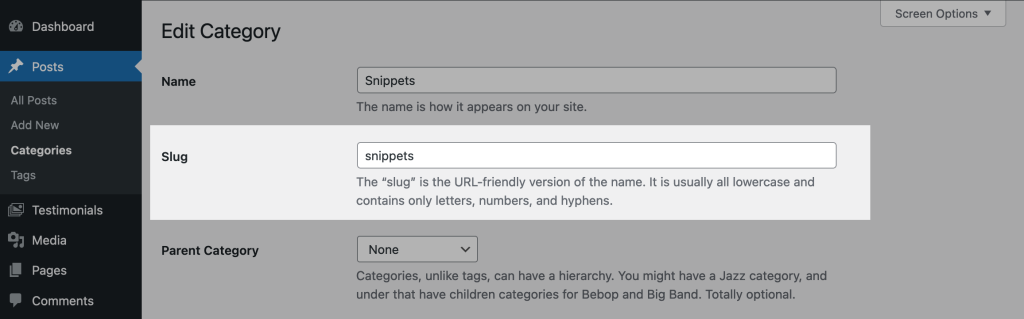
Voxel's permalink settings control the URL structure for a post type or taxonomy. If you only need to change the URL of an individual post or term, you can edit its slug directly in the WordPress admin, on the same screen where you edit its title and content.


For example, if a Voxel post currently uses:
https://example.com/project/london-apartment/you can change the post's slug from london-apartment to london-flat. The resulting URL will be:
https://example.com/project/london-flat/The same applies to individual taxonomy terms. You can change the slug used in a term's archive URL without changing the permalink structure defined for the taxonomy.
Using Permalink Manager with Voxel
You can use Permalink Manager when you need a more advanced URL structure that Voxel's standard permalink settings do not support. For example, you can use it to:
- remove the default rewrite slug from any Voxel post type or taxonomy;
- include custom field in a URL;
- include a custom taxonomy term in a custom post type URL;
- use the same permalink structure for different content types.
Permalink Manager provides native support for Voxel custom fields, allowing you to include them in Voxel permalinks directly from the WordPress admin dashboard.
The example below show how to use this feature with Voxel post types and custom fields, but you can apply the same settings to other custom post types and taxonomies.
Integrating Custom Fields into Permalinks
If you want to use a custom field in a custom permalink, the first step is to find the field key. The key is shown alongside the field name and type, either in the list of available custom fields or under "Field options" section:

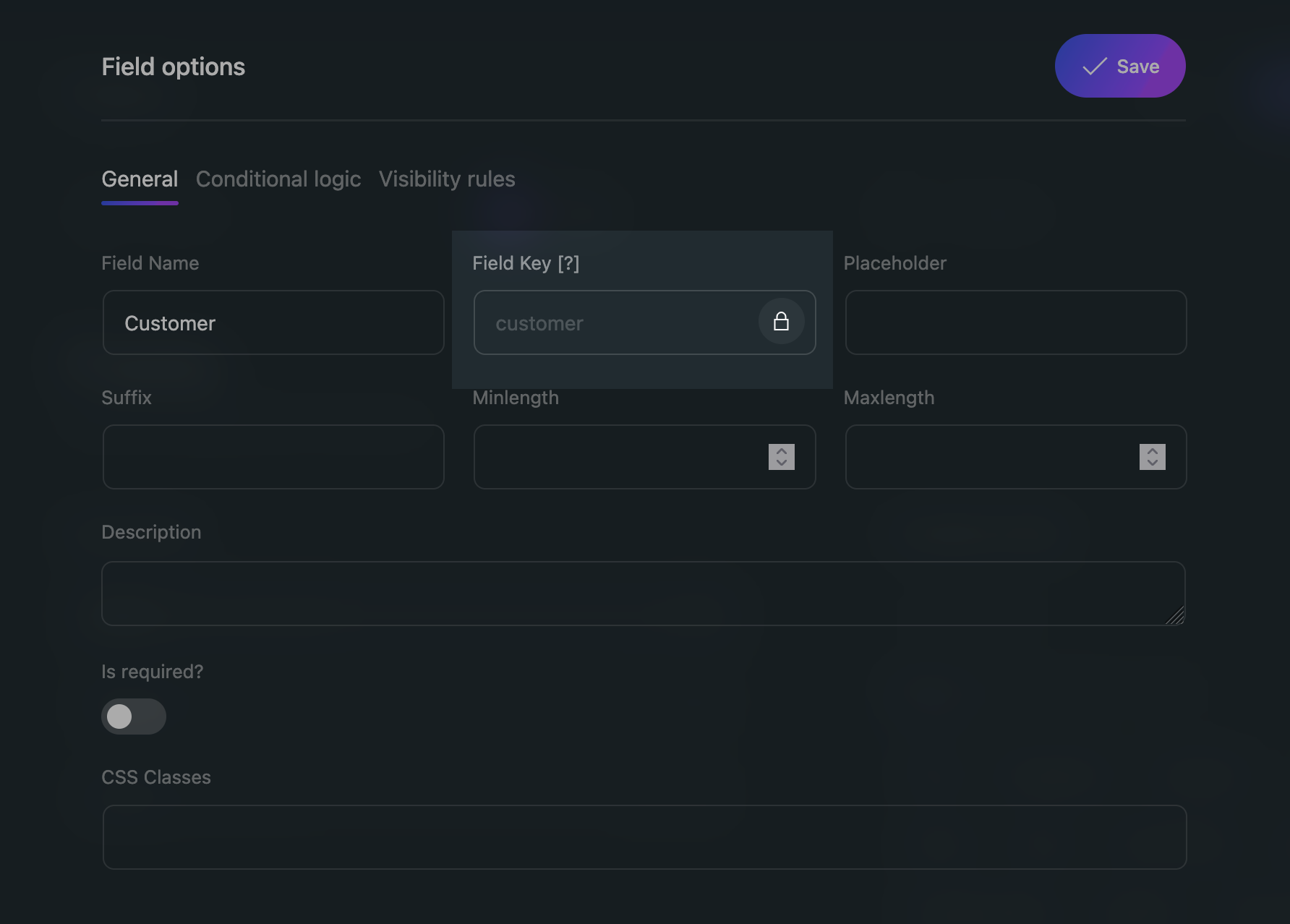
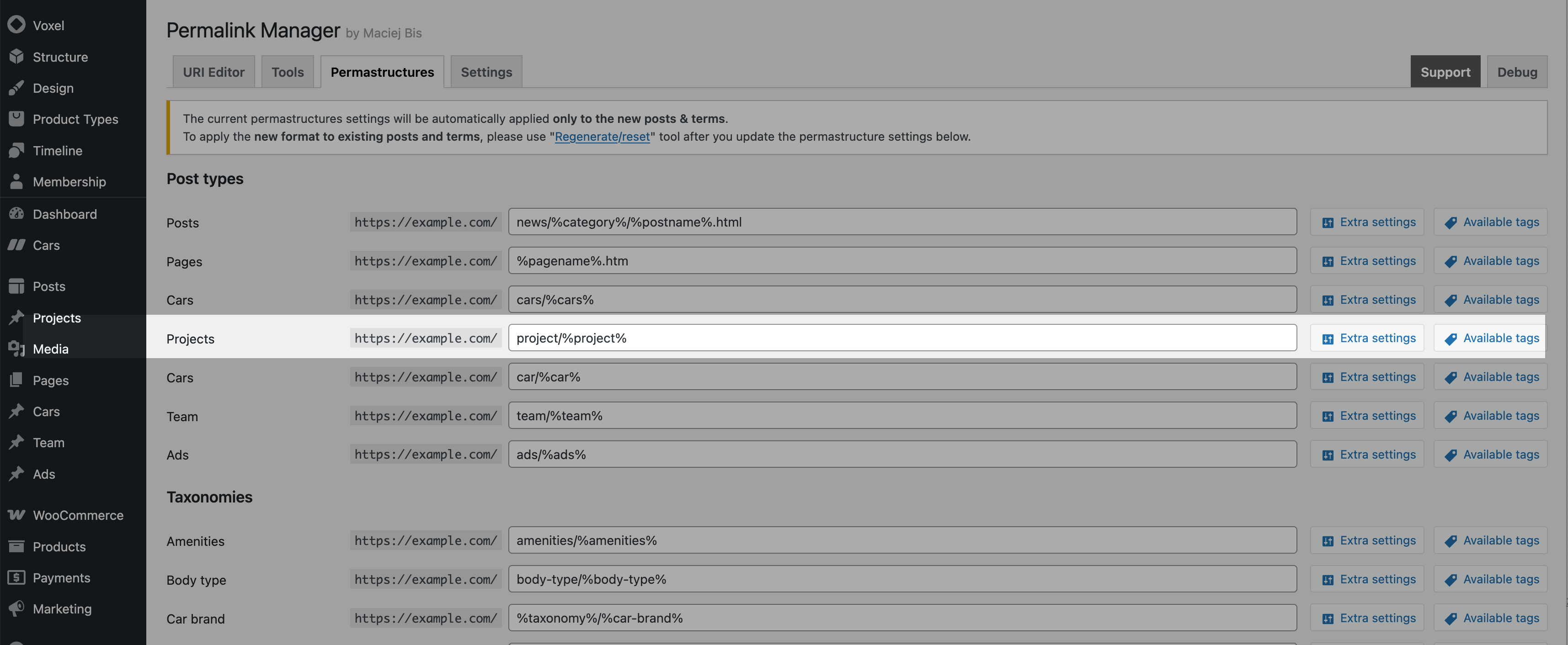
Once you know the field key, you can add it as a dynamic tag to the permalink structure of the related custom post type. Open Tools → Permalink Manager → Permastructures and edit the relevant permalink structure.
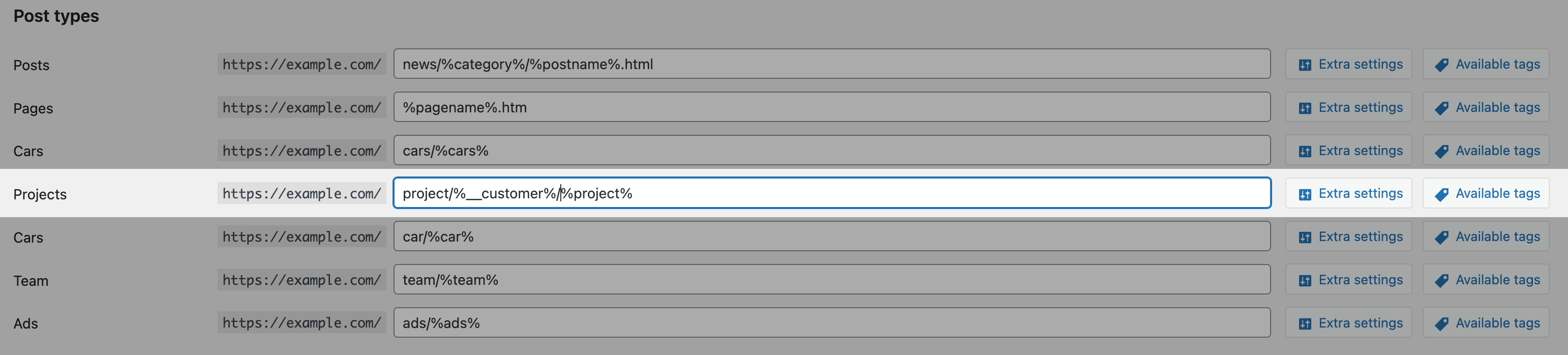
When using custom field tags, make sure the field key starts with two underscores. In this example, the correct tag is %__customer%:
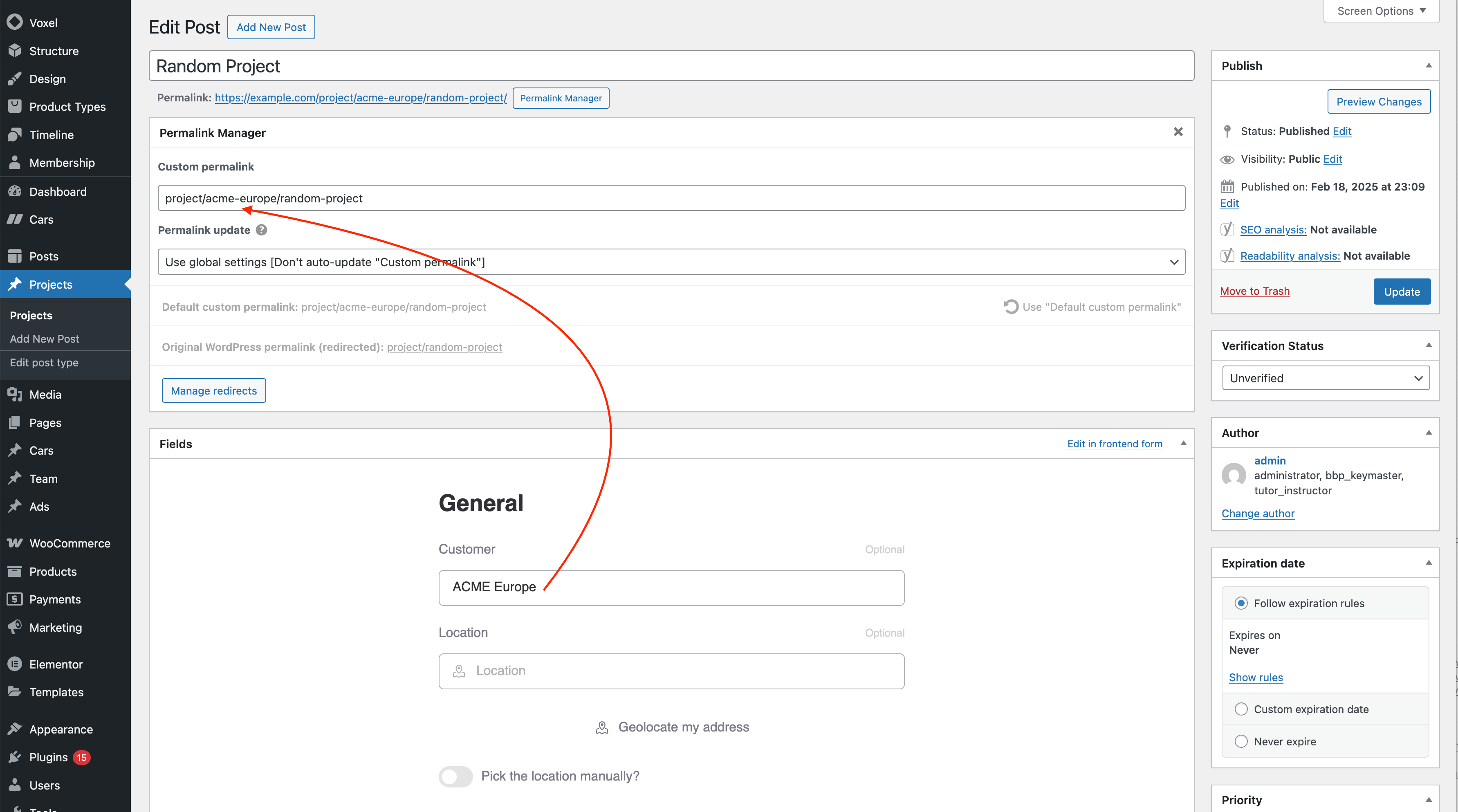
Permalink Manager applies the configured permalink structure automatically when you publish a new post. Existing posts keep their current permalinks until you regenerate them.
Leave a Reply