Canonical tags tell search engines which version of a URL should be indexed when the same content is available at multiple URLs. WordPress adds canonical tags automatically to standard pages and posts, so you do not need a separate plugin for them.
This works well for standard content, but paginated and archive pages require extra configuration. SEO plugins such as Yoast SEO, Rank Math, and SEOPress can add the required canonical tags automatically, usually without any additional setup.
If you want to keep your site lightweight and avoid installing another plugin, you can add a custom canonical tag function instead.
Without canonical tags, search engines may see different URL variants as separate pages. This can divide ranking signals and cause the wrong URL to appear in search results.
Key Takeaways
- By default, WordPress adds canonical meta tags for single posts and pages, but not for archive pages like categories, tags, custom taxonomies, and authors.
- SEO plugins can add these canonical tags automatically. If you prefer not to use extra tools, you can add them with custom PHP code instead.
- Make sure you have only one canonical tag per page, and set its canonical URL directly to the preferred page rather than to a URL that redirects.
What Is a Canonical Tag?
A canonical meta tag is one of several signals Google uses to determine which URL to index and display in search results. It helps indicate your preferred URL when identical or similar content is accessible through different URLs.
The tag is added to the page’s <head> section and does not appear in the visible page content. You can find it in the page source as a single line:
<link rel="canonical" href="https://example.com/preferred-page/" />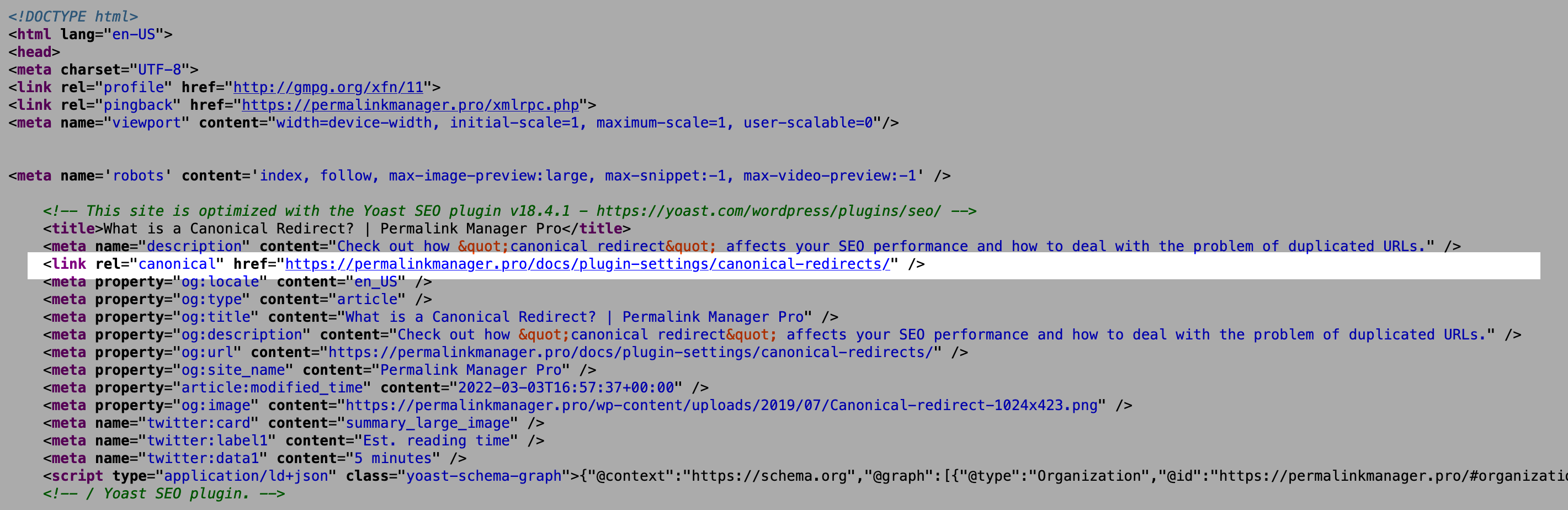
Why Are Canonical Tags Important?
Search engines use the canonical tag to identify the preferred URL when the same content is available at multiple URLs. However, a canonical tag does not guarantee that a search engine will display that URL in search results.
Without a canonical tag, search engines may choose a different URL based on other signals, such as redirects, internal links, and sitemap entries.
Multiple URLs can also split ranking signals instead of consolidating them around the preferred URL. This can weaken the page's ability to rank well and reduce its visibility in search engine results pages (SERPs).
It can also waste crawl budget, especially on large websites with many pages, and delay the discovery and indexing of new or updated high-priority content.
Canonical Tag vs Canonical Redirect: What's the Difference?
Both canonical tags and canonical redirects help prevent duplicate content issues, and you can use them together.
A canonical tag tells search engines which URL you prefer, while other URL variants can still be accessible. A canonical redirect enforces the preferred URL and redirects requests from other variants to that URL.
| Feature | Canonical Tag | Canonical Redirect |
|---|---|---|
| Purpose | Tells search engines which URL version should be treated as the preferred one. | Redirects visitors and crawlers to the preferred URL. |
| Implementation | An HTML <link rel="canonical"> element added to the page <head>. |
A server-side HTTP redirect, usually a 301 or 302 redirect. |
| User Experience | Visitors remain on the original URL they requested. | Visitors are automatically sent to the canonical URL. |
| Strength of Signal | A hint that search engines may ignore. | A strong signal, but Google may still choose a different canonical URL. |
| Duplicate Content Control | Helps search engines understand which URL variant should be indexed. | Prevents access to alternative URL versions by redirecting them. |
| Link Equity Consolidation | Usually consolidates ranking signals, depending on search engine interpretation. | Passes ranking signals directly to the destination URL. |
| Crawl Budget Impact | Alternative URLs may still be crawled by search engines. | Helps to reduce redundant crawling of duplicate URLs. |
| Best Use Case | When duplicate or similar pages need to remain available to users. | When old or alternative URLs should no longer be accessible. |
How WordPress Handles Canonical URLs by Default
WordPress has added canonical tags automatically since version 2.9. Its rel_canonical() function runs through wp_head and adds a canonical tag to individual posts, pages, and custom post type entries.
However, WordPress does not generate canonical tags for category, tag, custom taxonomy, author, or date archives, or for the blog posts page. These pages receive a canonical tag only if your theme or a plugin adds one.
WordPress developers have proposed extending native canonical tag support to other content types. One of the earliest dates back to 2011, when Nathan Rice proposed adding archive pages support to the relevant function. The proposal was discussed but never implemented, and the related Trac ticket remains open.
Three Ways to Add Canonical Tags in WordPress
Method 1: Use WordPress’s Built-In Canonical Tags
You may not need a plugin or custom snippet to generate canonical tags. If your website only contains standard posts and pages and does not use categories, tags, custom taxonomies, or archive pages, WordPress likely already generates the canonical tags you need.
If your theme calls wp_head() inside the <head> section, as virtually all themes do, WordPress already adds the canonical tag for you and you do not need a plugin or custom code for this.
To check whether the tag is present, open a post’s HTML source and search for rel="canonical".
Method 2: Add Canonical Tags With a Code Snippet
The snippet below replaces the built-in function and adds a canonical tag to all public WordPress post types, taxonomies, and archive pages:
- Front page
- Blog index page
- Single posts, pages, and custom post types
- Paginated content
- Category and taxonomy archives
- Author archives
- Date-based archives (year/month/day)
This gives you full control over the canonical URL logic, so you can adjust it to match your setup. The code has been tested with the most common WordPress setups, but it may not be compatible with every plugin or configuration you have installed.
If you prefer, you can add the code with a plugin such as Code Snippets or paste it directly to the functions.php file of your child theme.
Most ready-made snippets you find online for adding a canonical tag without a plugin rely on get_permalink() alone to get the canonical URL. That works for single posts and pages, but it does not cover author archives, other archive pages, or paginated URLs.
To add a canonical tag to these pages without using a plugin, your code needs an additional part that retrieves the correct canonical permalink, because get_permalink() alone cannot handle these URLs.
Method 3: Use an SEO Plugin (Yoast, Rank Math or SEOPress)
Most SEO plugins handle canonical tags for you automatically, so you do not need to add any extra PHP code. If you already have an SEO plugin installed, this is often the easiest option, particularly if you are not comfortable working with PHP or editing theme files.
This functionality is available in Yoast SEO, Rank Math, SEOPress and other similar plugins.
The trade-off is having another plugin to manage. There is also a risk that your theme or another plugin may generate their own meta tags, which can cause duplicate canonical tags.
Common Mistakes When Adding Canonical Tags in WordPress
Duplicate Canonical Tags
WordPress does not need a custom function for every page. Its built-in rel_canonical() function generates a canonical URL for singular content items, including posts, pages, and custom post types.
This means that adding another wp_head callback without first removing or overwriting the built-in function can result in two canonical tags on the same page.
For example:
<link rel="canonical" href="https://example.com/example-page/" />
<link rel="canonical" href="https://example.com/example-page/" />
Even when both URLs are identical, there is no reason to output the same canonical twice.
If you only need standard self-referencing canonicals for posts, pages, and custom post types, WordPress's built-in implementation may already be sufficient.
Missing Canonical Tags on Archive Pages
Archive URLs can multiply quickly. For example, /category/news/page/2/, /category/news/?orderby=date, and /category/news/?filter=red may display similar lists of posts. Without a canonical tag, Google may choose which URL to index on its own.
Follow two simple rules to avoid canonicalization issues:
- First, each paginated archive page should have a self-referencing canonical URL.
Each page should point to its own URL because different pagination pages contain different posts. - Strip query parameters from canonical URLs.
Becauseget_pagenum_link()builds URLs from the current request, query parameters may carry over to paginated URLs. If your archives use filter or sort parameters, useremove_query_arg()to remove parameters that should not appear in the canonical URL.
Pointing Canonical Tags to Redirected URLs
A canonical URL should resolve directly to the preferred page and return a 200 (OK) status without a redirect. If the canonical URL redirects with a 301 to another URL, you are sending search engines mixed signals.
The canonical tag identifies one URL as the preferred version, while the redirect tells crawlers to use a different URL. Crawlers will usually follow the redirect and treat the final destination as canonical, but it is better to avoid this conflicting setup.
Leave a Reply