Most WordPress websites use readable slugs generated from post titles in their URLs. This is the standard approach for most projects, but there are cases where using a numeric post ID can be useful.
If your website requires an ID-based permalink structure, you can switch to this format for standard posts using WordPress's built-in permalink settings.
Custom post types require a different solution and to replace their slugs with IDs, you need to use custom code or install a permalink plugin.
ID-Based vs. Slug-Based Permalinks
Post IDs vs. Slugs
Every post, page and term in WordPress has two identifiers:
- The first is the slug generated from the post title.
- The second is a unique numeric ID created by the database at the time you save the post.
You can edit the slug at any time. The ID, however, is generated automatically and should not be changed.
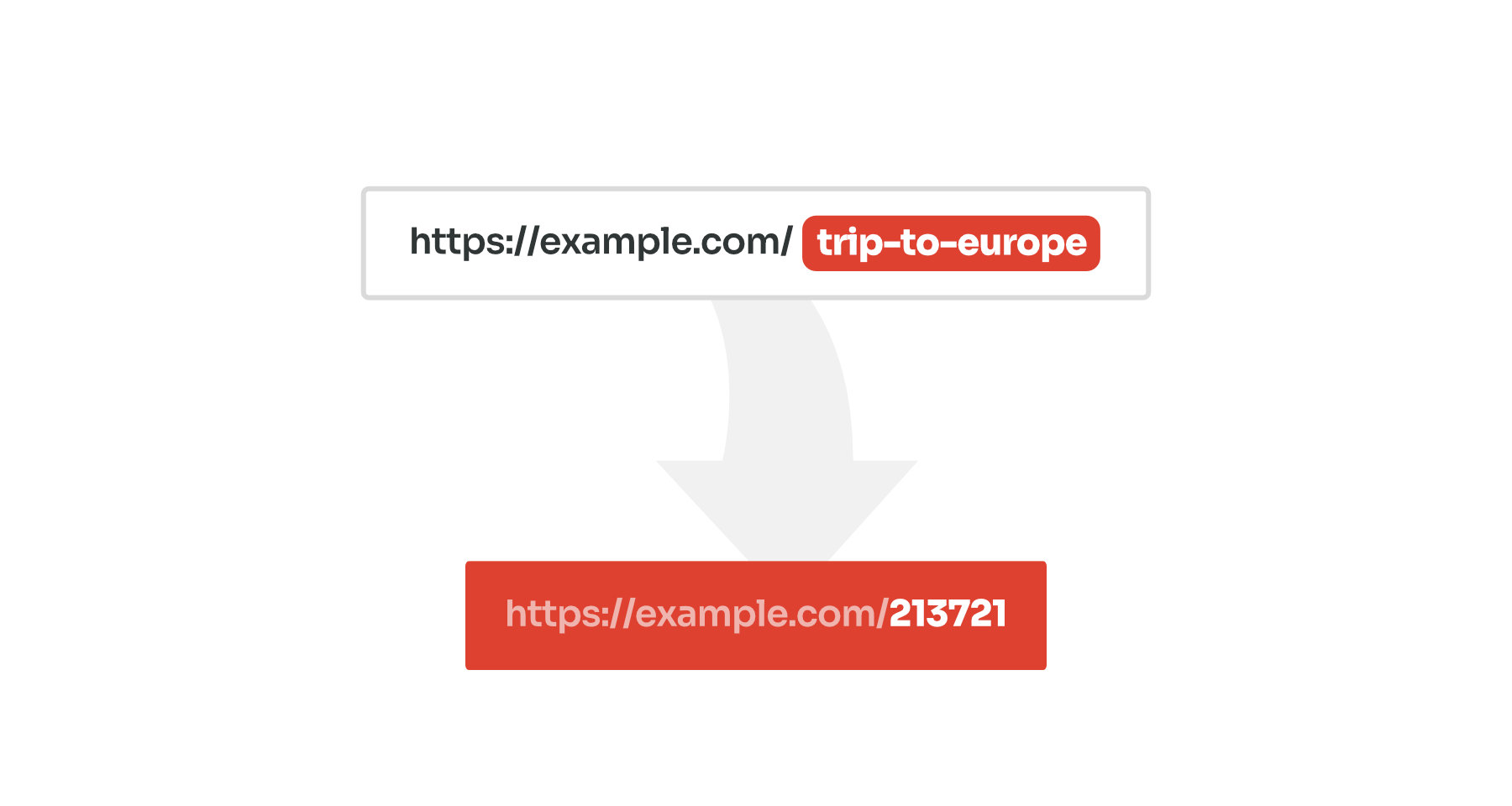
For example, a post titled "Trip to Europe" might use this URL:
https://example.com/trip-to-europe/An ID-based permalink would look like this:
https://example.com/123/When Should You Use Post IDs in URLs?
The main drawback of ID-based URLs is that they are less descriptive than slug-based URLs. A URL such as example.com/123/ does not tell visitors what the page is about, unlike example.com/how-to-configure-wordpress-permalinks/.
Unlike post IDs, which remain constant, post and page slugs can be changed. WordPress can redirect URLs with old slugs to their new URLs, but redirects can require additional configuration when URLs are changed manually or when a site's URL structure is modified.
Post ID-based permalinks are useful when you need stable URLs. A post ID is assigned by WordPress and normally does not change, while a post or page slug can be edited when the title or URL is changed.
WordPress can automatically redirect the old slug to the new one, but these redirects are not always reliable and can lead to 404 errors or broken links. Using static IDs instead of editable slugs can be useful when content titles change often or when you want URLs to stay unchanged after editorial updates.
How to Set Up ID-Based Permalinks
How to Add Post ID to Post URLs
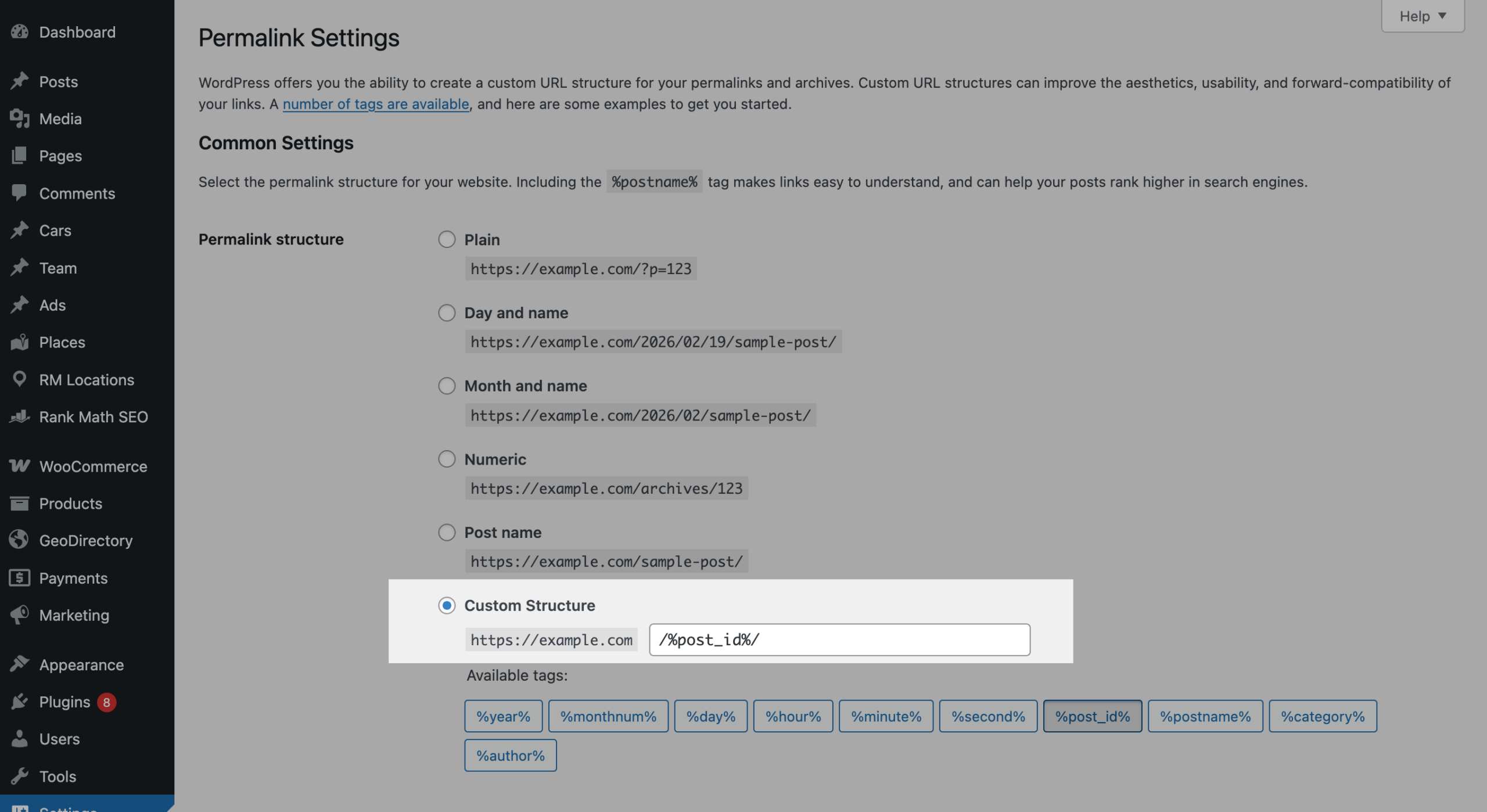
For standard WordPress posts, you can include the post ID in the permalink structure by using the %post_id% tag in the native permalink settings. This does not require any additional plugins or custom code.
- Log in to your WordPress dashboard.
- Go to "Settings -> Permalinks".
- Select "Custom Structure" and enter
/%post_id%/: - Click "Save Changes".
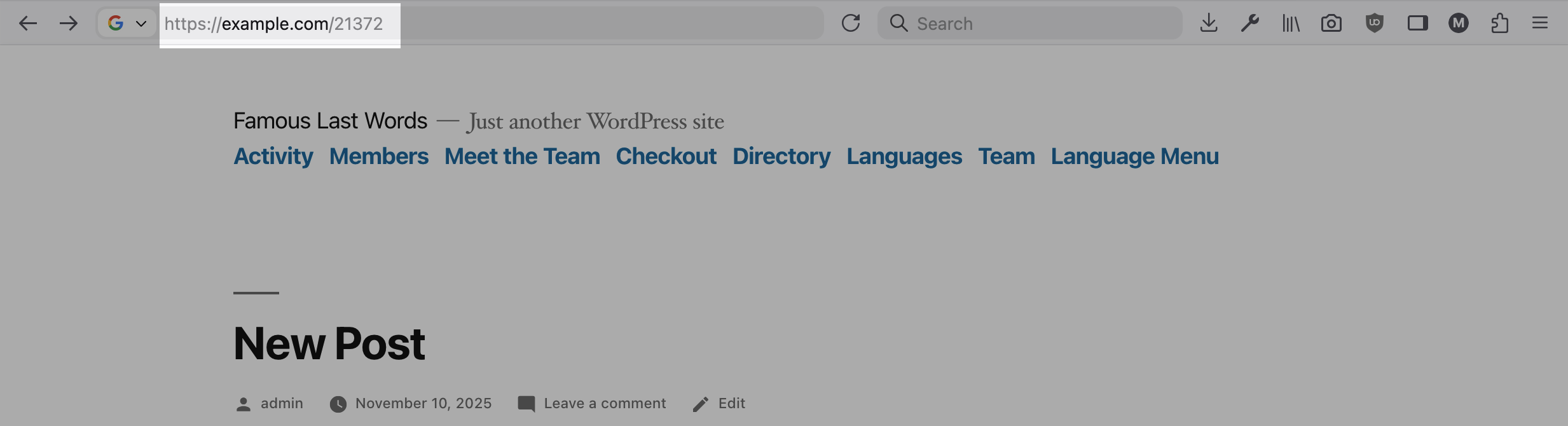
Once you save the settings, WordPress will switch your posts to numeric URLs automatically. Open any post to confirm the new structure is working. If you see errors, repeat the last step and save the Permalinks settings again.
How to Add Post ID to Custom Post Type URLs
WordPress does not offer this option for custom post types in the permalink settings. If you want to include their IDs in the URLs, you need to use custom code or a permalink plugin.
You can do this with popular plugins such as Custom Permalinks, Custom Post Type Permalinks, and the free version of Permalink Manager.
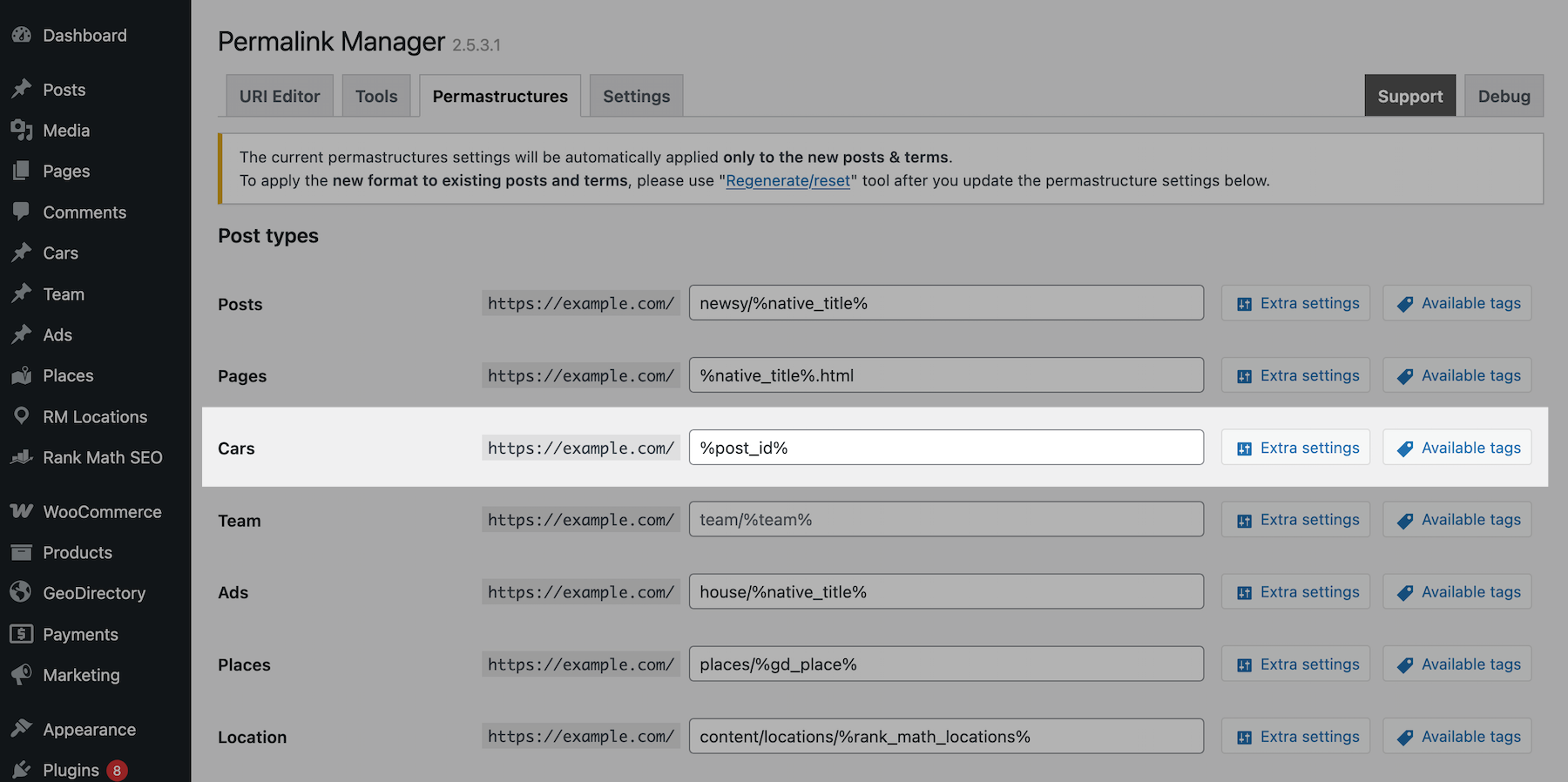
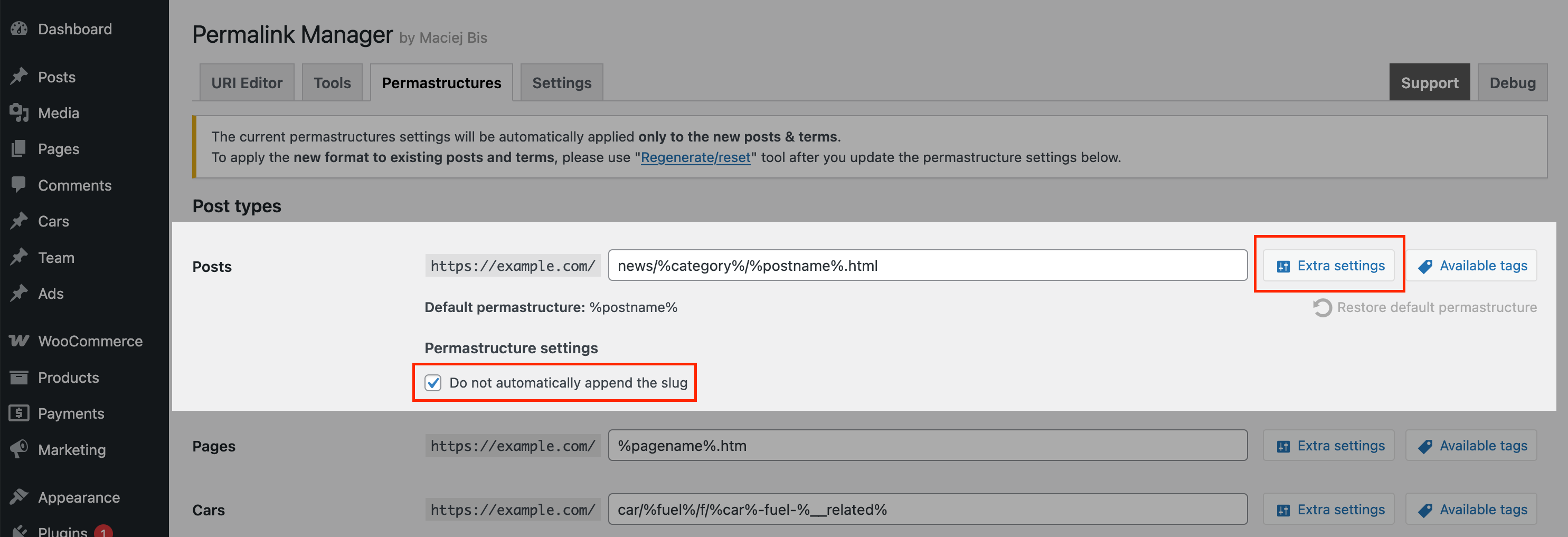
With Permalink Manager, the most convenient way to set up ID-based permalinks is to use the Permastructures editor. It works similarly to the native WordPress settings, but lets you define a separate permalink structure for each post type and taxonomy.
To change the permalink format for a custom post type:
- Open the admin dashboard and navigate to "Tools -> Permalink Manager -> Permastructures".
- Select the custom post type you want to modify.
- Set its permalink structure to
/%post_id%/. - Enable "Do not automatically append the slug" mode after clicking on the "Show additional settings" button.
- Click "Save" to apply the changes.
By default, the new permalink format applies only to new posts after you save them. To apply it to existing content as well, regenerate their URLs using the "Regenerate/reset" tool.
Things to Consider Before Changing Existing URLs
Choose a permalink format early and avoid changing it later. Frequent URL changes can cause broken links, and duplicate URLs. Each change forces search engines to deindex old URLs and index new ones again.
If you are changing the URLs of existing content, make sure the old URLs redirect to the corresponding new URLs. Permalink Manager can automatically handle redirects from previously used permalinks. If you use decide to use another solution, make sure it redirects the old URLs.
Without them, old URLs can lead to 404 Not Found errors, breaking existing internal and external links.
Leave a Reply