For a brand-new WordPress website, changing date-based URLs to shorter postname-based URLs is as simple as changing the permalink settings. For an established website, you need to take extra care to prevent broken links.
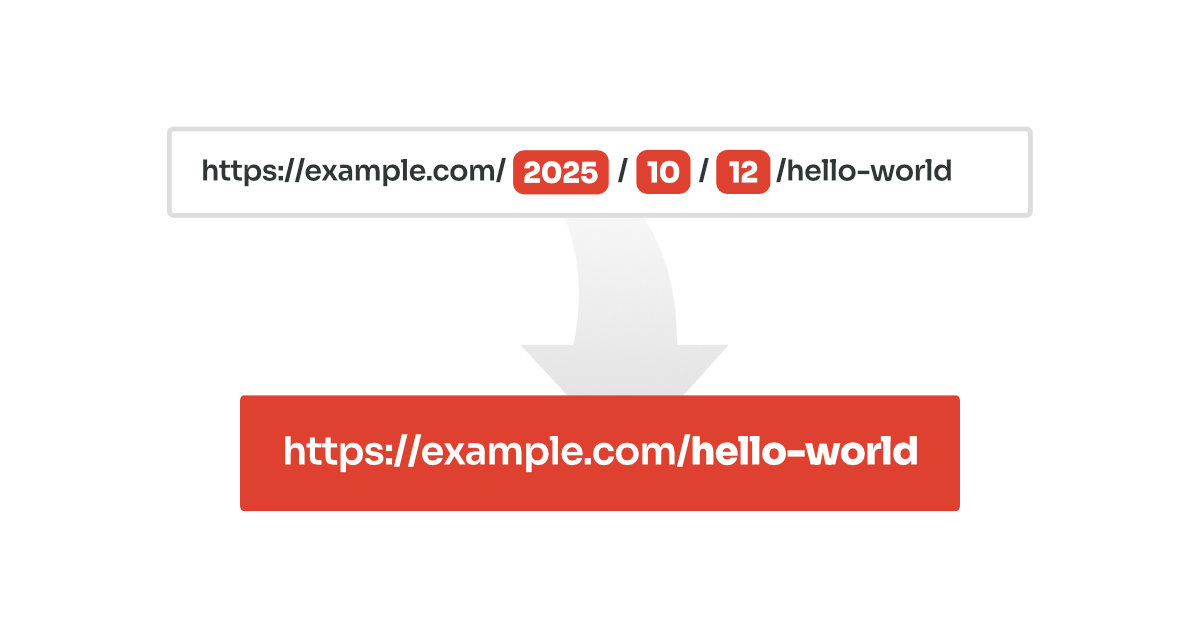
Many website owners make this change to remove dates from URLs that can make content appear outdated. This also makes URLs shorter and easier to read, for example, example.com/hello-world instead of yoursite.com/2025/10/12/hello-world.
Changing the permalink structure on an existing WordPress website also changes the URLs of your published posts. Without redirects, visitors and search engine crawlers may reach the old URLs and get 404 errors instead of your content.
There are two ways to handle this. You can change the permalink settings in WordPress and configure redirects separately, or use a no-code solution such as Permalink Manager to change the URL structure and automatically redirect old URLs from within WordPress.
How to Change WordPress Permalinks to Postname Only
Method 1: Remove Dates Using WordPress Permalink Settings
WordPress includes built-in permalink settings to manage the URL structure. From there you can easily switch from a dated format, such as /%year%/%monthnum%/%day%/%postname%/, to a simpler structure.
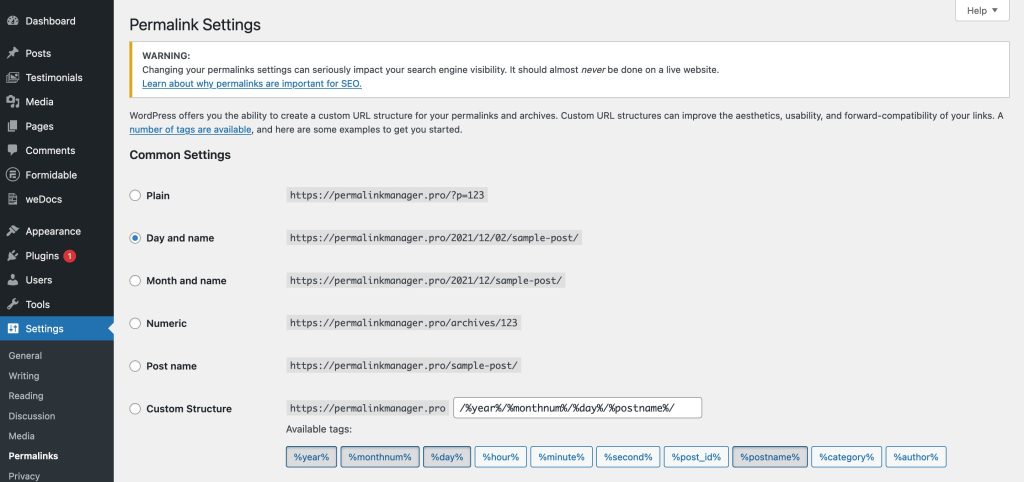
When you save new permalink settings in WordPress, the change applies to every post on your website, including older content published before the update.
Keep in mind that switching your permalink structure can cause old URLs to stop working. Without redirects in place, visitors may land on a 404 error page. See how to change permalinks without 404 errors to avoid this problem.
Method 2: A No-Code Alternative With Permalink Manager
If you would rather manage the permalink change from the WordPress dashboard without manually creating redirects or editing server files, Permalink Manager provides a no-code alternative.
The plugin uses its own system for handling URLs, independently of the default WordPress permalink settings. This means you can change the URL structure without necessarily changing every existing post on the website.
- You can keep existing links unchanged to preserve traffic, while applying a simpler structure only to new posts that have not been indexed or linked yet.
- You can also rewrite all URLs for both existing and future posts. Since old URLs may still be indexed or linked externally, the plugin automatically redirects them to the new URLs preventing broken links.
The plugin automatically sets up redirects from your old URLs to the new ones. This means you will not have to manually define redirect for every post after making permalink changes.
Scenario 1: Removing Dates From New Posts Only
To remove dates from your posts' URLs, you need to use Permastructures editor:
- In the WordPress dashboard, go to "Tools → Permalink Manager → Permastructures".
- Find the row labeled Posts in the "
Post types" section. You will see a text field containing the current structure, which likely includes tags like%year%,%monthnum%, and%day%. - Delete the date tags from the text field and delete everything except the
%postname%tag. - Scroll down and click "Save Changes".
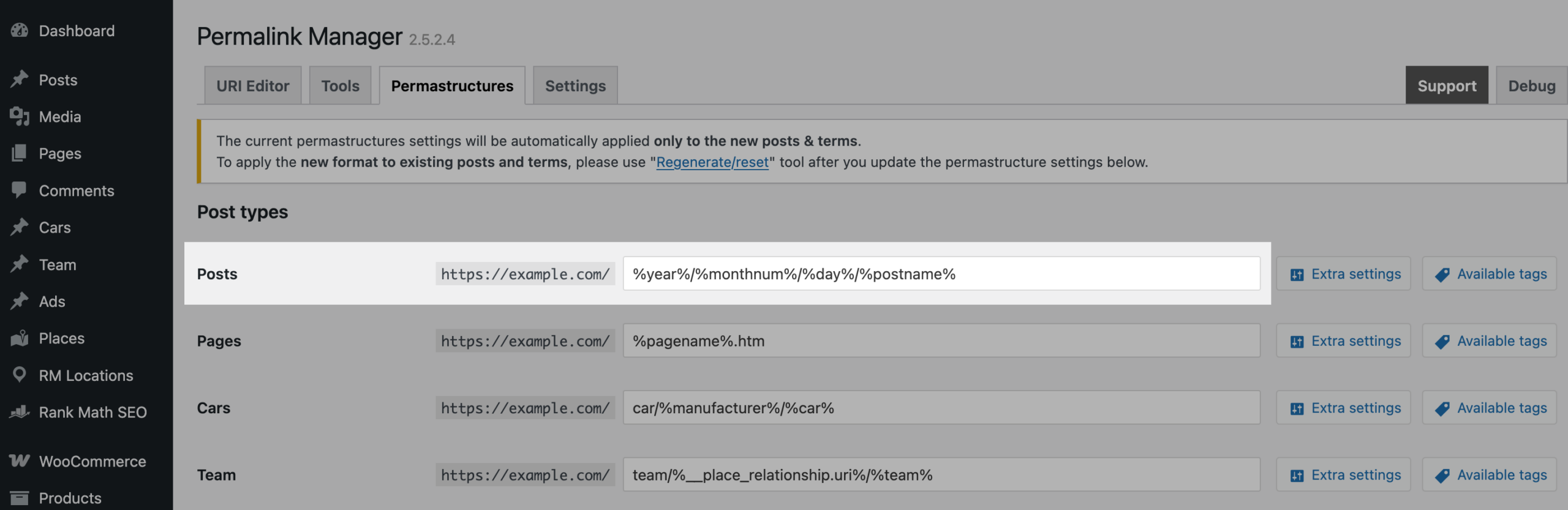

The new structure will apply automatically to new posts. Existing posts keep their current URLs unless you regenerate their custom permalinks.
Scenario 2: Remove Dates From Existing and New Posts
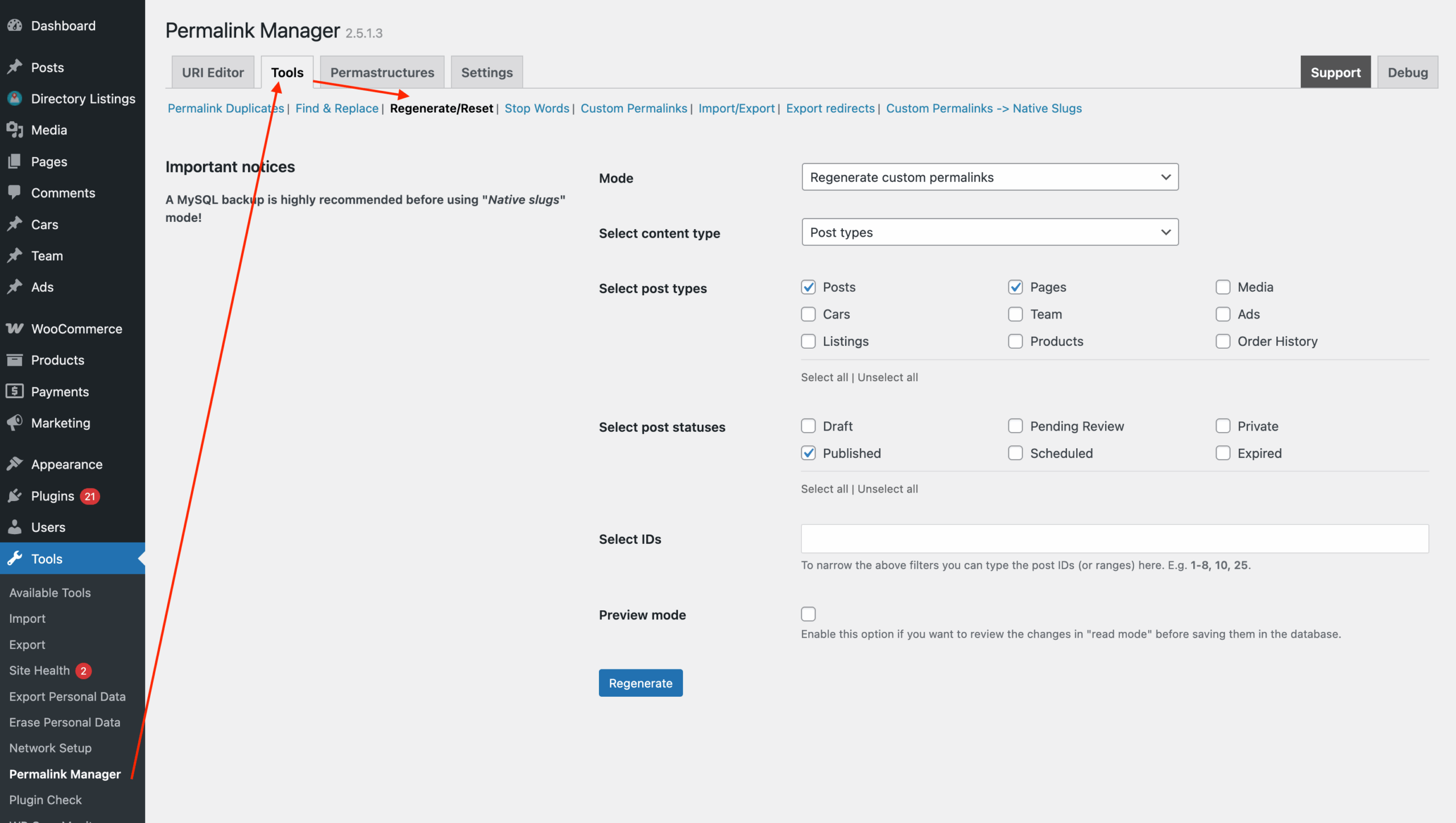
If you want to remove dates from older posts as well, follow the same steps above and then use the "Regenerate/reset" tool.
Before regenerating custom permalinks, make sure that the "Save old custom permalinks as extra redirects" option is enabled in the plugin settings. This allows Permalink Manager to redirect the old date-based URLs to the new postname-only URLs after the change.
How to Redirect Old Date-Based URLs
Visitors trying to access links that no longer exist will encounter a 404 page. These broken links can send negative signals to search engines, affecting your search visibility and organic traffic.
You can fix this by setting up manual redirects for every URL using extra plugin. This works for a few posts, but for larger websites with thousands of permalinks, doing this manually is nearly impossible.
Using a REGEX-based redirect is generally more efficient than maintaining a large list of individual redirects. It reduces database entries and keeps redirection management simpler over time.
Option 1: Redirection Plugin
If you are not comfortable editing server files, the Redirection plugin is a simplest way to set-up date-based redirects directly from the WordPress admin dashboard, without changing any server files.
While a .htaccess redirect is triggered at the server level via Apache, this method uses the WordPress backend to handle the logic. Additional instructions and examples are available in the official plugin documentation.
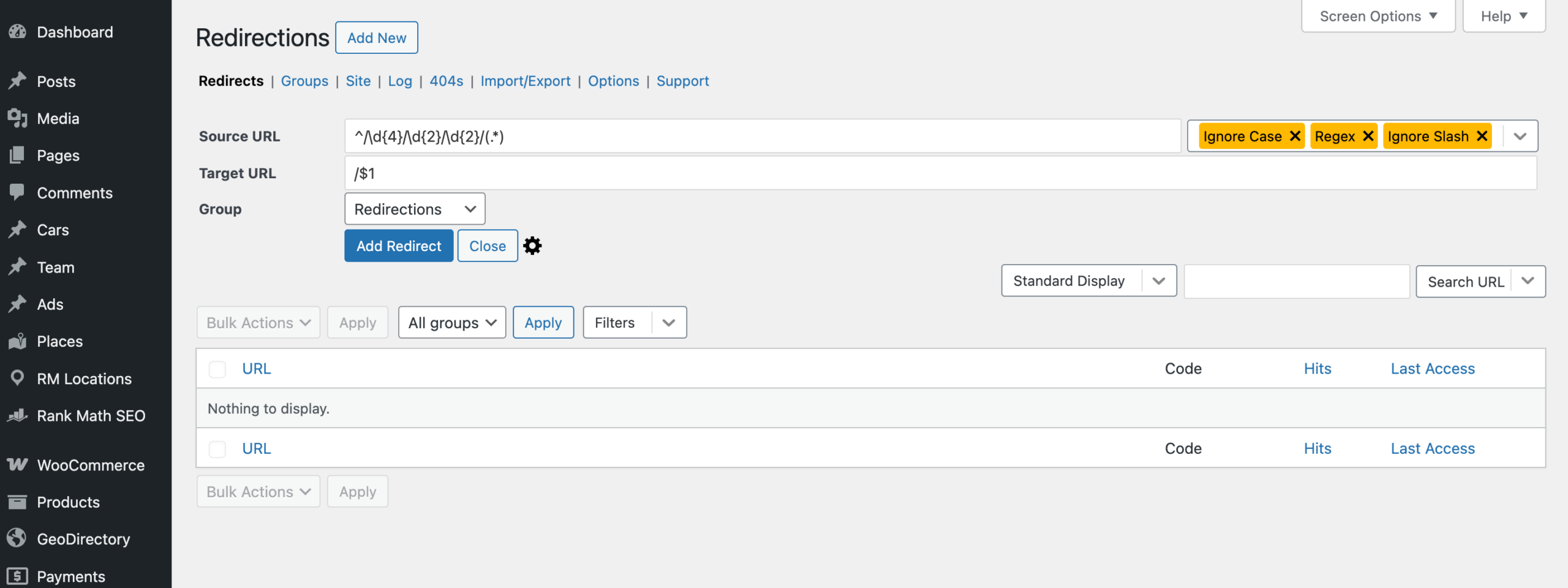
To remove dates from post URLs, enable "Regex" in the dropdown next to the "Source URL" field and apply the following settings:
- Source URL:
^/\d{4}/\d{2}/\d{2}/(.*) - Target URL:
/$1
Option 2: Rank Math
If you already have the Rank Math SEO plugin installed, you do not need an extra redirection plugin. Rank Math comes with a built-in Redirections module, which lets you manage redirects using REGEX rules.
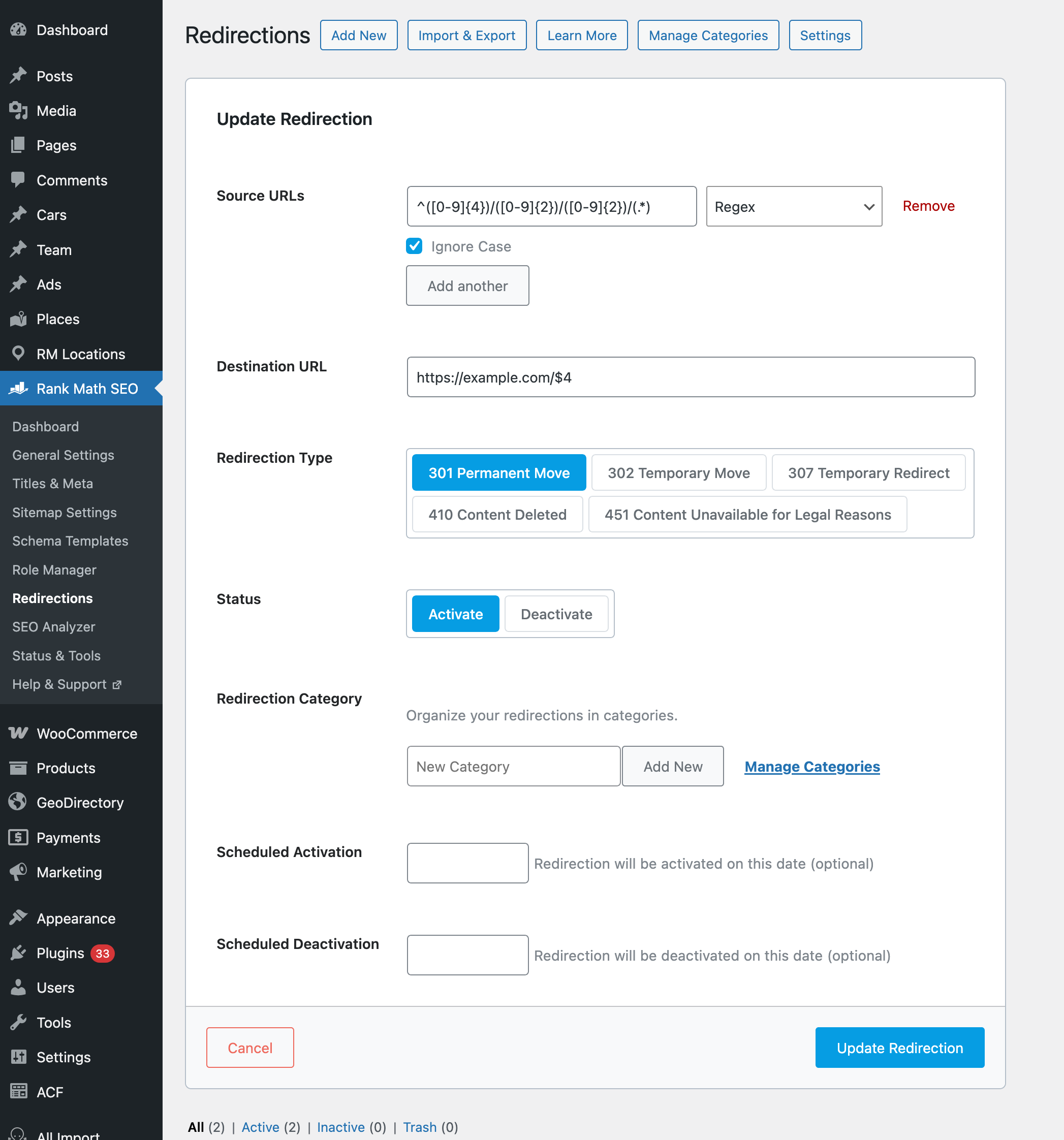
To get started, go to "Rank Math SEO → Redirections" and click "Add New" at the top of the screen. If you do not see this menu, open "Rank Math → Dashboard" and make sure the Redirections module is enabled.
Once enabled, you can add the new redirection using the settings below:
- Source URLs:
^([0-9]{4})/([0-9]{2})/([0-9]{2})/(.*) - Match Type:
Change this from "Exact" to "Regex" - Destination URL:
/$4 - Redirection Type:
301 Permanent Move
Option 3: .htaccess RedirectMatch
If you do not want to create a separate redirect for every old date-based permalink, you can use a single RedirectMatch rule instead. This method handles all matching URLs at once, but it requires editing the .htaccess file and is not recommended for beginners.
The RedirectMatch directive allows to catch all URLs in the old format and redirect them to the cleaner version without dates in a single line of code.
RedirectMatch 301 ^/([0-9]{4})/([0-9]{2})/([0-9]{2})/(.*)$ /$4FAQ
Why Remove Dates From WordPress Permalinks?
Shorter permalinks are easier to read and share. When someone looks at a URL like yoursite.com/my-post, they already know what the page is about before they even click it. Compare that to something like yoursite.com/2023/10/25/my-post and the difference is clear.
There is another reason to avoid dates in your WordPress permalink structure. If a visitor sees a post URL with a year from three years ago, they may think the information is outdated, even if you updated the post recently.
Removing dates from the permalink structure means the URL no longer contains the publication date. You can continue updating the post without the URL becoming tied to a particular date.
Will Removing Dates From My URLs Hurt My SEO?
Not every website needs to change its existing URLs. If your date-based URLs are already indexed, have backlinks, and receive organic traffic, changing them creates additional work because every changed URL needs to resolve correctly.
There are good reasons to move to postname-only URLs, but you should treat the change as a URL migration rather than simply changing one WordPress setting.
The permalink structure itself is not a reason to expect an SEO penalty. The main issue is what happens to the old URLs after the change. For an established website, make sure that:
- Old date-based URLs do not return 404 errors and redirect to the corresponding postname-only URLs.
- Internal links point to the new URLs.
- XML sitemaps contain the new URLs.
- Canonical URLs use the new URLs.
- The new URLs are accessible with a "200" status code.
If old URLs return 404 errors instead of redirecting to the new URLs, visitors may not be able to access the content, and search engines may take longer to process the changes.
Can I Remove Dates Without Changing Existing WordPress URLs?
By default, WordPress applies permalink changes to all posts, which usually leads to broken links and 404 errors.
Permalink Manager handles this differently. It gives you granular control so you can define a new permalink format for your future posts while keeping your existing URLs intact.
Leave a Reply