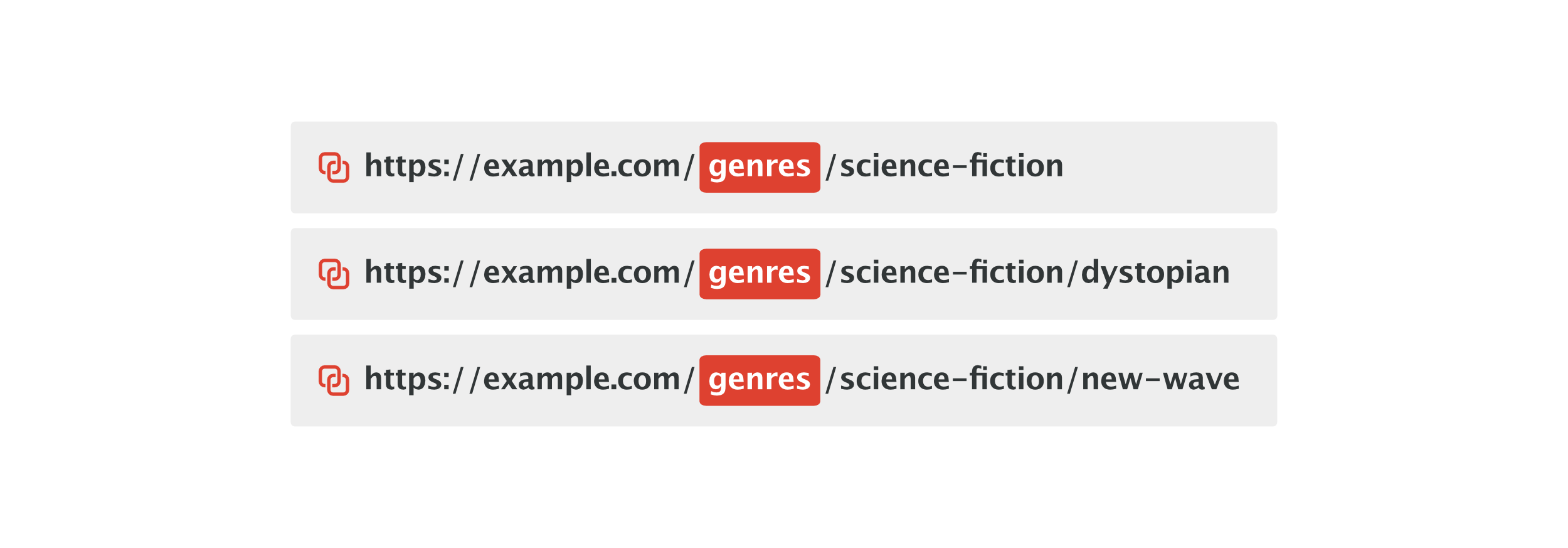
Changing custom taxonomy permalinks is not as straightforward in WordPress as it is for standard categories. When a taxonomy is registered, the defined "rewrite slug" becomes the base prefix used in all term permalinks.
Beyond that, the native permalink settings offers offer very little control. You cannot remove the taxonomy base, apply custom structures per term, or bulk-edit slugs from the admin dashboard without either writing custom rewrite rules or installing a dedicated plugin.
Permalink Manager fills that gap by providing a settings-based interface for managing taxonomy permalinks. It lets you set-up fully custom permalink structures and automatically redirects old URLs to the new ones to help prevent 404 errors.
What are Custom Taxonomies?
A taxonomy is a way to group content. WordPress ships with two built-in ones: categories and tags. A custom taxonomy is a way to organize content beyond the default categories and tags.
Each term within a taxonomy gets its own archive page, which functions as a listing page for all content assigned to that term.
They are really helpful when you are working with custom post types and want to structure them in a way that makes better sense for your content. A movie review site, for example, might use taxonomies such as "Genre", "Director", or "Release Year".
Flat vs. Hierarchical Taxonomies
When you register a custom taxonomy in WordPress, it is non-hierarchical by default unless you explicitly change that setting.
- A hierarchical taxonomy allows parent and child terms, just like standard Categories. For example, you could have a "Location" taxonomy. Inside it, you have "USA" (parent) and "New York" (child).
- Non-hierarchical taxonomies behave like Tags. All terms stay on the same level, without parent-child relationships. For example, an "Actors" taxonomy usually lists individual actors, where none of them belongs under another.
If you set up a taxonomy as hierarchical, with parent and child levels, WordPress reflects the parent-child structure in the URL. That means a term "New York" nested under "USA" would appear in the URL as
/usa/new-york/
.
Declaring Taxonomies in WordPress
The simplest way to register a custom taxonomy without writing code is to use a plugin like ACF or Pods. Both let you create and configure taxonomies directly from the WordPress admin dashboard.
If you need a more custom setup, you can register a taxonomy by adding a code snippet with the register_taxonomy() function. Here is a basic example:
function pm_register_taxonomy() {
	$args = array(
		'labels' => array( 'name' => 'Genres' ),
		'public' => true,
		'hierarchical' => true,
		'rewrite' => array(
			'slug' => 'genres',
			'with_front' => false,
			'hierarchical' => true
		),
	);
	register_taxonomy( 'genre', array( 'book' ), $args );
}
add_action( 'init', 'pm_register_taxonomy' );What are Custom Taxonomy Permalinks?
Custom Taxonomy Slug vs Term Slug
These two terms are easy to confuse because they both appear in the same URL, but they control different things.

The taxonomy slug (rewrite slug) is the base prefix that WordPress adds to every term archive URL within that taxonomy.
The taxonomy slug is specified as the 'slug' parameter under 'rewrite'. If you skip it, WordPress automatically uses the taxonomy name as the base for the permalink structure.
The term slug is a unique identifier assigned to every term. It is created automatically from the initial title when the term is added. You can modify the slug manually at any time from the term edit screen in the admin dashboard.
What You Can Change and Where
| Taxonomy Slug | Term Slug | |
|---|---|---|
| Set via |
register_taxonomy()
rewrite argument | Auto-generated from term name, editable in admin |
| Scope | Affects all terms in the taxonomy | Affects only that individual term |
| Editable from admin dashboard | No | Yes |
| Requires rewrite flush after change | Yes | No |
Changing Individual Term URLs
How to Change Term Slugs Without A Plugin?
The WordPress admin panel allows you to manually edit the slug of each taxonomy term. This offers only basic control, but it is usually enough for small or simple projects.
To edit a term slug:
- Open your WordPress dashboard.
- Go to the relevant taxonomy, for example "Team -> Department"
- Select the term you want to modify.
- Enter the new value in the "Slug" field and click "Update" to save your changes.
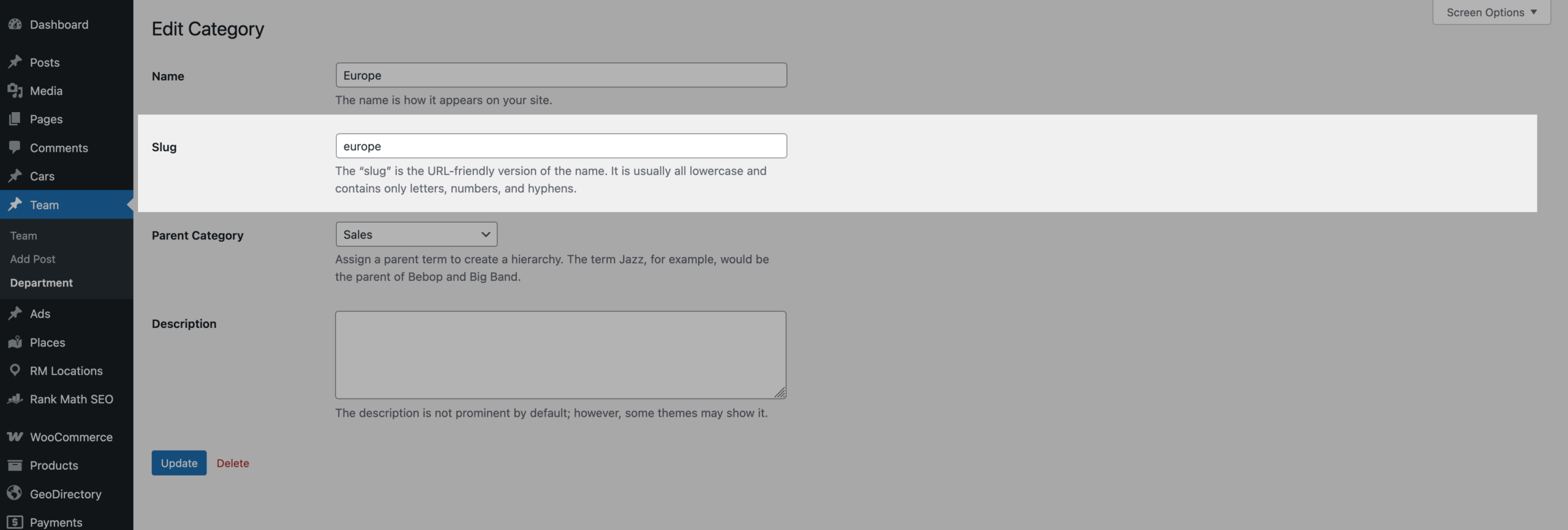
If the taxonomy is hierarchical and that term has child terms, those URLs update as well to reflect the new parent slug. For example, changing a parent term slug from "europe" to "eu" would update a child term URL from:
https://example.com/department/europe/poland/
to:
https://example.com/department/eu/poland/
Editing a Single Term Permalink with Permalink Manager
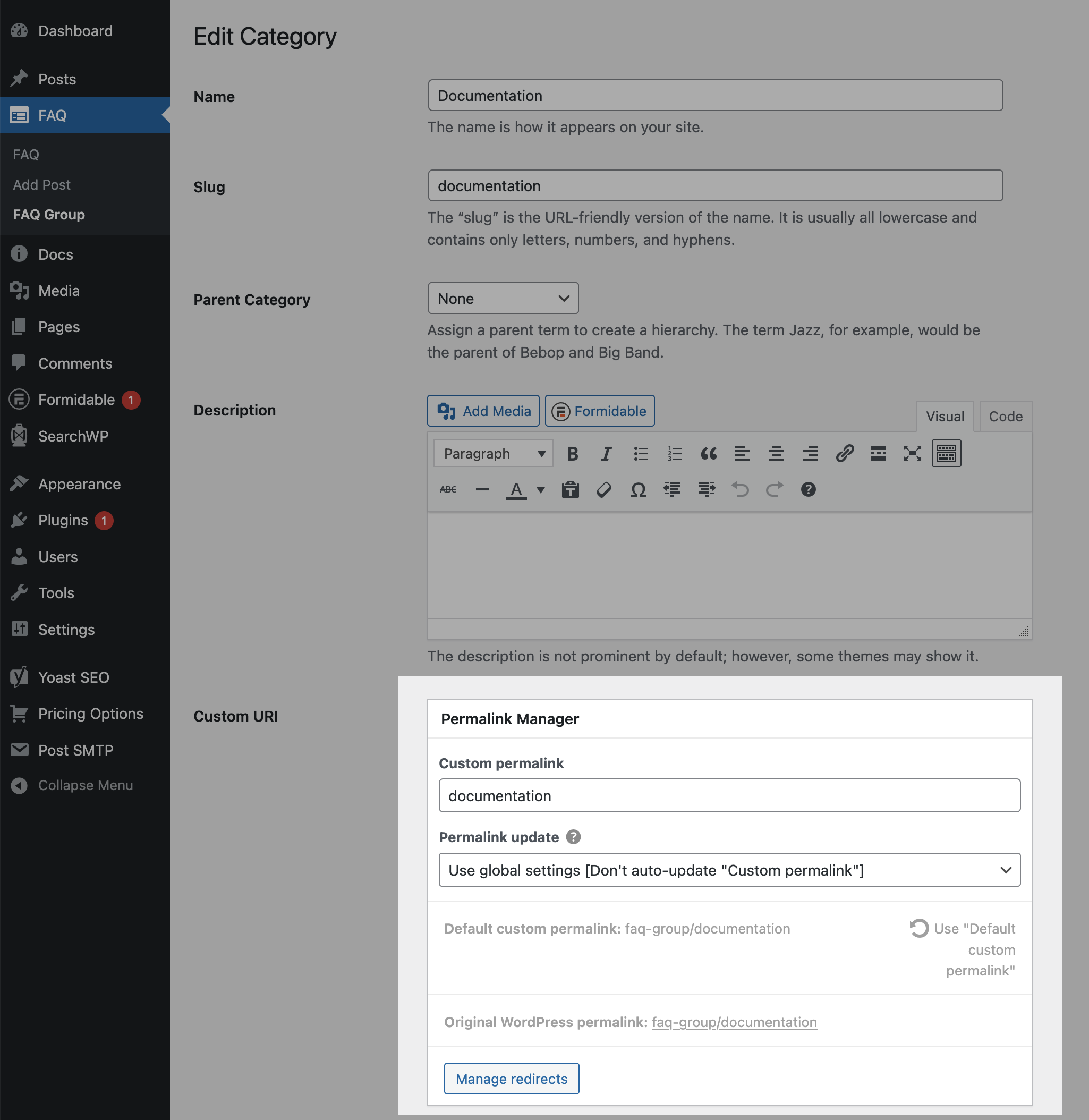
Permalink Manager works independently of WordPress’s built-in rewrite system. This allows you to assign a fully custom permalink to any taxonomy term, regardless of the default taxonomy URL structure.
Each term has its own editable permalink field within Permalink Manager. You can find it on the same edit page where you can change the term title and description.
To edit a custom permalink:
- Open your WordPress dashboard.
- Go to the taxonomy that contains the term you want to edit.
- Click the term you want to update.
- Enter the new value in the "Custom Permalink" field and save the term.
Bulk Editing Term Permalinks
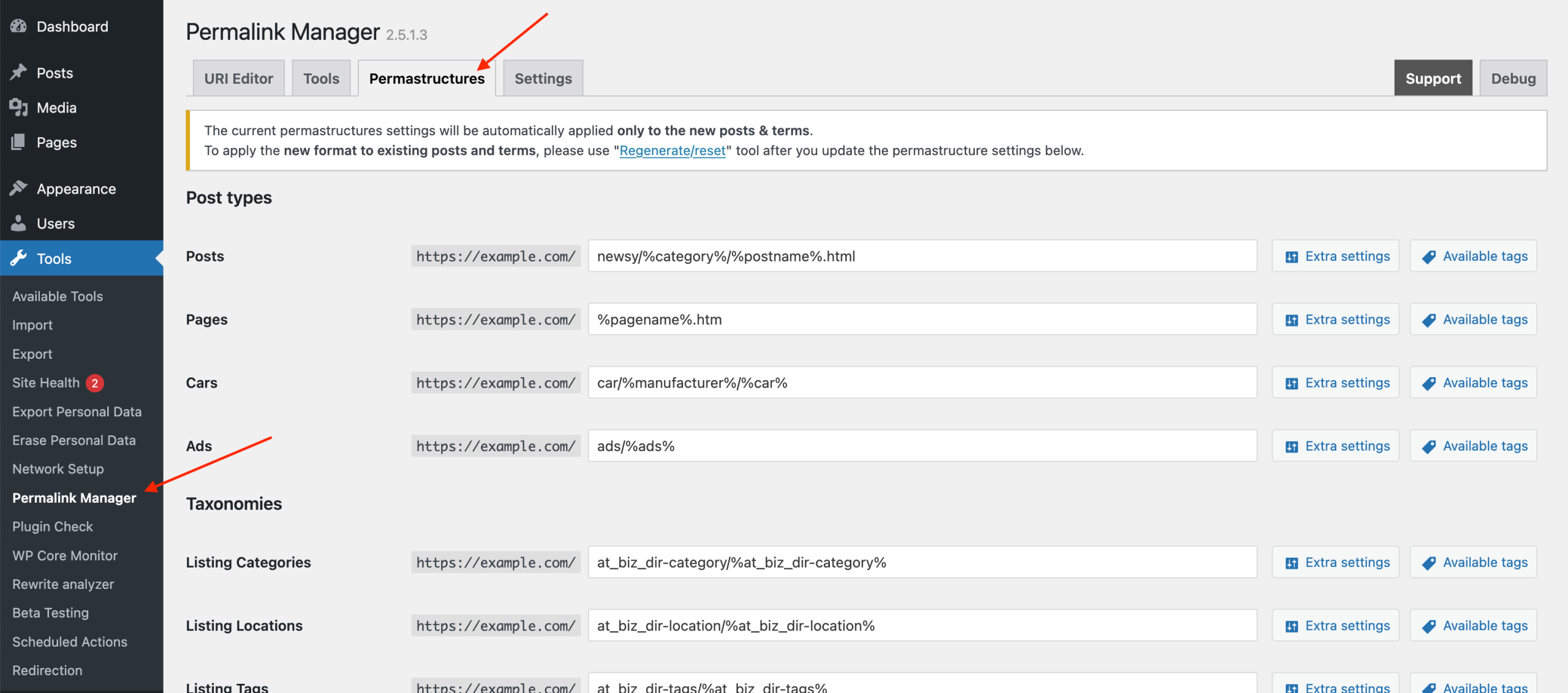
Permalink Manager adds more flexibility to the default WordPress permalink system. It allows you to remove default taxonomy bases or add custom taxonomy slugs to custom post type URLs.
For taxonomies with many terms, editing URLs one by one is not practical. Permalink Manager simplifies this task by allowing you change multiple term URLs from one screen.
Removing the Taxonomy Base From URLs
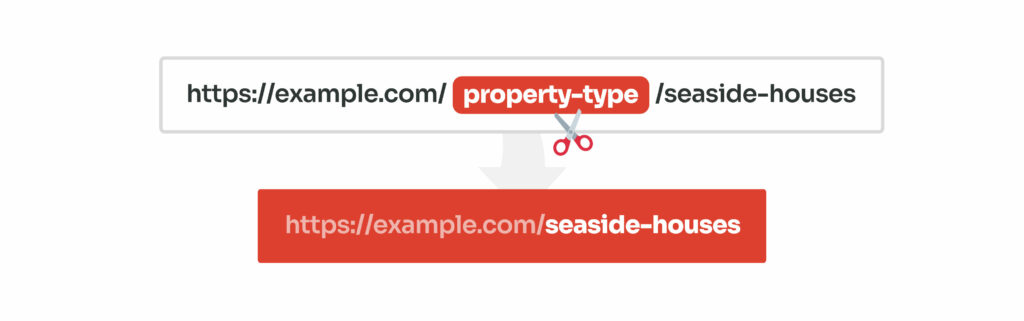
Out of box, custom taxonomy archive URLs always contain the taxonomy slug. This slug is required in the default permalink structure, and WordPress does not provide a built‑in option to remove it.
This is because this specific slug base helps WordPress identify taxonomy archive by its permalink and prevents URL conflicts with other content types. Permalink Manager allows you to remove the taxonomy base without writing custom code.
It relies on its own permalink detection logic, which works independently of the native WordPress permalink system. As a result, WordPress can still load the correct term archive even when the taxonomy base is removed from its custom permalink.
Adding Taxonomy Slugs to Custom Post Type Permalinks
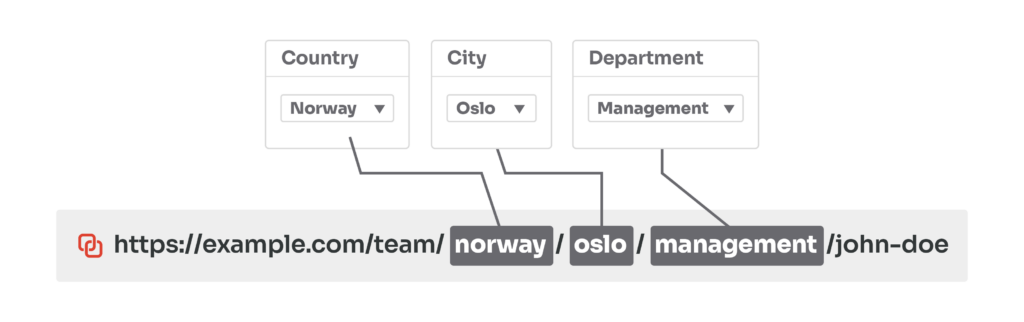
Custom post type permalinks in WordPress do not include a taxonomy slug unless you add one manually through code or a plugin.
Permalink Manager handles this through permastructure tags. Using them, you can add taxonomy slugs directly to the custom post type permalink.
As a result, the permalink clearly shows the relationship between the post and its taxonomy.
FAQ
Why Is My Custom Taxonomy Archive Showing a 404 Eror?
Sometimes, after changing the custom taxonomy permalink format, the expected URLs do not work and display a 404 page instead. This usually happens because the old rewrite rules are still active in the database.
Rewrite rules in WordPress are cached in the database and do not update on their own after permalinks change. To flush them, open "Settings -> Permalinks" in the admin panel and click "Save Changes" with no other changes applied.
You usually need to flush rewrite rules after:
- Changing the rewrite slug inside
register_taxonomy() - Enabling or disabling the 'hierarchical' rewrite setting parameter
Can I Change the Permalink Structure of a Custom Taxonomy Without a Plugin?
Partially, yes. What you can actually change depends on which part of the taxonomy URL structure you need to adjust.
-
The first is the rewrite slug defined when the taxonomy is registered. You cannot change it from the WordPress admin dashboard without extra plugin or code.
If you are using a child theme, you can adjust the taxonomy settings programmatically without installing extra plugins. This way you can change the rewrite slug use the register_taxonomy_arg filter instead of hardcoding changes in theme or plugin files.
-
The second is the individual term slug, which you can edit the from the term "Edit" screen.
This change applies only to that specific term URL. It does not modify the taxonomy base prefix or the global permalink structure.
Other than these two, no further URL customization options are available in core for custom taxonomy permalinks. If you need more control, such as inserting taxonomy slugs into posts URLs, you will need custom code or a dedicated plugin like Permalink Manager.
Leave a Reply