In the WordPress ecosystem, the term "slug" refers to the part of a URL that identifies a specific page in a human-readable format. Slugs appear in search results and can help visitors understand the content of a page before clicking.
By default, WordPress generates slugs from the content title. If a slug already exists, WordPress adds a number, like "-2", to keep it unique. Permalink Manager allows you to override this restriction and duplicate the slugs when needed.
Slugs do not update automatically if you change the title later. You can edit them manually in several ways: directly in the content editor, using the Quick Edit panel, or through Permalink Manager for more control.
What Is a WordPress Slug?
Simply described, a WordPress slug is a text-based identifier that is saved in the database and assigned to individual posts, pages and terms much like a numeric ID. The primary use of the them is to identify what post, page, category or term should be loaded.
This is not the only place where they show up, since WordPress also makes use of them in its URLs. In general, they are located at the end of them. Without them, your URLs might look like a series of random numbers and letters, which provides no information to your visitors.
The Difference Between Slugs and Permalinks
Every post, page, or term on your WordPress site has a permalink. The permalink is the full URL that visitors use to access your content, including your domain name. The slug is the final part of that URL. It identifies the specific post, page, or term within your site.
You can edit the slug to make URLs easier to read, share, or optimize for search engines. Since the slug is part of your permalink, updating it changes the URL too.
WordPress will redirect the old URL to the new one automatically. Still, changing slugs too often can confuse your visitors and might hurt your SEO.
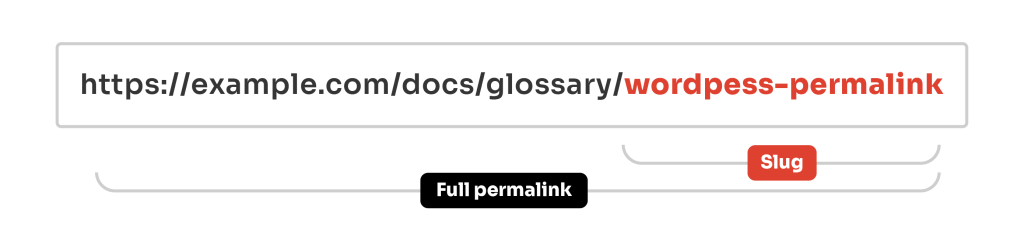
How Does WordPress Create Slugs?
The slug is based on the initial title you give your post or category when you first publish it. When WordPress creates a slug, it:
- Converts everything to lowercase.
- Replaces spaces with hyphens (-).
- Removes special characters and punctuation.
The table below shows how titles are turned into slugs:
| Title | Slug | Permalink |
|---|---|---|
| WordPress Tutorials | wordpress-tutorials | https://example.com/wordpress-tutorials |
| Cotton T-Shirt | cotton-t-shirt | https://example.com/products/cotton-t-shirt |
| Tutorials | shoes | https://example.com/category/tutorials |
If you change the title later, the slug does not update by itself. This protects your existing links, but it also means that if you need the slug to reflect a new title, you have to update it yourself.
Why WordPress Sometimes Adds “-2” to the Slugs?
WordPress requires each native slug to be unique. If you try to create a second item with the same slug, WordPress appends a numeric suffix like "-2" to make it unique.
This behavior ensures WordPress can resolve which content to load when a URL is requested. If you see "hello-world-2", it means "hello-world" was already used by another post, page, or term.
| Post title | Post slug | The original permalink |
|---|---|---|
| Hello World | hello-world | http://example.com/2019/11/20/hello-world |
| Hello World (Duplicate) | hello-world-2 | http://example.com/2020/11/15/hello-world-2 |
WordPress does not allow duplicate slugs by default, but if you want to get around this you can use a plugin like Permalink Manager.
It gives you full control over your custom permalinks and unlike the built-in WordPress permalink system, allows you to use the same slug multiple times, so you can change them any way you want.
How to Change The Slugs?
Classic Editor
The field for changing slugs can be in different places depending on whether you are editing a page or a category. If you are using the Classic Editor, you can change it by clicking the small "Edit" button just below the title.


Gutenberg Editor
To change a slug in Block Editor (Gutenberg), use to the "Permalink" section in the sidebar.
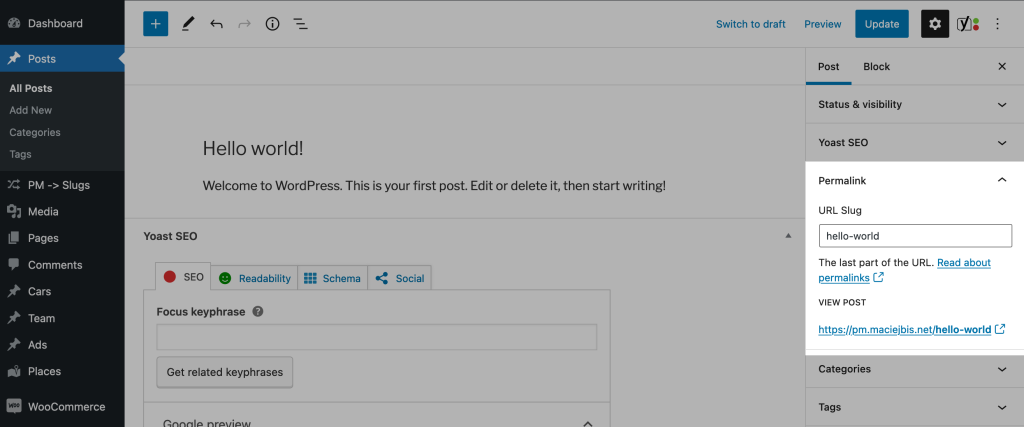
Categories and Custom Taxonomies
When you edit categories, tags, or custom taxonomy items in WordPress, you will see a slug field on the same page where you change the title and other details.
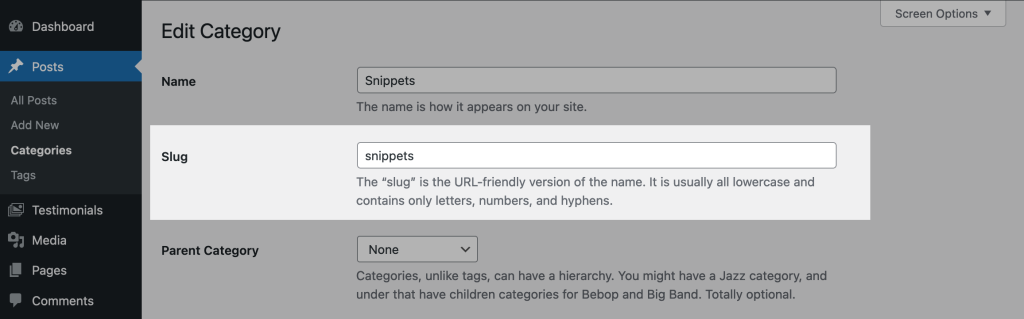
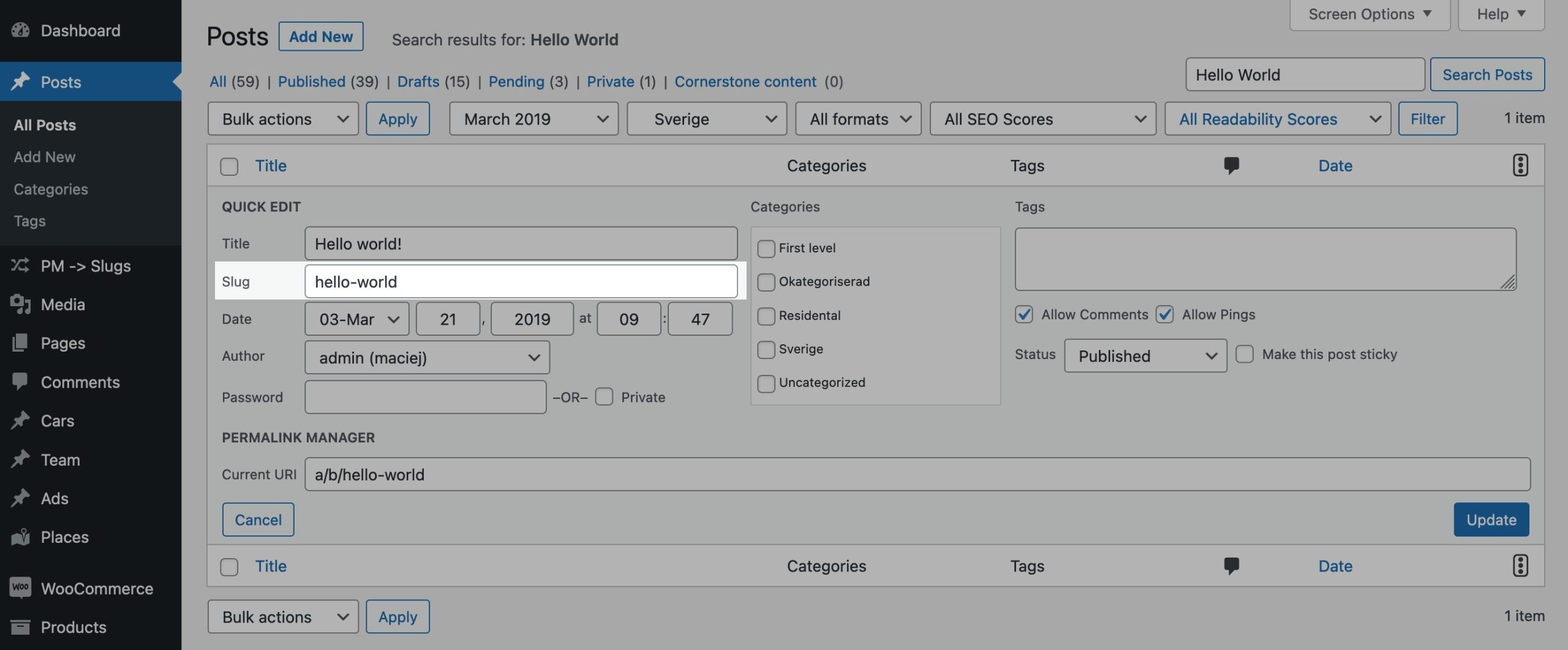
Via "Quick Edit"
If you want to quickly change a post’s slug, there is a simple shortcut you might not know. In the posts/categories list, click "Quick Edit" under the title, and you will see a field where you can edit a slug.
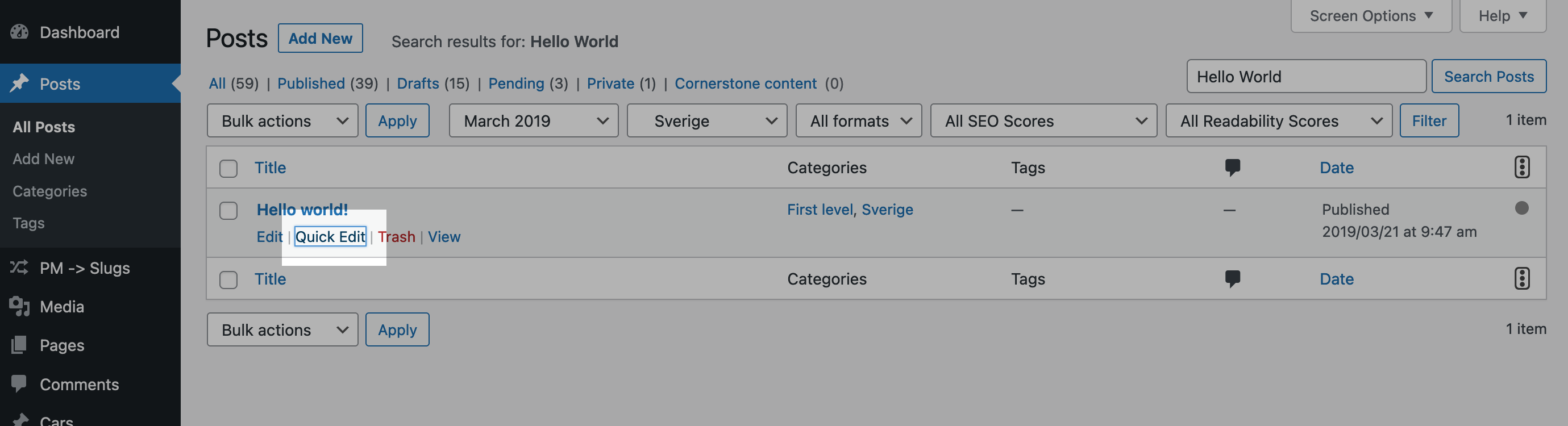
Via Permalink Manager
Because URLs created using Permalink Manager may be totally personalized, they do not have to include native slugs. However, if required, they may be edited straight using the URI Editor. By default, the native editor is not shown in the admin interface.
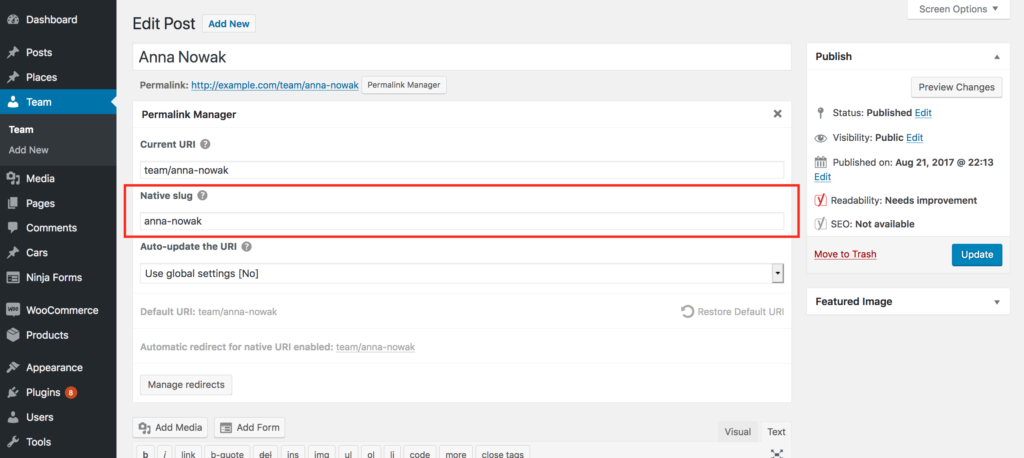
If you need to change the native slugs for whatever reason, you can utilize the URI Editor's slug editor. To do this, turn on the 'Show "Native slug" field' option in Permalink Manager settings, as shown below.
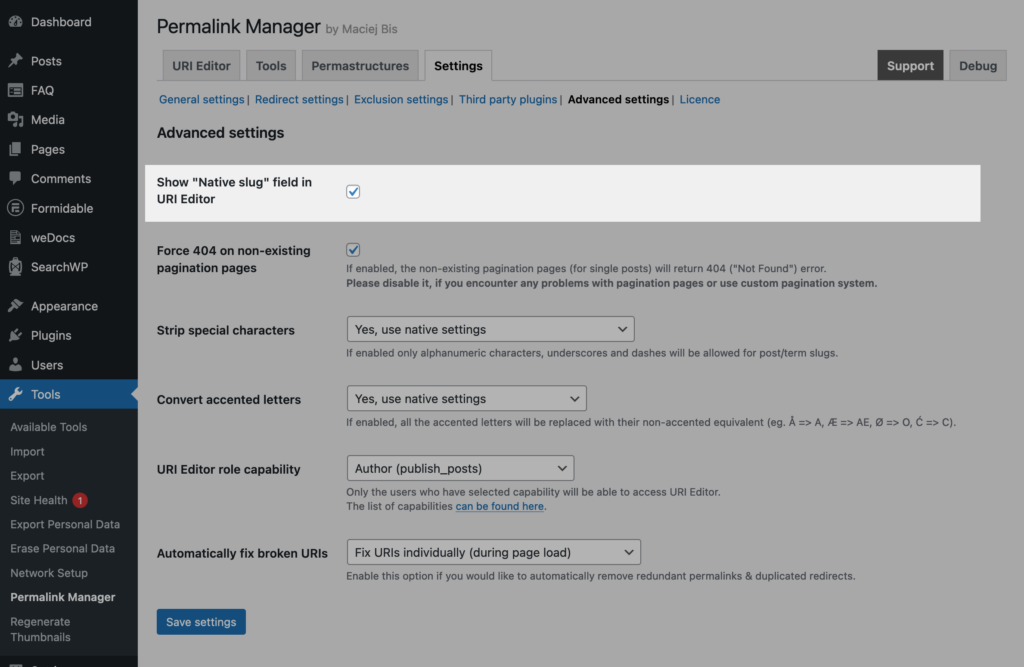
Permalink Manager will display an extra field within the URI Editor if the "Show native slug field" option is checked, as illustrated below.
Where Does WordPress Store Slugs?
In WordPress, slugs are stored in different database tables depending on the content type:
- For posts, pages, and custom post types, the slug is saved in the "post_name" column of the wp_posts table.
- Categories, tags, and other taxonomy terms store their slugs in the "slug" column of the wp_terms table.
While they are usually managed through the admin interface, they can also be accessed directly from the database. This is often used for debugging, migrations, or advanced custom workflows.
How to Get Slugs Using SQL?
The following example is set up for standard posts. If you are working with a custom post type, update the post_type value to match its name, such as "product" in WooCommerce.
SELECT post_name FROM wp_posts
WHERE post_type = 'post';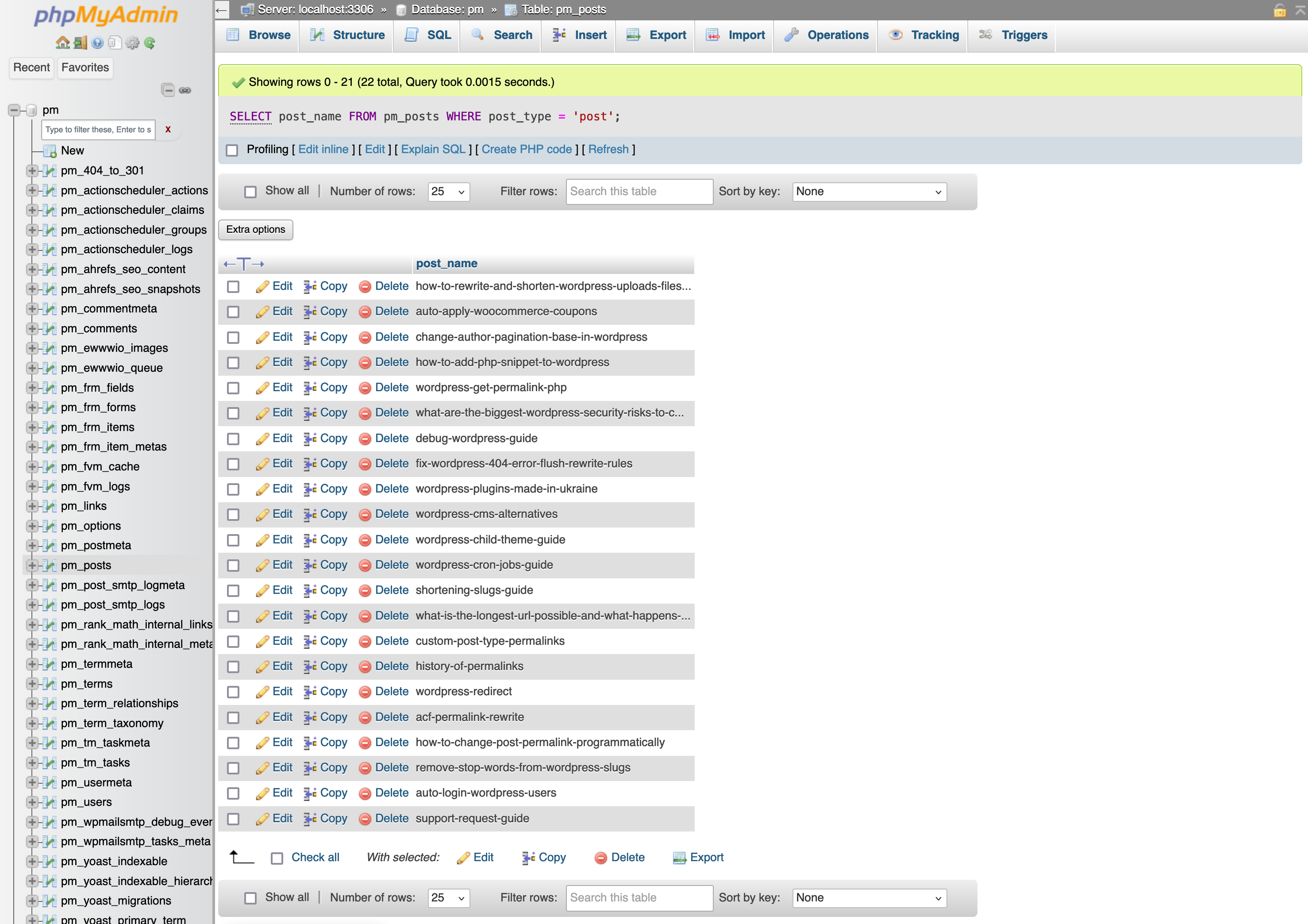
To get the slugs for a taxonomy such as "product_category", you can use the following SQL query.
SELECT slug FROM wp_terms AS t LEFT JOIN wp_term_taxonomy AS tt ON t.term_id = tt.term_id
WHERE tt.taxonomy = 'product_category'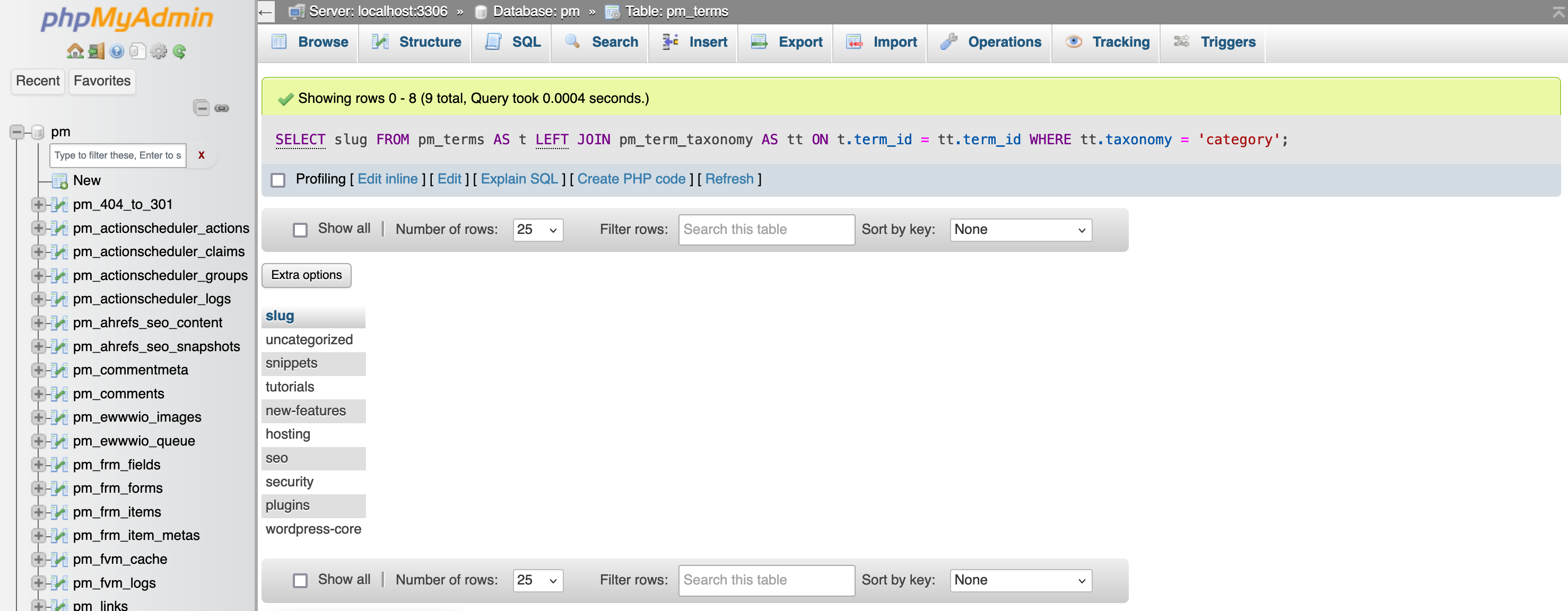
Slugs and Search Results
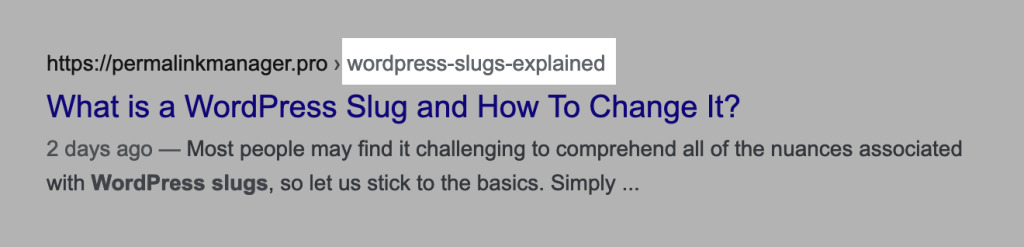
The URL with the slug may appear above the title on search engine results pages. If you keep your slugs short and descriptive, potential visitors are more likely to click your links in search results.
A concise URL looks better in search results and helps visitors know what to expect before they click. This can lead to increased engagement and a decreased bounce rate, which can benefit your SEO indirectly
Leave a Reply