WordPress provides several settings in the admin dashboard that control how permalinks are generated.
You can find them under Settings → Permalinks, where you can change the URL structure for posts, categories, and tags without editing code or installing another plugin.
This article explains the available settings and structure tags, related URL options, where WordPress stores permalink data, and how to fix common problems such as 404 errors after changing the permalink settings.
Configuring WordPress Permalink Settings
Choosing a Permalink Structure for Posts
Under Settings → Permalinks, WordPress provides several options under "Common Settings". These settings can be useful when you want to change the URL format for posts, but they do not apply to custom post type permalinks.
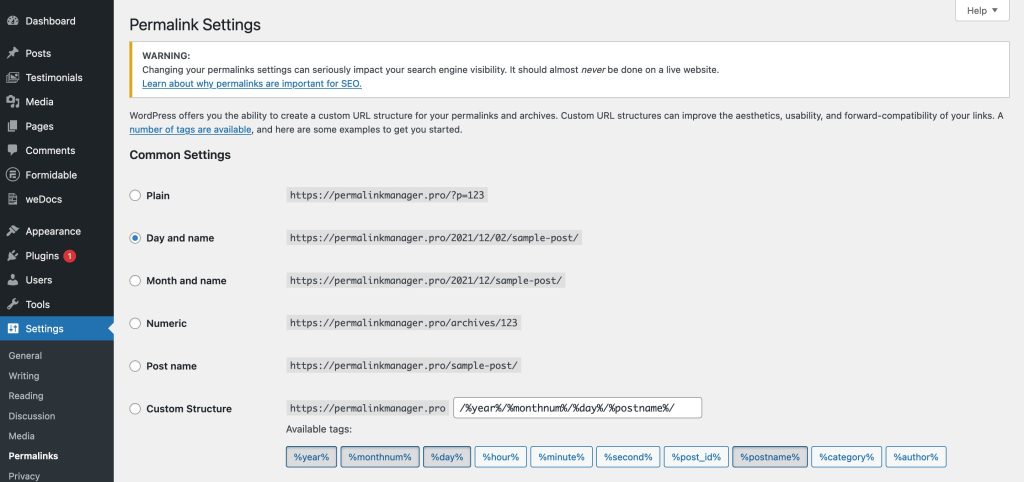
When you install a new website, WordPress checks whether the server supports pretty permalinks. If it does, WordPress uses the Day and name structure for post URLs by default:
https://example.com/2026/10/12/hello-world/If the server does not support pretty permalinks, WordPress falls back to the Plain structure.
https://example.com/?p=123You can change this structure at any time. Many site owners switch to Post name to keep their URLs short and descriptive. This is consistent with Google's general recommendations for URL structure.
https://example.com/hello-world/Besides Post name, WordPress offers a few other permalink structures:
- Plain
This structure uses a query-based URL that includes the post ID, which provides little information about the content of the post to visitors or search engines:
Example: https://example.com/?p=123 - Day and name
This structure includes the full date and the post title. It can be useful for news or time-based content, but the URL can become long.
Example: https://example.com/2026/01/02/sample-post/ - Month and name
This format shows the month and year, followed by the post title. It keeps some date context while staying shorter than the above format.
Example: https://example.com/2026/01/sample-post/ - Numeric
This structure places a numeric ID in the URL instead of the post title. It offers no context to users or search engines and is rarely recommended.
Example: https://example.com/archives/123 - Custom Structure
This field lets you build your own format by combining permalink structure tags, such as %postname% or %category%, with static text and slashes.
Example: /blog/%category%/%postname%/ → https://example.com/blog/insights/sample-post/
Permalink Structure Tags
WordPress permalink structure tags act as dynamic placeholders in post URLs. Each tag is enclosed in % signs, and WordPress replaces it with the corresponding value when generating the final URL.
You can combine these tags under Settings → Permalinks to define the URL structure for standard posts. They cannot be used in the Category base or Tag base settings.
| Tag | Description |
|---|---|
%postname% |
The post slug, usually based on the post title. |
%post_id% |
The post's numeric ID. |
%category% |
The post category slug, including parent categories if present. |
%year%, %monthnum%, %day% |
The publication year, month, and day. |
%hour%, %minute%, %second% |
The publication hour, minute, and second. |
%author% |
The post author's slug. |
For example, the permalink structure /%year%/%monthnum%/%postname%/ produces a URL like:
https://example.com/2026/01/sample-post/Changing Category and Tag URL Bases
WordPress also lets you change the base used in category and tag archive URLs. You can find these options on the same admin screen where you configure the permalink structure for posts.
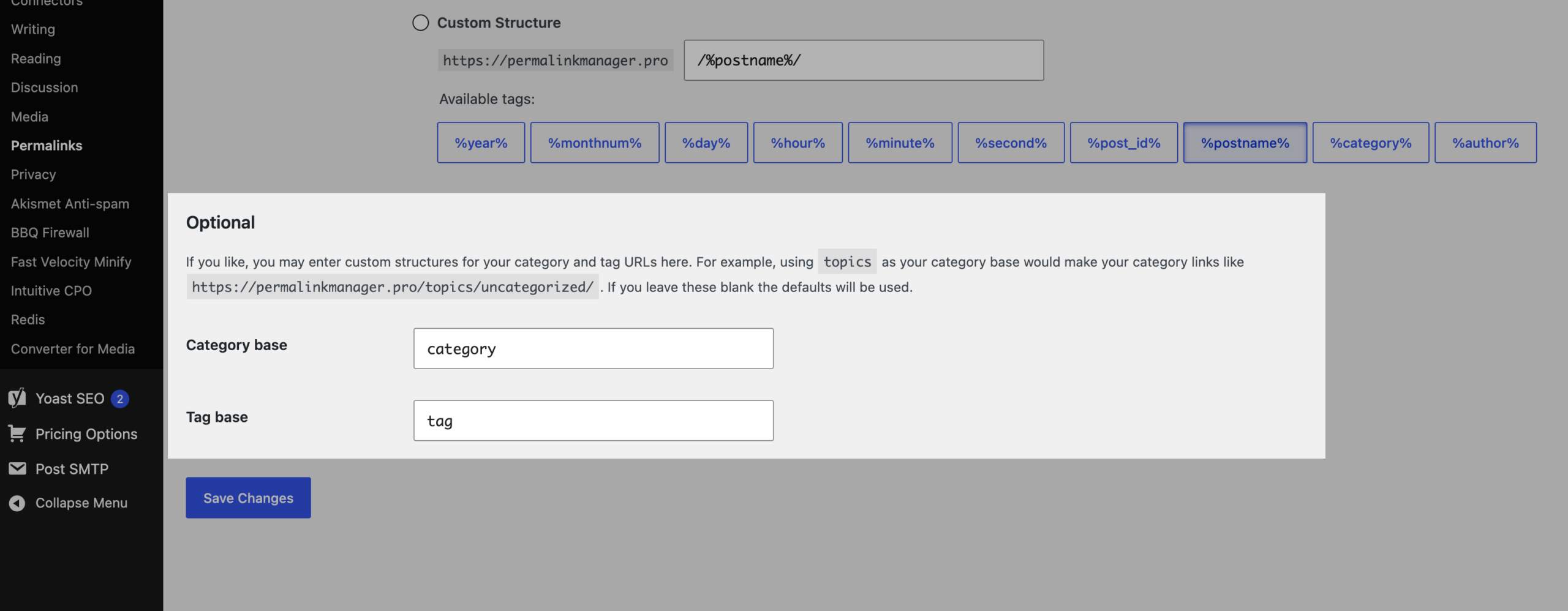
To change the base for category or tag:
- Go to Settings → Permalinks.
- Scroll down to the Optional section.
- Enter the new value in the Category base and/or Tag base field.
- Click Save Changes.
For example, changing the category base from category to topics changes:
https://example.com/category/wordpress/to:
https://example.com/topics/wordpress/The new category base applies to all category archive URLs. The tag base works in the same way for tag archives.
Other Permalink Settings
WordPress Address vs. Site Address
The WordPress admin dashboard provides two additional URL settings under Settings → General. These settings define the location of your WordPress installation and the address visitors use to open your website.
- WordPress Address (URL)
The URL where the WordPress core files are located. - Site Address (URL)
The URL visitors use to access the website.
For most installations, both values are identical. They can differ when WordPress is installed in a subdirectory but the website itself is served from the domain root.
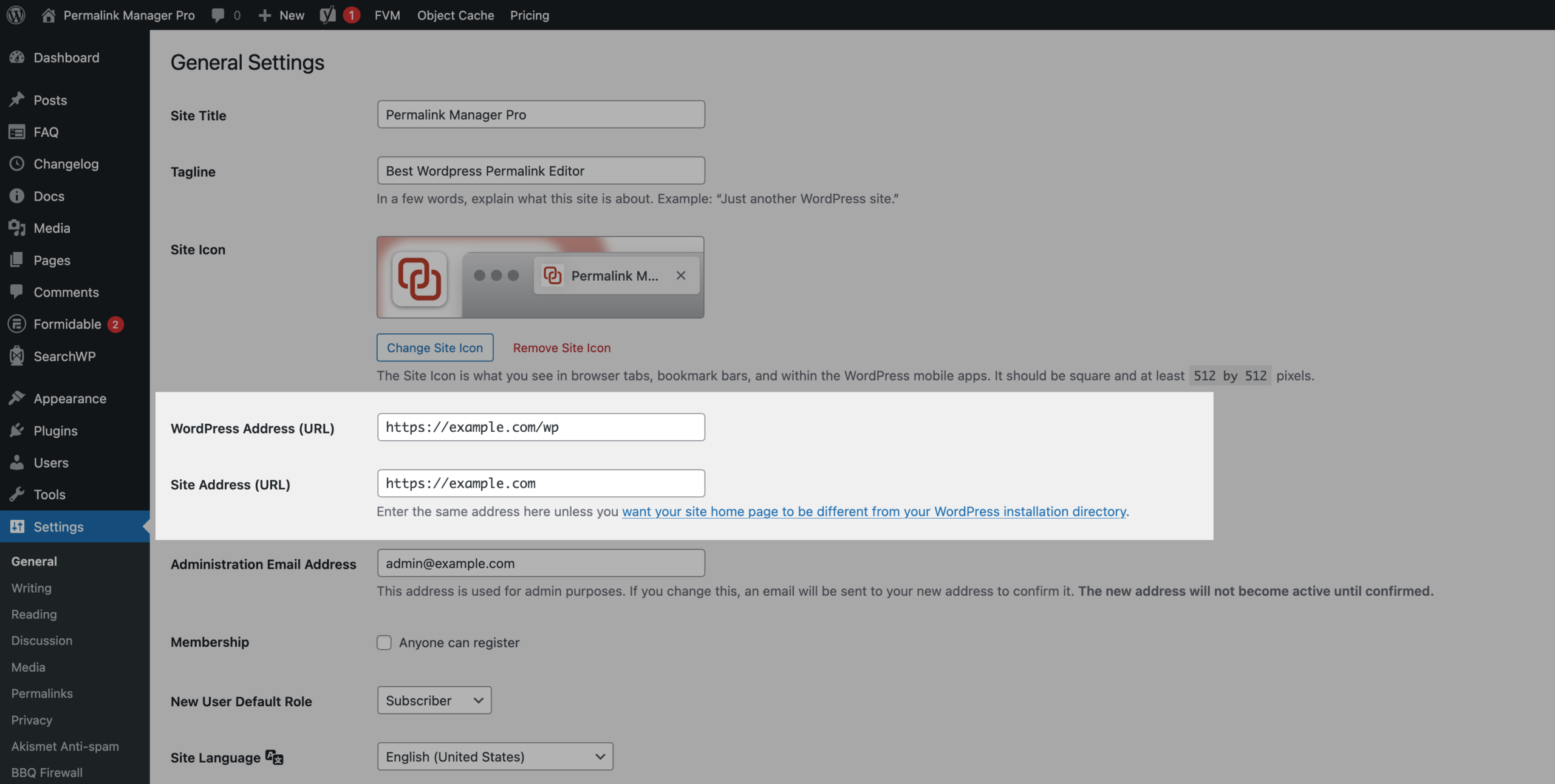
For example, if WordPress is installed in /wp/:
- WordPress Address:
https://example.com/wp/ - Site Address:
https://example.com/
In this configuration, WordPress loads its files from the /wp/ directory while the website remains accessible from the root domain.
If you define the WP_HOME or WP_SITEURL constants directly in the wp-config.php file, WordPress ignores the URLs entered under Settings → General. The fields are greyed out, so you cannot edit them from the admin panel.
define( 'WP_SITEURL', 'https://example.com' );
define( 'WP_HOME', 'https://example.com' );
Trailing Slash Settings in WordPress
WordPress does not provide a dedicated setting field or checkbox for trailing slashes in the admin dashboard. Instead, trailing slashes are determined by the permalink structure in the "Custom Structure" field.
When the structure ends with a slash, WordPress adds a trailing slash to site URLs. When it does not, the slash is removed.

This single character affects the URLs of all content on the site, so it is worth checking carefully. For a full explanation of how to add, remove, or enforce trailing slashes, see the full article on trailing slash settings.
Where Are Permalinks Stored in WordPress?
By default, WordPress does not store full URLs in the database. Instead, it generates links dynamically, allowing your site to rebuild permalinks automatically whenever the URL structure changes.
The permalink settings are kept in the wp_options table in the permalink_structure option, while each slug is stored separately. WordPress separates slugs from the global permalink settings because the slug is the part of the URL that identifies a post, page, or taxonomy item.
The category and tag bases from the Optional section are saved separately, in the category_base and tag_base options. When these fields are left empty, WordPress uses the default bases.
The permalink_structure option only defines the general format for URLs and the slugs are created from titles and appear at the end of the URL. For example, a post titled "WordPress Permalink" will use the slug "wordpress-permalink" unless you change it manually.
In WordPress, slugs are stored in different database tables depending on the content type:
- For posts, pages, and custom post types, the slug is saved in the "post_name" column of the
wp_poststable. - Categories, tags, and other taxonomy terms store their slugs in the "slug" column of the
wp_termstable.
Troubleshooting & FAQ
Why Do My WordPress Permalinks Only Work When Set to "Plain"?
If your site only works with the plain permalink structure, it usually points to a server or configuration issue. Common causes include:
- Server configuration
Pretty permalinks rely on the server’s rewrite rules.
Apache:
WordPress needs to write to the .htaccess file. If permissions are restricted, WordPress cannot update this file with the necessary rules. Ensure your .htaccess is writable (644 permissions). Even with correct permissions, a malformed or misconfigured .htaccess file can still cause issues.
NGINX:Use recommended configuration files, or make sure the try_files directive includes ?$args:
try_files $uri $uri/ /index.php?$args;Without ?$args, permalinks may not work correctly when the URL contains query parameters.
- Missing mod_rewrite module
On Apache, the mod_rewrite module handles URL rewrite rules that WordPress uses for pretty permalinks. Without it, only plain URLs work and "pretty permalinks" return 404 errors. - Caching issues
Old caches from plugins, CDNs, or browsers can serve outdated URLs. Clearing caches often fixes the issue. - Conflicts with plugins or custom structures
Custom post types and taxonomies can create overlapping URL formats. If two or more rewrite rules match the same URL, WordPress uses the first matching rule, and if it belongs to a different content type, the page returns a 404 error.
Can Changing Permalink Settings Break Existing URLs?
When you update the permalink settings, WordPress applies the new URL structure to your existing posts.
As a result, old URLs may no longer work and visitors or search engines may encounter 404 errors. Choose your preferred permalink structure early and avoid changing it later unless you have a specific reason to do so.
If you need to change the structure after your URLs have already been indexed by search engines or linked from other websites, set up redirects from the old URLs to the new ones. This helps prevent broken links and keeps existing links working.
Do WordPress Permalink Settings Apply to Custom Post Types and Taxonomies?
Permalink structure tags configured under Settings → Permalinks apply only to the default post type, not to pages.
Custom post types and taxonomies generally cannot use these tags in the same way. Some plugins, such as WooCommerce, provide additional permalink options for their custom content types and let you manage them from the WordPress admin dashboard.
If a plugin does not provide such an option, you can change the base of a custom post type or custom taxonomy URL by modifying the rewrite slug declared in its register_post_type() or register_taxonomy() configuration.