Many WooCommerce store owners choose to include a SKU in their product URLs. If you want to do this in your own store, you can set it up in a few different ways, depending on your WordPress experience.
If you already use Permalink Manager Pro, you can add SKUs to your product permalinks without writing any code. You can set everything up directly inside the plugin settings, and this guide will walk you through each step.
If you are just getting started with customizing your store's URL structure, it is worth first checking out the general guide on WooCommerce permalinks to understand the fundamentals.
The features described in this article are exclusive to the Permalink Manager Pro and are not available in Permalink Manager Lite (free version).
Why Add a SKU to Your Product URLs?
People often search by a product's reference number, not its name. That could be a SKU, EAN, ISBN, MPN, or manufacturer part number. Putting that number in the URL gives the search engine a direct match for those searches, which can help the page rank.
This matters most for stores that sell spare parts, electronics, books, or industrial supplies, where people often paste a code right into the search box.
There are smaller benefits too. You can match a URL to a product while packing orders in the warehouse or while reviewing ad campaign traffic.
The downside is that a URL with a SKU in it is harder for customers to read. Most stores get around this by keeping the product name and adding the SKU to it, rather than using the SKU on its own. Both setups are explained below.
Step-by-Step Guide
Changing a URL on a live site requires care. If a product page already appears in search results or has backlinks from other websites, changing its permalink can break those links and reduce your rankings.
When you add SKUs to your product URLs (or change them any other way), it sets up the redirects for you, so there's no need for a separate redirect plugin.
Step 1: Choose Your SKU-Based URL Format
WooCommerce keeps product SKUs in a custom field named _sku. Permalink Manager Pro can read it directly and use its value as part of your product URL.
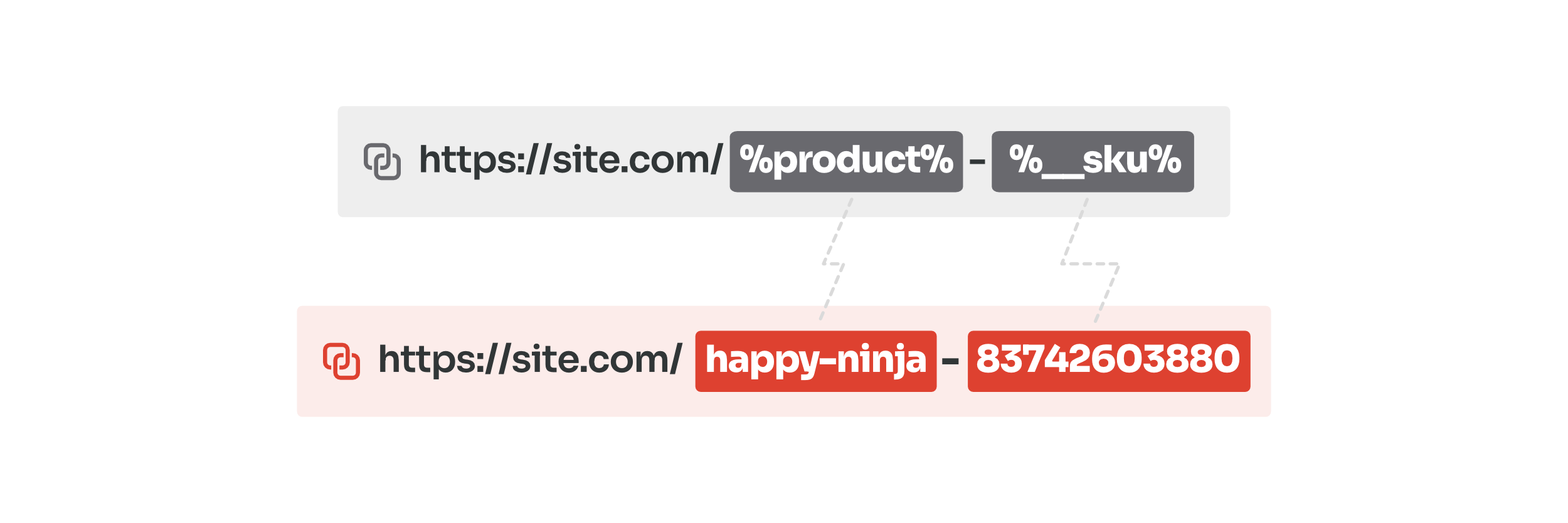
To insert the SKU into the permalink format, use the %__sku% tag. You can add the tag anywhere in the permalink structure. You may also combine it with extra text or separate the SKU and product name using a slash or hyphen.
See the before and after URL examples below:
| Permastructure format | Example URL |
|---|---|
%product%-%__sku% |
example.com/happy-ninja-83742603880 |
%product_cat%/%product%-%__sku% |
example.com/posters/happy-ninja-83742603880 |
%__sku%/%product% |
example.com/83742603880/happy-ninja |
Use the SKU Instead of the Product Name
If you'd rather replace the product name with the SKU entirely, use the %__sku% tag on its own and select "Do not automatically append the slug" after clicking on the "Show additional settings" button.
| Permastructure format | Example URL |
|---|---|
| %__sku% | example.com/83742603880 |

Step 2: Update Permastructure Settings
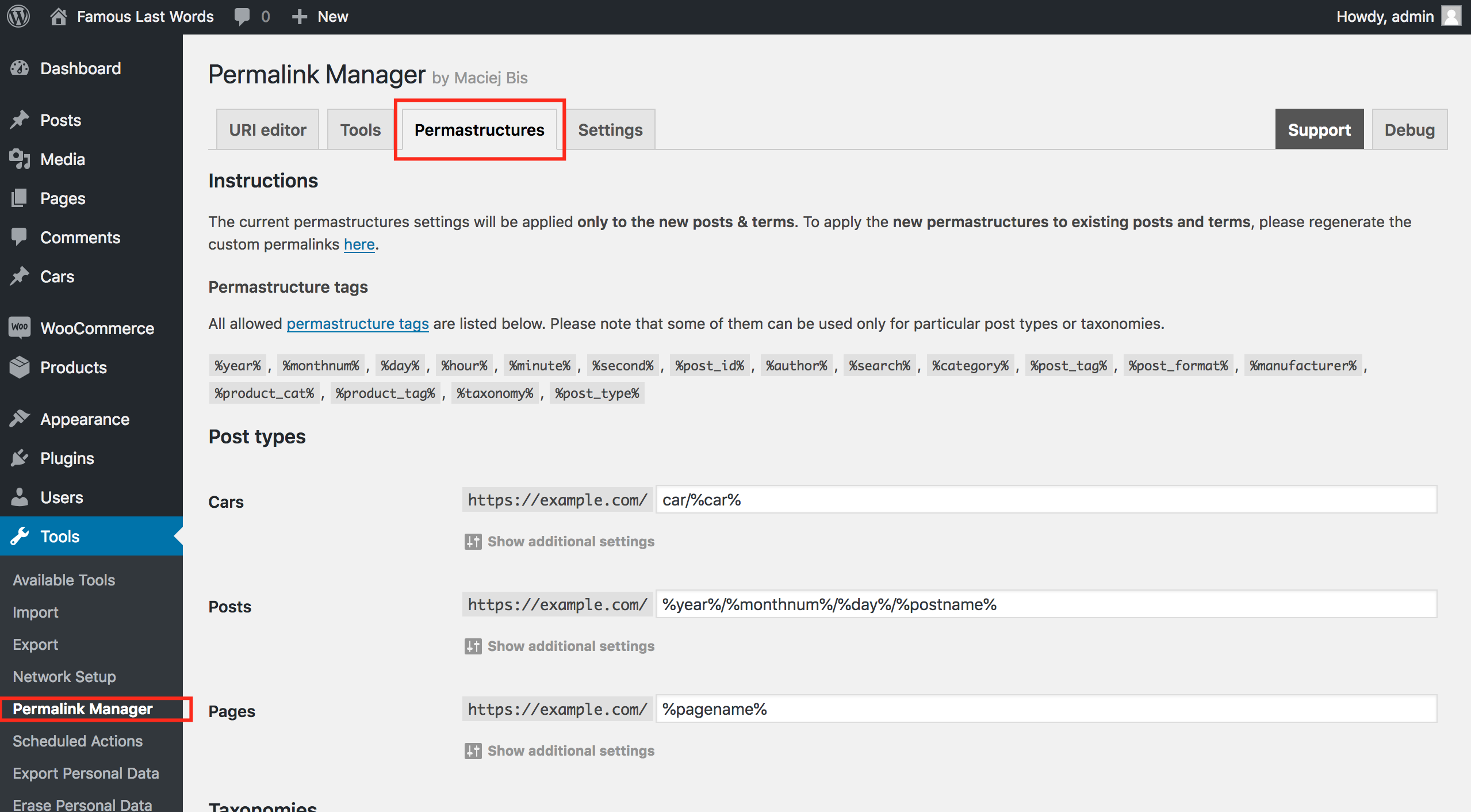
To insert a SKU into your products permalinks, go to "Tools → Permalink Manager → Permastructures" section.
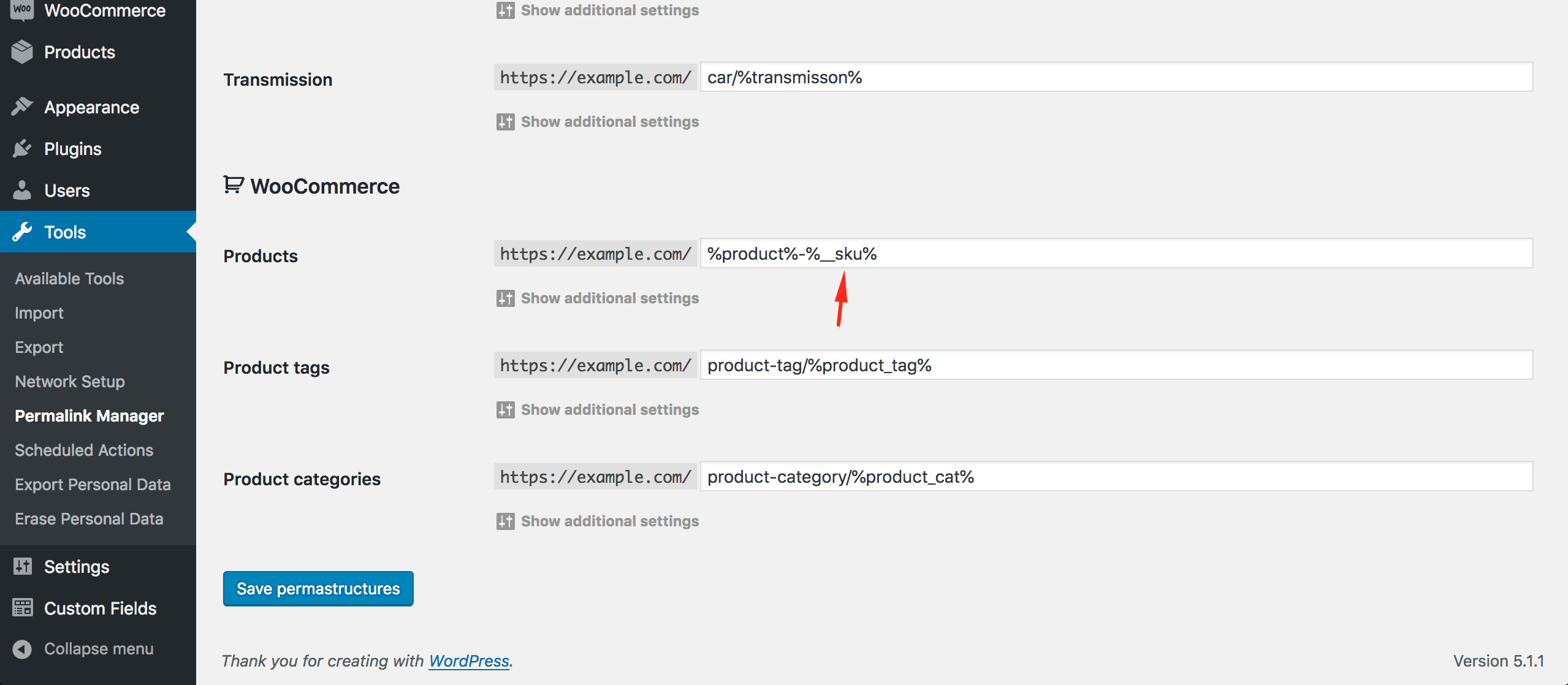
Once there, scroll down to the WooCommerce section and look for the "Products" row. In the input field, add %__sku% wherever you want the SKU to appear.
Step 3: Apply Changes to Existing Products (Optional)
New products will automatically use the new permalink format you set. Existing products will keep their current URLs until you regenerate them or manually update them.
If you want to apply the new format to older products, follow these steps:
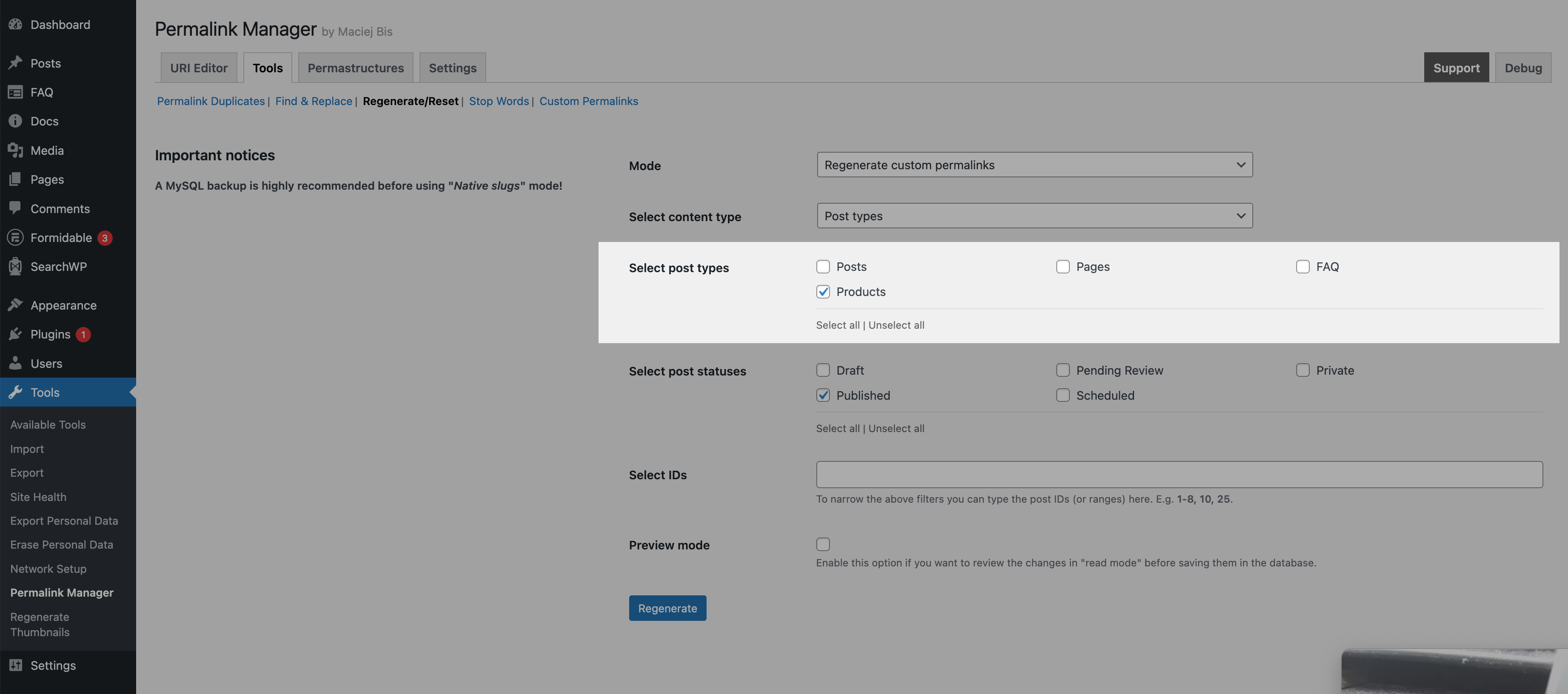
- Go to "Tools → Permalink Manager → Tools".
- Open the "Regenerate/Reset" tab.
- Select "Products" and run the regeneration.
| Field | Selection |
|---|---|
| Mode | Regenerate custom permalinks |
| Select content type | Post types |
| Select post types | Products |
| Select post statuses | Published |
Frequently Asked Questions
What Happens If a Product Has No SKU?
If a product has no SKU assigned, Permalink Manager skips the %__sku% part of the URL for that product, so you will not get empty segments or broken links.
Will Changing My Product URLs Cause Broken Links or "404" Errors?
No. Permalink Manager creates a redirect from each old URL to the new one, so you keep your existing search rankings and backlinks. You do not need a separate redirect plugin.
What Happens If I Change SKU Later?
By default, if you change a SKU after the custom permalink has been generated, Permalink Manager does not update the URL automatically. This is intentional, because it prevents unexpected URL changes that could harm your SEO.
If you do want the permalink to follow the new SKU, you have two options:
- Update the custom permalink manually on the "Edit product" screen, or
- Turn on auto-update mode in the plugin settings.
Can I Use the SKU Instead of the Product Name?
Yes. Set the product permastructure to %__sku% on its own (see Step 1) and the slug will be the SKU rather than the product name.