Many WordPress sites are set up to include the year, month and day in the posts' URLs. This format was very popular in the past, but today many site owners prefer cleaner URLs without dates.
For posts that receive regular updates, a date in the URL can mislead visitors and make the content look outdated. Removing the date improves readability and consistency, but it must be done carefully to avoid broken links and SEO issues.

If you change your permalink settings directly in the WordPress admin dashboard, your old links will stop working and display a "404 Page Not Found" error. This can negatively affect search visibility and backlinks.
Permalink Manager solves this problem by allowing you to keep old URLs for existing posts while using the new structure for new content. Alternatively, you can update all existing posts to the new format, and the plugin will automatically redirect your old URLs.
Method 1: Using Default WordPress Settings to Remove Dates
WordPress includes built-in permalink settings to manage the URL structure. From there you can easily switch from a dated format, such as /%year%/%monthnum%/%day%/%postname%/, to a simpler structure.
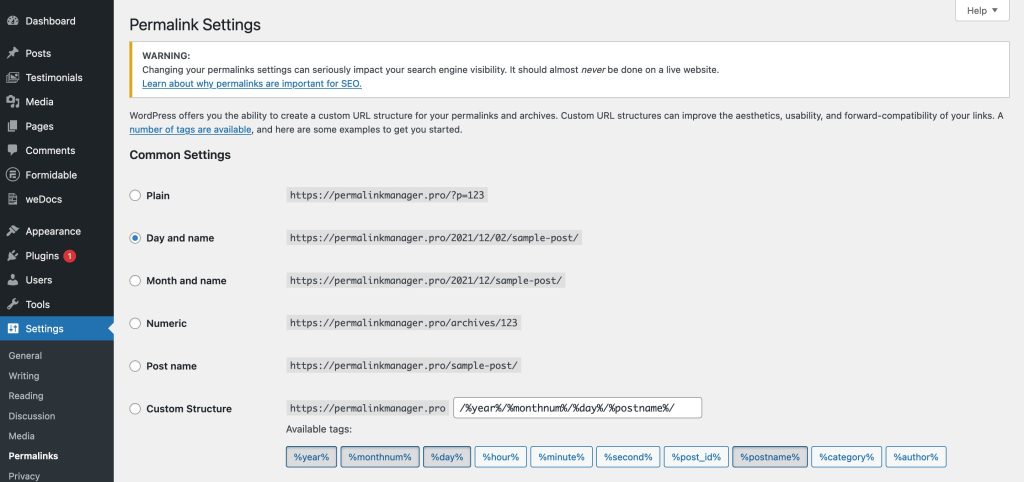
After you update the permalink settings, WordPress applies the new format to all posts, including content that already exists on your site. While the new format is applied, the old posts' URLs no longer work.
SEO Risks
Visitors trying to access links that no longer exist will encounter a 404 page. These broken links can send negative signals to search engines, affecting your search visibility and organic traffic.
You can fix this by setting up manual redirects for every URL using extra plugin. This works for a few posts, but for larger websites with thousands of permalinks, doing this manually is nearly impossible.
Using a REGEX-based redirect is generally more efficient than maintaining a large list of individual redirects. It reduces database entries and keeps redirection management simpler over time.
How to Avoid 404 Errors After Removing Dates?
Redirection plugin
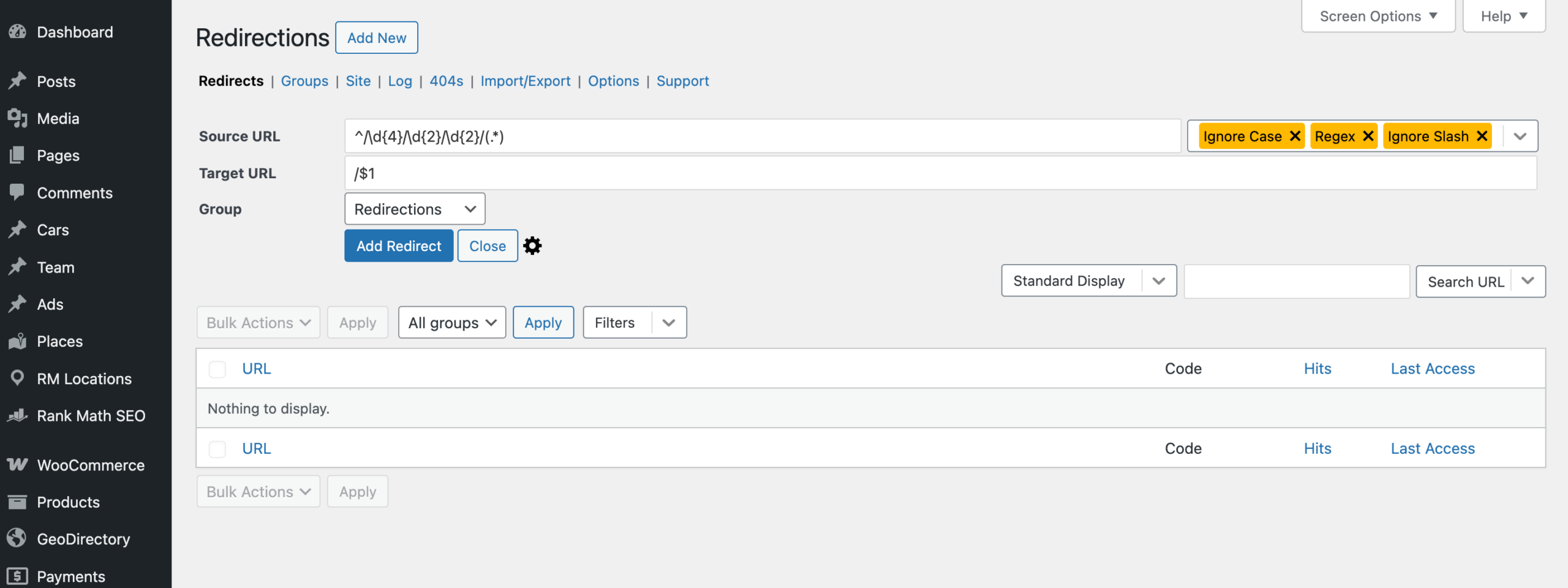
If you are not comfortable editing server files, the Redirection plugin is a simplest way to set-up date-based redirects directly from the WordPress admin dashboard, without changing any server files.
While a .htaccess redirect is triggered at the server level via Apache, this method uses the WordPress backend to handle the logic. Additional instructions and examples are available in the official plugin documentation.
To remove dates from post URLs, enable "Regex" in the dropdown next to the "Source URL" field and apply the following settings:
- Source URL:
^/\d{4}/\d{2}/\d{2}/(.*) - Target URL:
/$1
RankMath plugin
If you already have the Rank Math SEO plugin installed, you do not need an extra redirection plugin. Rank Math comes with a built-in Redirections module, which lets you manage redirects using REGEX rules.
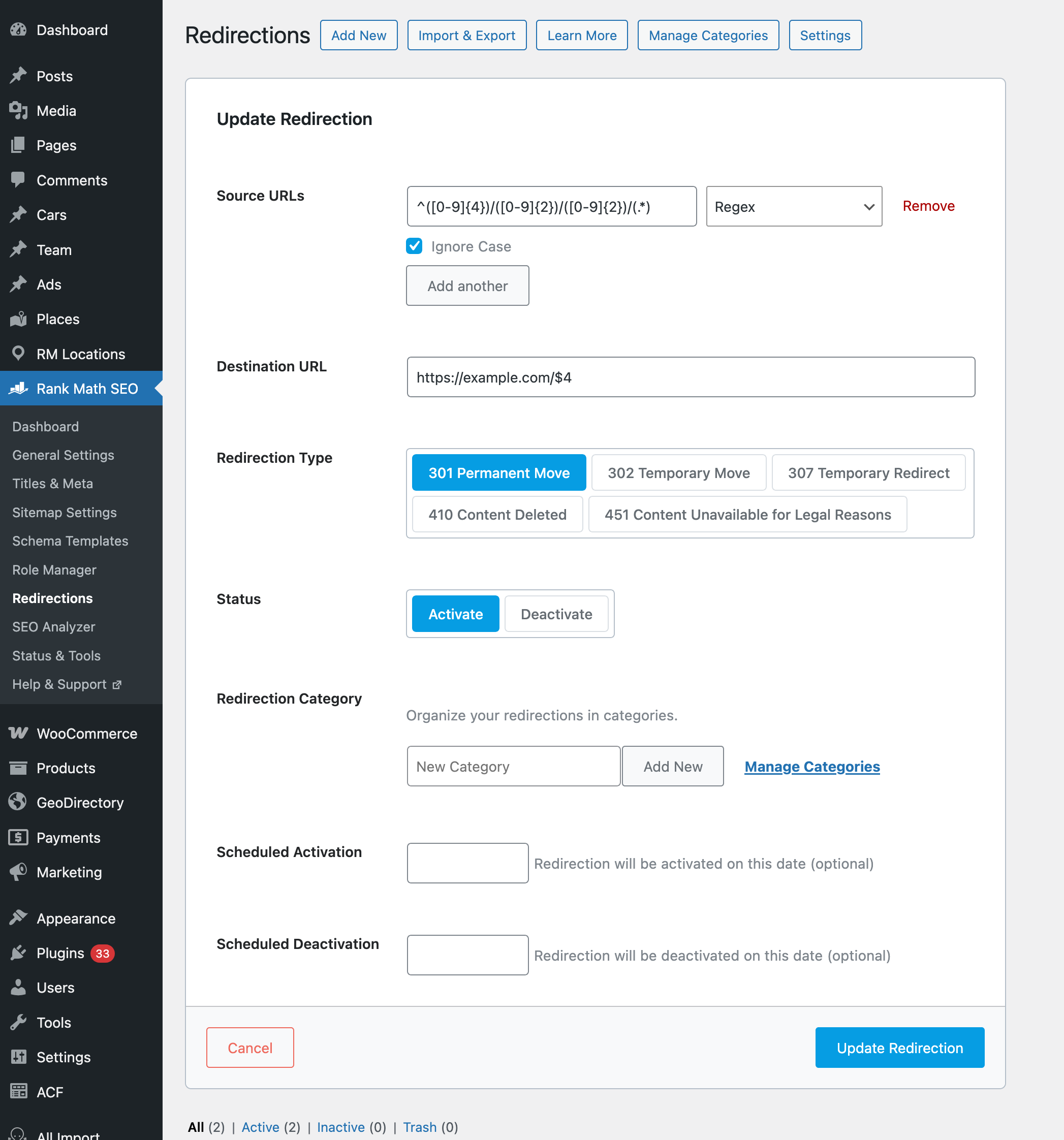
To get started, go to "Rank Math SEO -> Redirections" and click "Add New" at the top of the screen. If you do not see this menu, open "Rank Math -> Dashboard" and make sure the Redirections module is enabled.
Once enabled, you can add the new redirection using the settings below:
- Source URLs:
^([0-9]{4})/([0-9]{2})/([0-9]{2})/(.*) - Match Type:
Change this from "Exact" to "Regex" - Destination URL:
/$4 - Redirection Type:
301 Permanent Move
RedirectMatch in .htaccess
If you do not want to create a separate redirect for every old date-based permalink, you can use a single RedirectMatch rule instead. This method handles all matching URLs at once, but it requires editing the .htaccess file and is not recommended for beginners.
The RedirectMatch directive allows to catch all URLs in the old format and redirect them to the cleaner version without dates in a single line of code.
RedirectMatch 301 ^/([0-9]{4})/([0-9]{2})/([0-9]{2})/(.*)$ /$4Method 2: Using Permalink Manager to Remove Dates Safely
One of the main advantages of Permalink Manager is flexibility and you can manage custom permalinks without touching your WordPress core settings.
The plugin uses its own system for handling URLs, independent of the default WordPress permalink settings. Instead of applying changes globally, you can pick which URLs get modified and which ones stay as they are:
- You can keep existing links unchanged to preserve traffic, while applying a simpler structure only to new posts that have not been indexed or linked yet.
- You can also rewrite all URLs for both existing and future posts. Since old URLs may still be indexed or linked externally, the plugin automatically redirects them to the new URLs preventing broken links.
The plugin automatically sets up redirects from your old URLs to the new ones. This means you will not have to manually define redirect for every post after making permalink changes.
Scenario 1: Removing Dates from New Posts Only
To remove dates from your posts' URLs, you need to use Permastructures editor. Permalink Manager uses your existing WordPress settings from "Settings -> Permalinks" as a starting point.
From there, you can override these defaults and change the format to any structure you need.
- In the dashboard go to "Tools -> Permalink Manager -> Permastructures".
- Find the row labeled Posts in the "
Post types" section. You will see a text field containing the current structure, which likely includes tags like%year%,%monthnum%, and%day%. - Delete the date tags from the text field and delete everything except the
%postname%tag. - Scroll down and click "Save Changes".
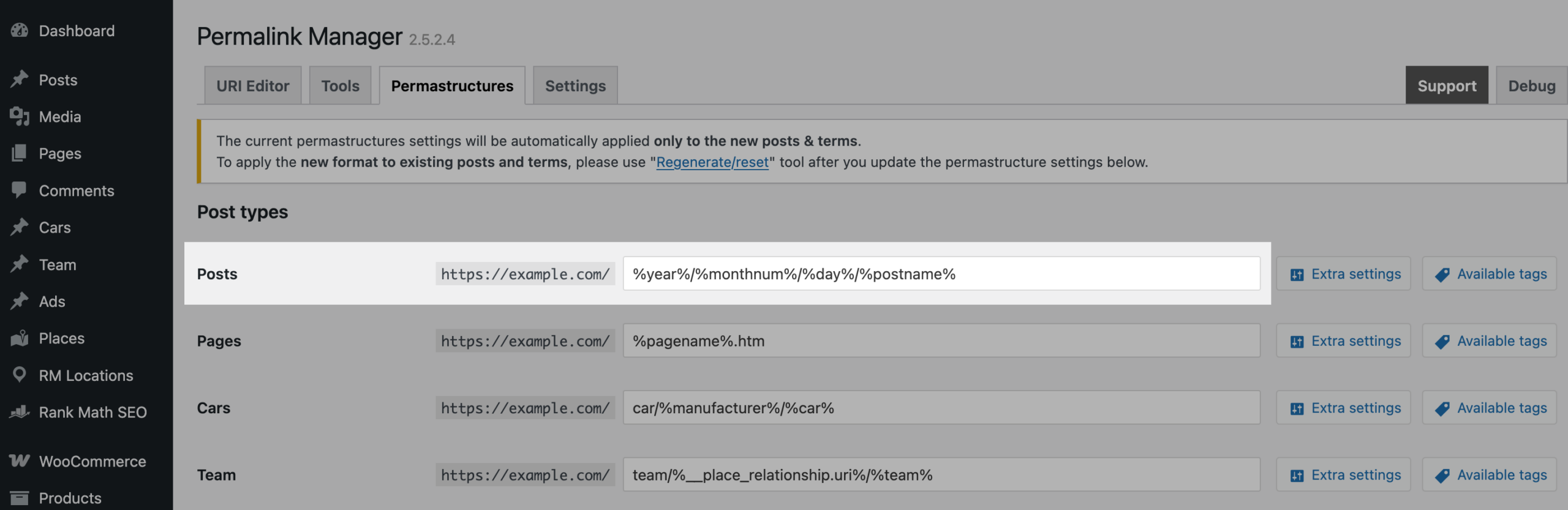

If you want the new format to apply only to new posts, you do not need to do anything extra. Once you publish a post, the new structure will be used automatically.
Scenario 2: Removing Dates from New and Old Posts
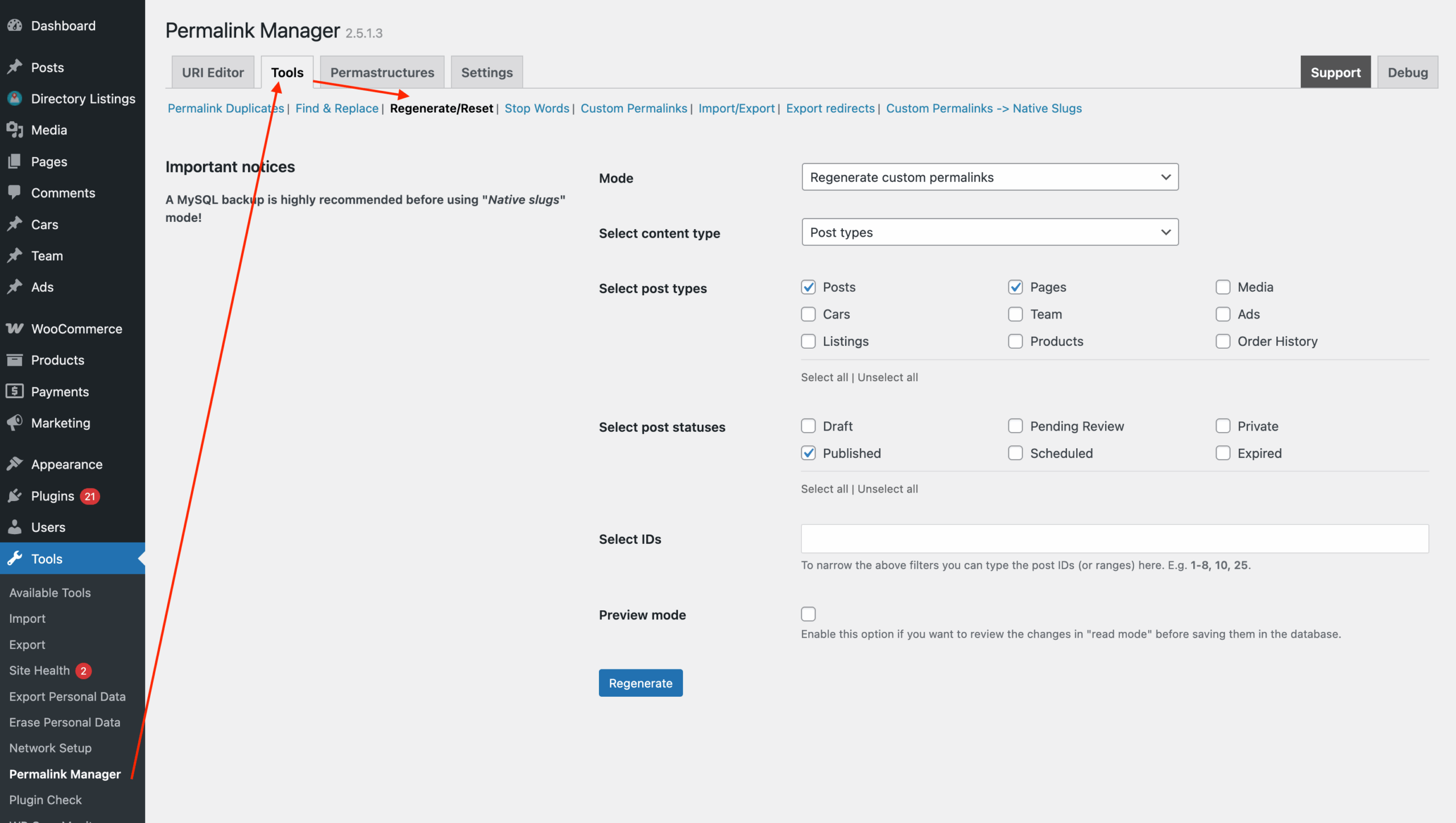
If you want to remove dates from older posts, follow the same steps you used for new posts. The difference is that for existing posts, you need the "Regenerate/reset" tool.
Before regenerating custom permalinks, make sure that the "Save old custom permalinks as extra redirects" option is enabled in the plugin settings. his makes sure your old URLs redirect properly without losing traffic.
FAQ
Will Removing Dates From My URLs Hurt My SEO?
Changing your URLs should be done carefully. Updating your permalink structure can temporarily affect SEO if not handled properly. If you change URLs without setting up 301 redirects, search engines will treat the old links as 404 errors, which can reduce organic traffic.
You can avoid this by using a plugin like Permalink Manager or adding redirects in your .htaccess file or with Redirection plugin.
Can I Remove Dates From New Posts URLs While Keeping Them on My Old Ones?
By default, WordPress applies permalink changes to all posts, which usually leads to broken links and 404 errors.
Permalink Manager handles this differently. It gives you granular control so you can define a new permalink format for your future posts while keeping your existing URLs intact.
Leave a Reply