Most WordPress websites use readable text slugs generated from post titles in their URLs. This remains the standard setup for most projects. Using post IDs in permalinks is less common, though some use cases benefit from a numeric format.
For standard posts, you can switch the format using the built-in permalink settings. For custom post types, however, you will need a custom code solution or a plugin like Permalink Manager.
If your project requires an ID-based permalink structure, the instructions below explain how to set it up properly. You will also learn how to implement redirects, helping you avoid broken links and maintain your existing search visibility.
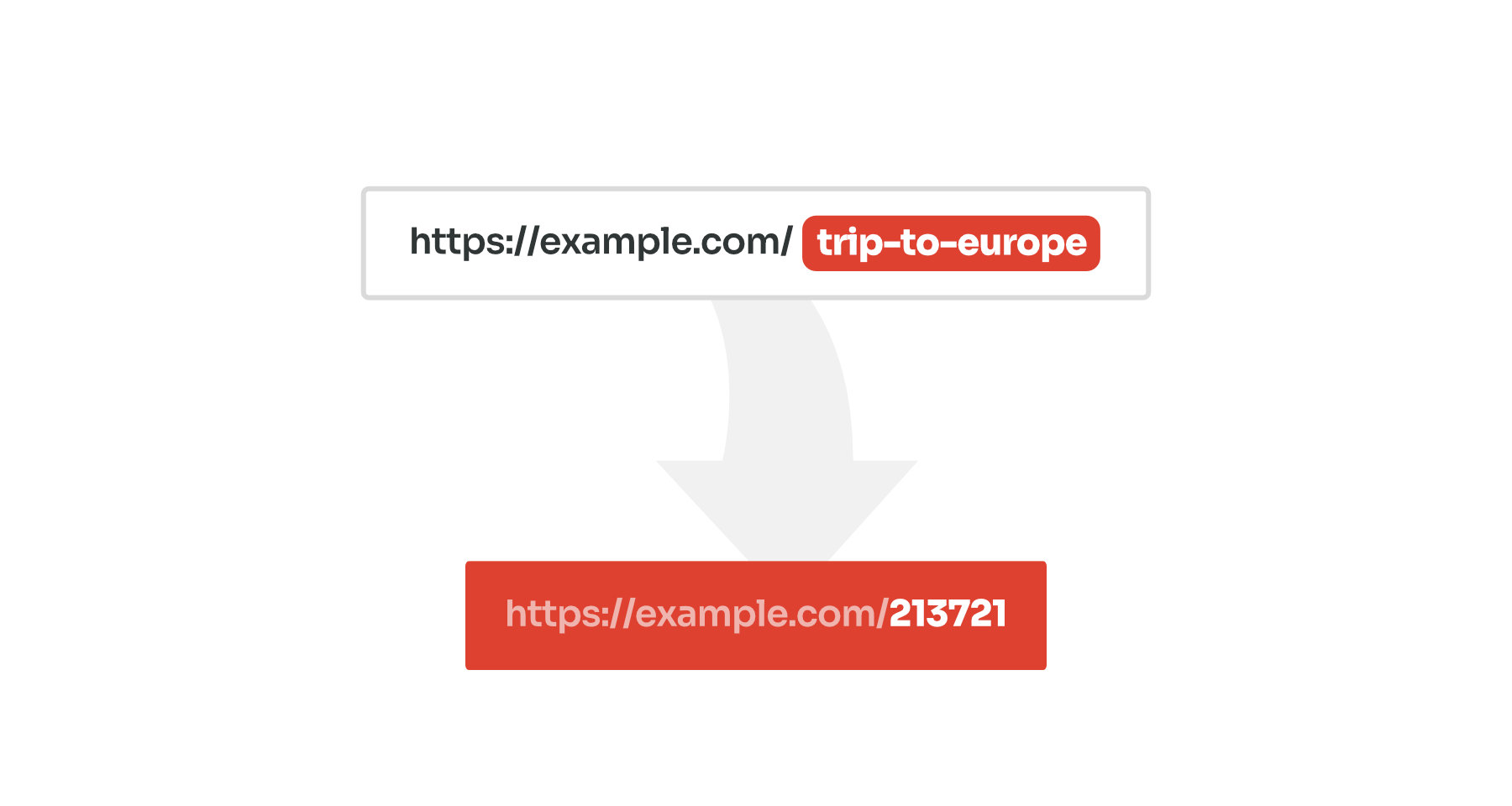
Using Post IDs in URLs: Pros and Cons
Every post, page and term in WordPress has two identifiers:
- The first is the slug generated from the post title.
- The second is a unique numeric ID created by the database at the time you save the post.
You can edit the slug at any time. The ID, however, is generated automatically and should not be changed. In WordPress, slug-based permalinks are generally preferred for both user experience and SEO.
For instance, a post titled "Trip to Europe" will automatically create a URL like
example.com/trip-to-europe
. This type of permalink is recommended by Google Search Central because the URL clearly describes the page content, making it easier for visitors and search engines to understand.
That said, using post IDs in URLs may still be useful in certain scenarios.
Consistent and Stable URLs
When you update a post title, the permalink based on the slug may change. Post IDs remain constant even after editing the title or slug. This helps prevent broken links and protects your organic and referral traffic.
Shorter, Cleaner URL Structure
Long permalinks can be difficult to type and may appear truncated in search results. While numeric IDs are less readable than text-based slugs generated from titles, they usually create much shorter URLs.
Avoiding Duplicate Slug Issues
WordPress does not allow two posts to share the same slug. If two posts have the same title, WordPress appends a numeric suffix like "hello-world-2" which can look messy. ince post IDs are always unique, using them in the permalink avoids this issue.
The Solution: How to Set Up ID-Based Permalinks?
You can add IDs to standard post URLs using the native settings available in WordPress. This method works out of the box and does not require any additional plugins.
For custom post types, the most convenient method is to use the Permastructures editor in the Permalink Manager plugin. It works in a similar way to the native settings but lets you define separate permalink formats for each post type and taxonomy.
Whichever option you choose, the whole process is simple and can be completed in a few steps.
Using Native WordPress Settings (Posts Only)
- Log in to your WordPress dashboard.
- Go to "Settings -> Permalinks".
- Select "Custom Structure" and enter
/%post_id%/: - Click "Save Changes".
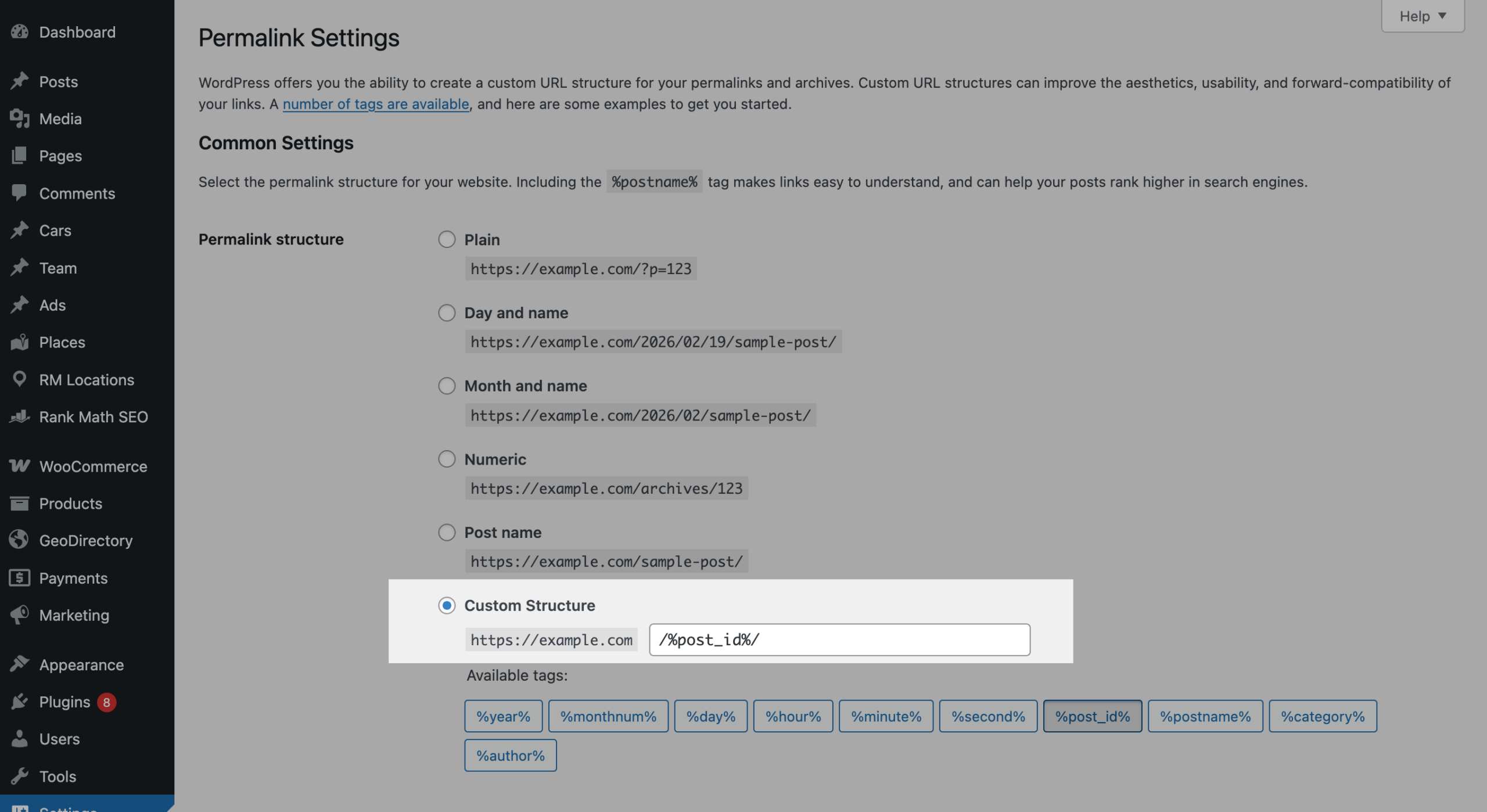
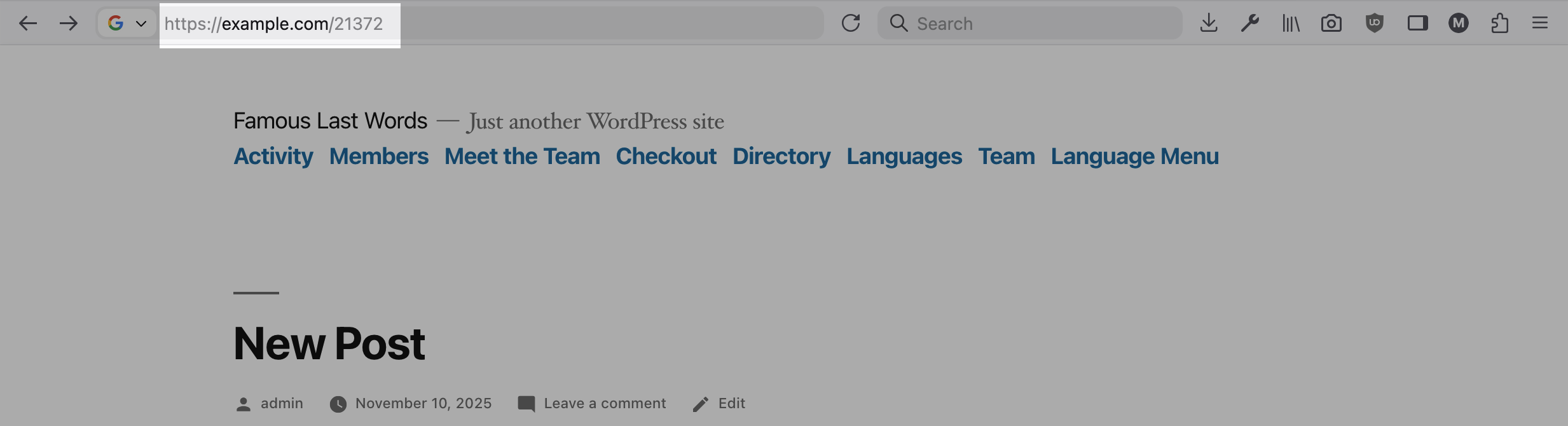
Once you save the settings, WordPress will switch your posts to numeric URLs automatically. Open any post to confirm the new structure is working. If you see errors, repeat the last step and save the Permalinks settings again.
How to Add Post ID to Custom Post Type URLs?
To change the permalink format for a custom post type:
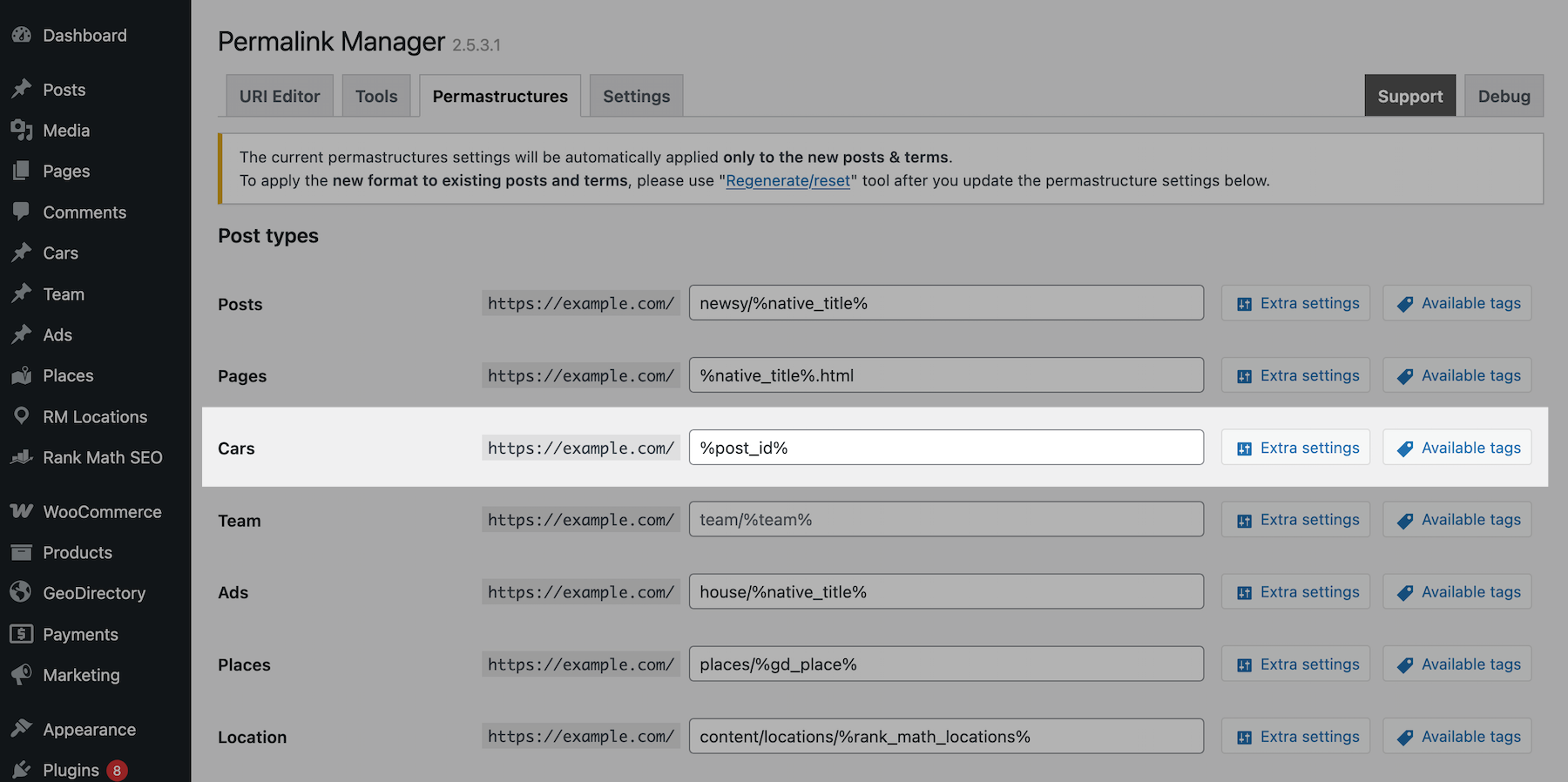
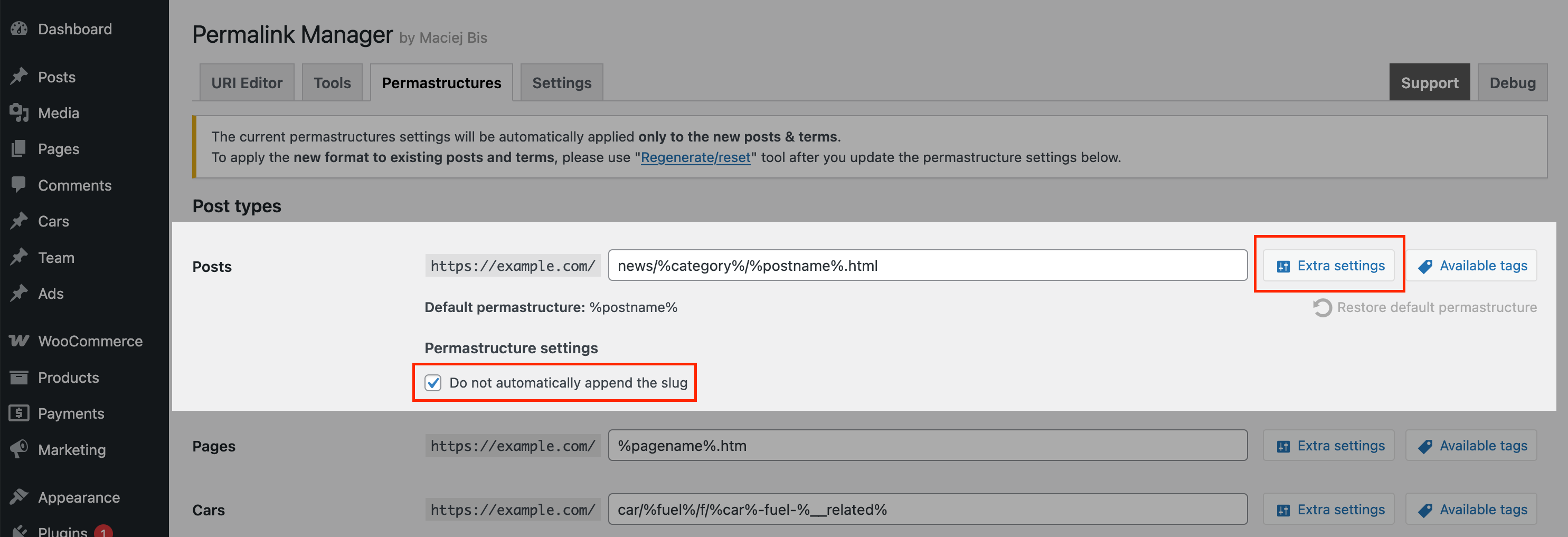
- Open the admin dashboard and navigate to "Tools -> Permalink Manager -> Permastructures".
- Choose the custom post type you want to modify, then set its permalink structure in the input field to
/%post_id%/. - Click "Save" to apply this setting to new posts.
- Enable "Do not automatically append the slug" mode after clicking on the "Show additional settings" button.
- (Optional) If you need existing posts to use post IDs in their URLs, run the "Regenerate/reset" tool.
Extra Tips & Best Practices
Choosing a permalink structure is one of the most important steps in setting up your WordPress site. While it might seem like a minor detail, your URL format affects everything from user experience to how Google crawls your pages.
Use One Permalink Format Consistently
Choose a permalink format early and avoid changing it later. Changing permalinks too often creates indexing issues and may weaken your SEO performance. Each change forces search engines to deindex old URLs and index new ones again.
Never Change URLs Without Redirect Implemented
When working on a live site, never update the permalink structure without implementing redirects. Without them, changing URLs can lead to "404 Not Found" errors, breaking existing internal and external links and reducing your search visibility.
Permalink Manager manages this process automatically through canonical redirect. If you use a different solution, configure a redirection plugin to forward old links to the new ID-based permalink structure.
Evaluate the SEO Trade-offs
Numeric permalinks are less descriptive, which can weaken SEO signals. Search engines generally prefer URLs that tell them exactly what a page is about.
If you decide to use ID-based URLs, make sure your page titles and meta descriptions are well optimized to offset the loss of keyword value in the permalink.
Alternative Approach: Replace Slugs With Random Strings
For some websites, random strings may work better than readable slugs or numeric IDs. This can be useful if the goal is to hide the post ID and remove the post title (slug) from the URL structure.
If you use Permalink Manager, you can define new permastructure tags programatically. After implementing the code snippet below, you can place the
%random%
tag in the Permastructures editor instead of the default slug.
/**
* Generates a random string to replace the %random% placeholder in custom permalinks.
*
* This function checks if the current post URI contains the %random% tag. If found,
* it replaces it with a 11-character alphanumeric string.
*/
function pm_random_string_field( $default_uri, $native_slug, $post, $slug, $native_uri ) {
	// Do not affect native URIs
	if ( $native_uri || empty( $post->post_type ) ) {
		return $default_uri;
	}
	if ( false !== strpos( $default_uri, '%random%' ) ) {
		$length = 11;
		$random_string = wp_generate_password( $length, false );
		$default_uri = str_replace( '%random%', $random_string, $default_uri );
	}
	return $default_uri;
}
add_filter( 'permalink_manager_filter_default_post_uri', 'pm_random_string_field', 3, 5 );
add_filter( 'permalink_manager_do_not_append_slug', '__return_true' );
Leave a Reply