With the "Regenerate/reset" tool, you can update existing permalinks based on the current Permastructure settings. This is useful when you need to apply the same structure to multiple posts or taxonomy items.
The plugin does not automatically update any existing URLs. This applies to both original WordPress permalinks and custom permalinks saved with Permalink Manager, allowing you to decide when to update them.
In practice, this means your Permastructure settings only apply to new posts and taxonomy items, so existing URLs stay unchanged, preventing unintended URL changes. If you want to adjust a single URL instead, see the guide on how to change permalink manually.
How Does the "Regenerate/Reset" Tool Work?
When the permalink is regenerated, Permalink Manager applies the default version defined by your current Permastructures settings.
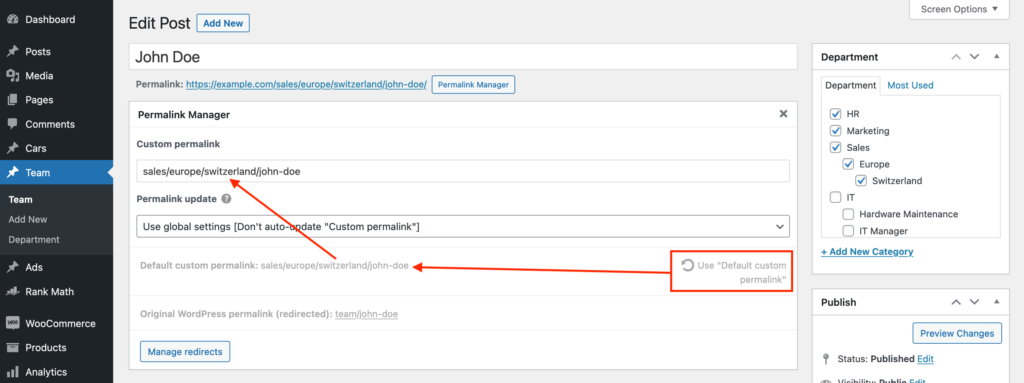
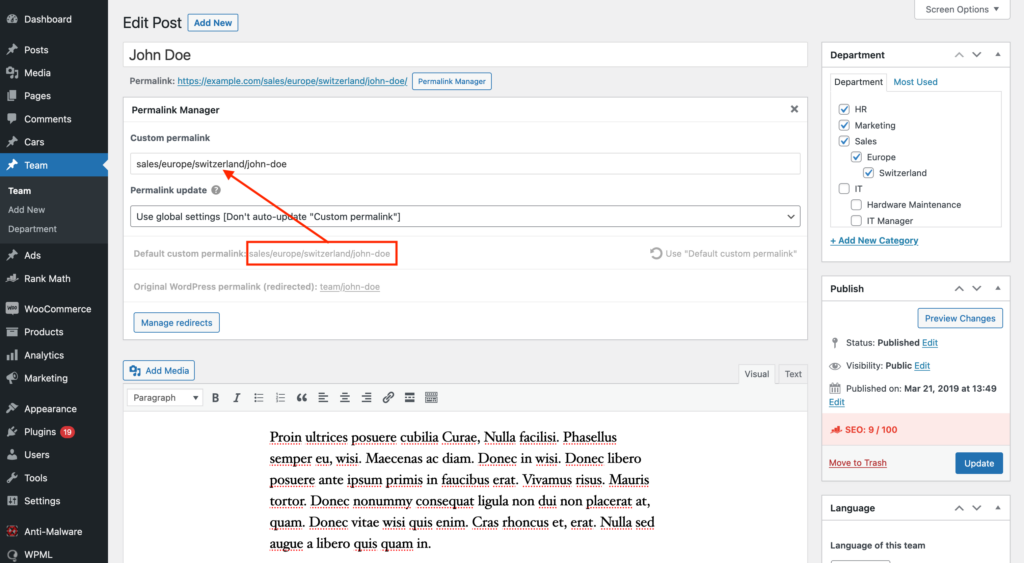
You may preview the new permalink by visiting the page where you edit a single post or term. You will find it in the "Default custom permalink" field, as shown in the image below.
How to Regenerate the Custom Permalinks?
To access the tool, navigate to the "Tools -> Permalink Manager -> Tools -> Regenerate/Reset" menu. From the first dropdown labeled "Mode", pick "Regenerate custom permalinks".
In the "Select content type" section, choose either "Post types" or "Taxonomies", depending on which content you want to update. You may select more than one post type or taxonomy simultaneously.
To narrow down the operation to specific posts or terms, you can enter their IDs in the "Select IDs" field.
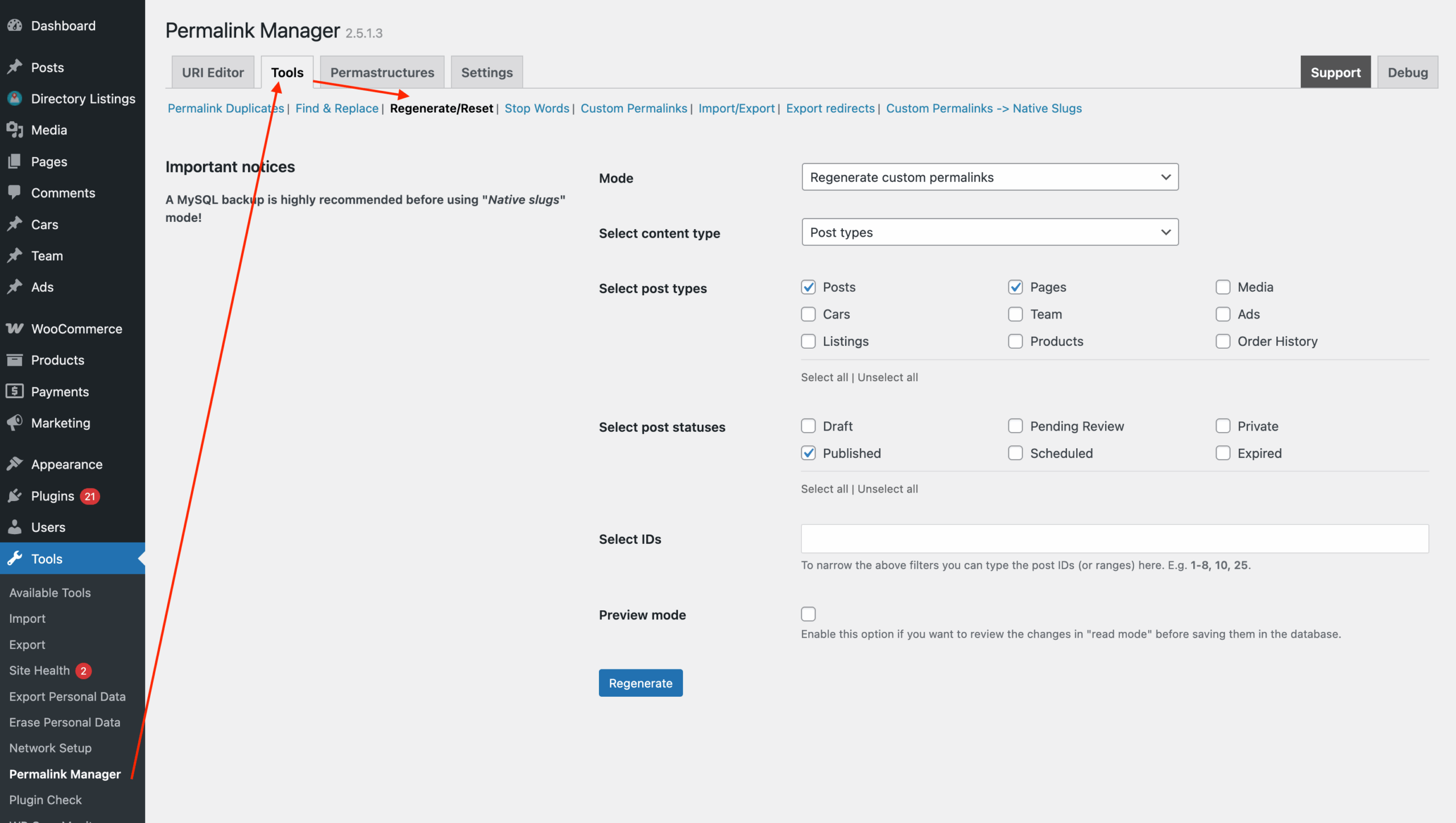
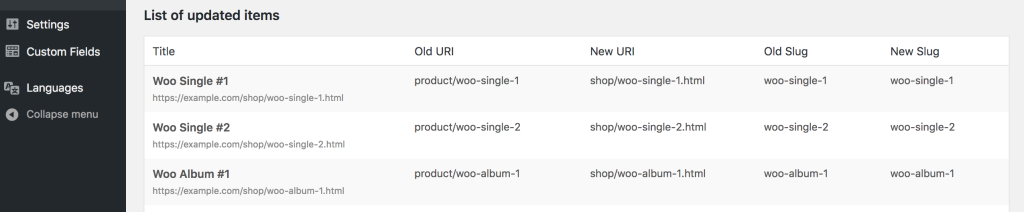
To start regenerating the permalinks, click the "Regenerate" button. When the process finishes, you will see a list of updated permalinks shown below the form.
How to Exclude Items From “Regenerate/Reset” Tool?
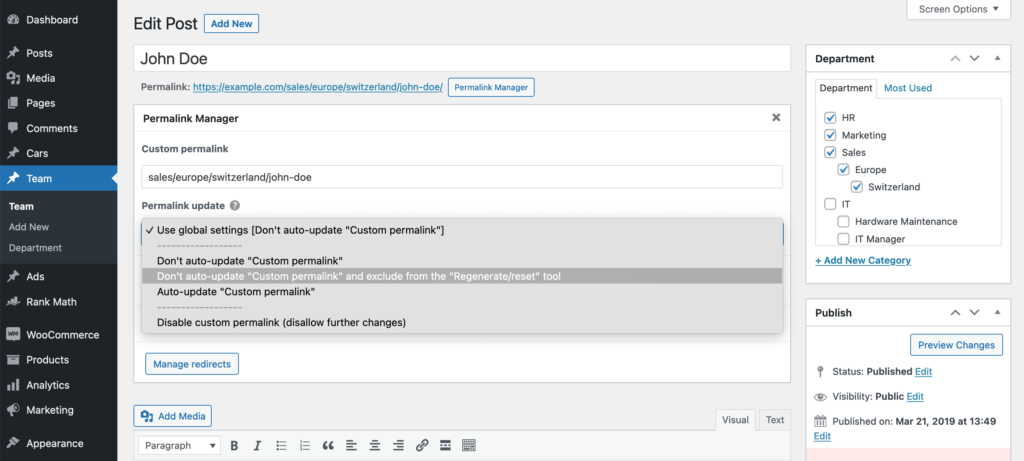
If you want to avoid accidental overwriting of permalinks you have edited manually, you can exclude them from processing in the "Regenerate/reset" tool.
In order to do this, under the "Permalink update" section of the permalink editor, choose "Don't auto-update "Custom permalink" and exclude from the "Regenerate/reset" tool".
How to Rebuild Native Slugs Using Actual Titles?
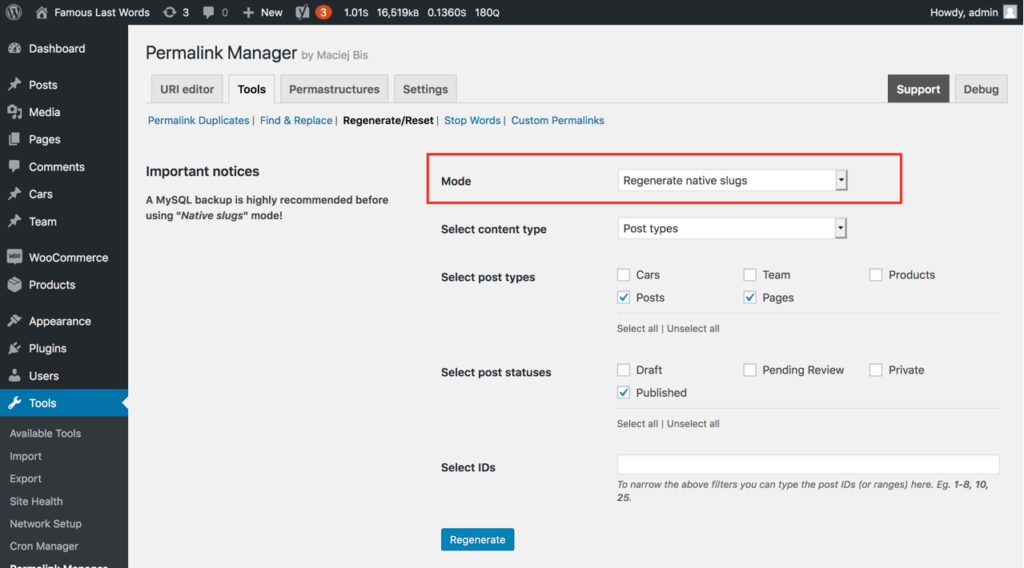
The process is similar to the "Regenerate custom permalinks" mode, but instead of handling the custom permalinks controlled only by Permalink Manager, it updates the native slugs used by built-in permalink system.
The updated native slugs are created based on the titles of each post or term. When applied, these changes will remain also if the plugin is later deactivated. Therefore, you would be able to restore the original slugs only you have a database backup.
Alternative Ways to Reset The Custom Permalinks
How to Automatically Update Single Permalinks?
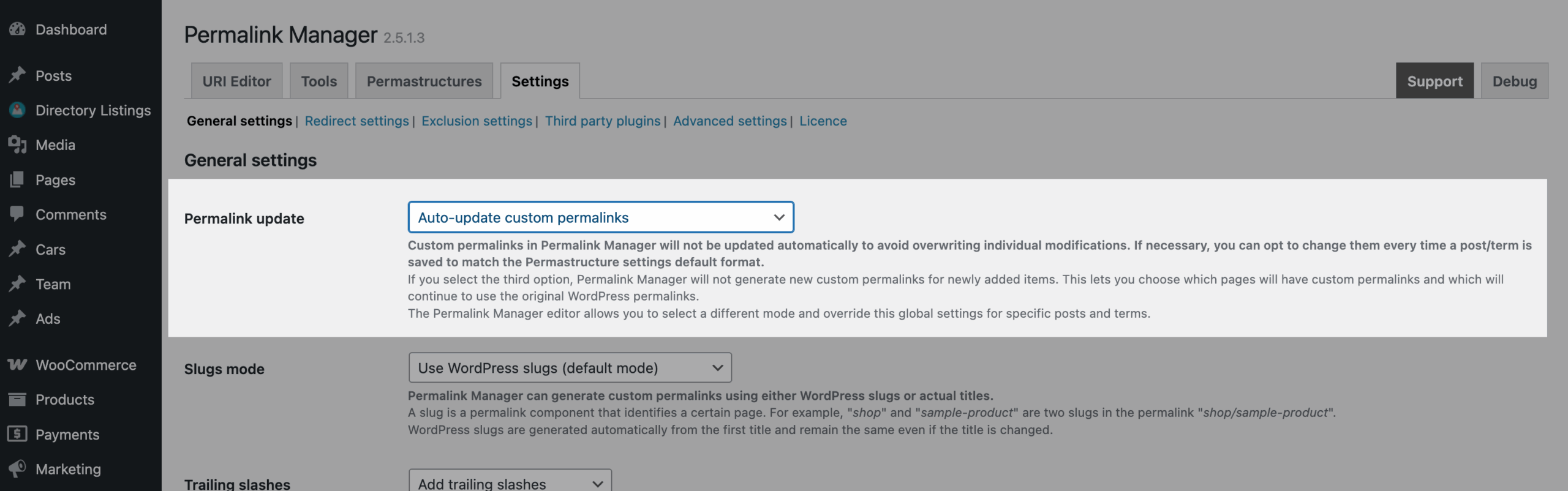
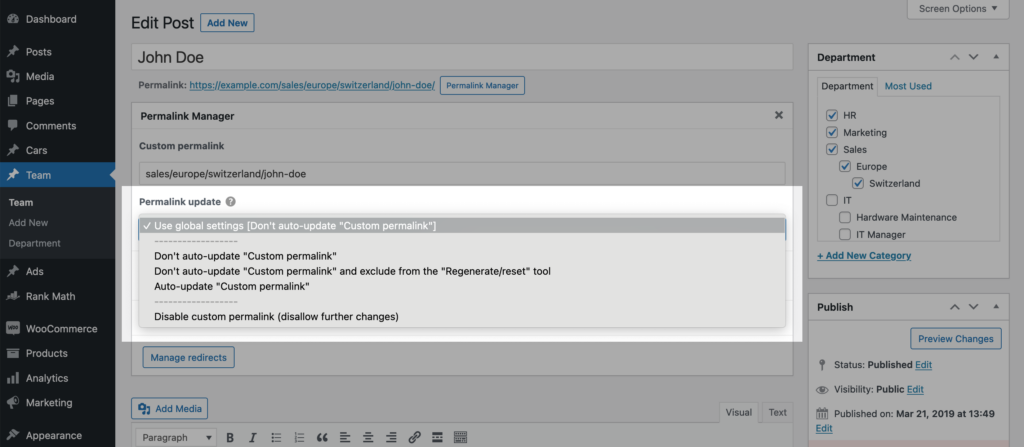
In addition to the "Regenerate/reset" tool, the plugin includes another method to regenerate custom permalinks. By changing the "Permalink update" mode in the Permalink Manager’s settings, you can enable automatic updating of permalinks whenever a single post or term is saved.
You can find more detailed instruction on this here.
How to Regenerate Individual Permalinks Manually?
To update a small number of permalinks, you may choose to do this manually using the "Use 'Default custom permalink'" button. This option works like the "Regenerate/Reset" tool by changing the custom permalink to match the value set in the "Default custom permalink" field.