WordPress automatically adds rewrite slugs for custom post types' and taxonomies' permalinks to identify them and prevent URL conflicts. These slugs appear automatically and cannot be removed through the standard permalink settings.
Many WordPress plugins and themes register custom post types and taxonomies, but only a few let you change their URL bases in the settings. Removing these bases usually requires custom code or complex workarounds, which can cause URL conflicts if not done carefully.
Using a custom permalink plugin such as Permalink Manager is more practical and quicker solution. The plugin lets you customize permalink formats, dynamically overwrite original URLs, and remove rewrite slugs directly from the admin dashboard, all without touching any code.
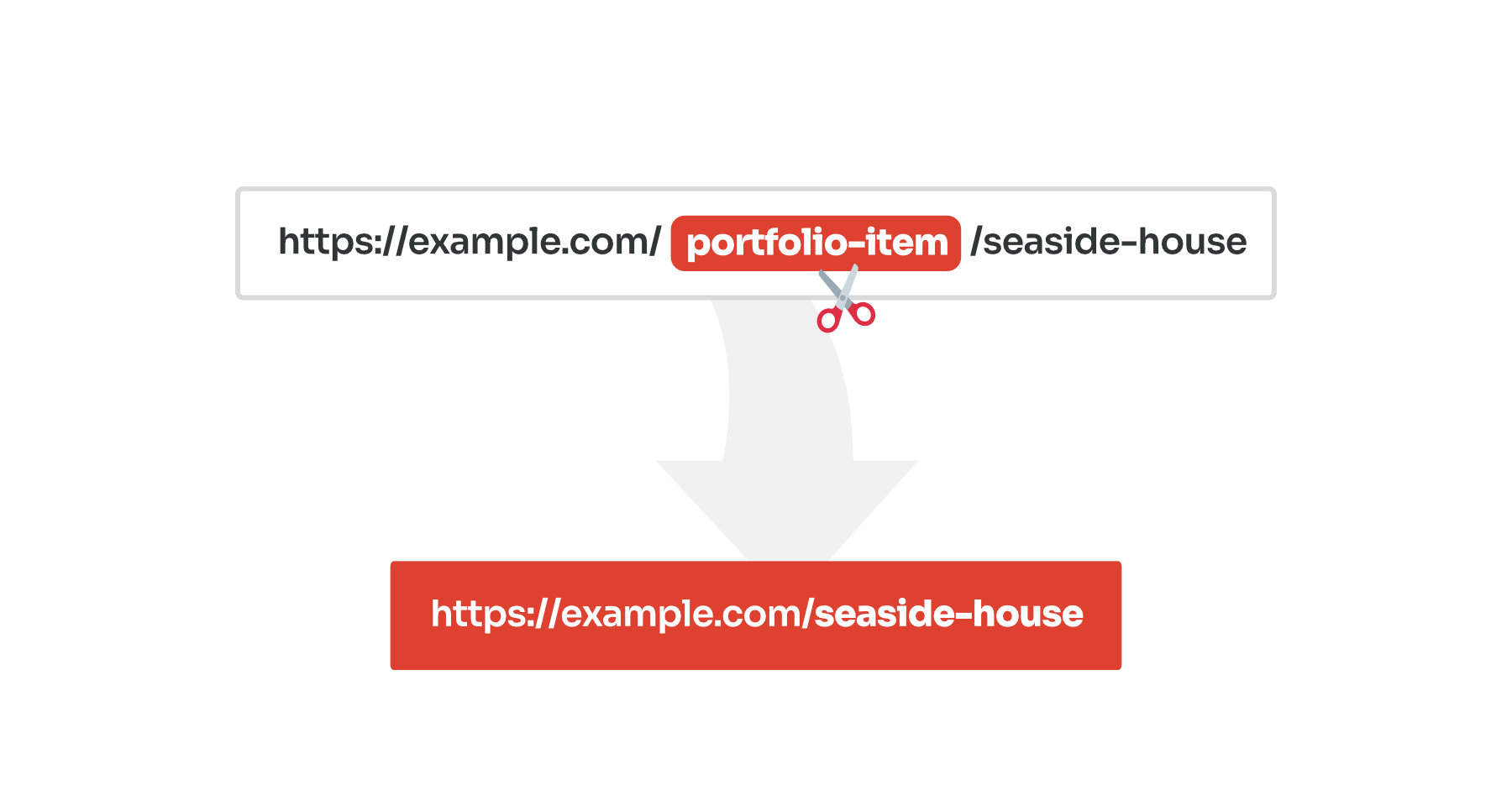
How to Remove Custom Post Type and Taxonomy Slugs?
With Permalink Manager, you can simplify your WordPress URLs without breaking your website. The plugin lets you remove post type and taxonomy slugs quickly, and automatically redirect old links to prevent "404" errors and broken pages.
The plugin works out of the box and does not require coding skill or advanced configuration.
For bulk changes, with Permastructures, you can automatically remove post type and taxonomy slugs from new URLs. Using the "Regenerate/reset" tool you can also update all existing URLs to match the new structure.
If you only need to change a few permalinks, you can also use the permalink editor to overwrite and customize the existing URLs one by one.
Method #1: Bulk edit the custom permalinks using Permastructures
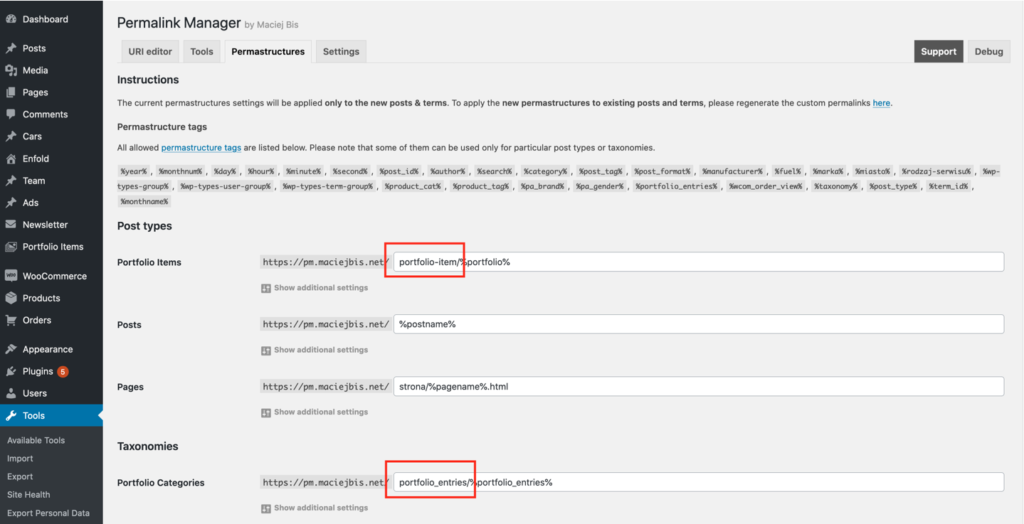
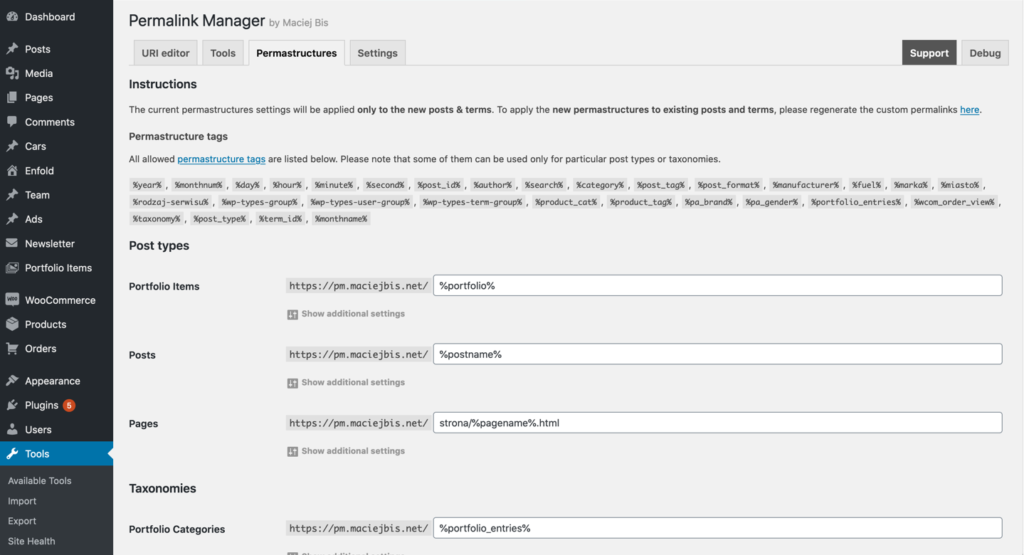
The first step is to modify the Permastructure settings. You may find them under the "Tools -> Permalink Manager -> Permastructures" admin section.
Each post type and taxonomy can have a different permalink format, as seen below. Simply delete the original bases (highlighted in red) from the input fields to get rid of them.
After you save them, the obsolete slug you removed will no longer appear in the permalinks whenever you publish a new post/term.
How Can I Update Already Created Permalinks?
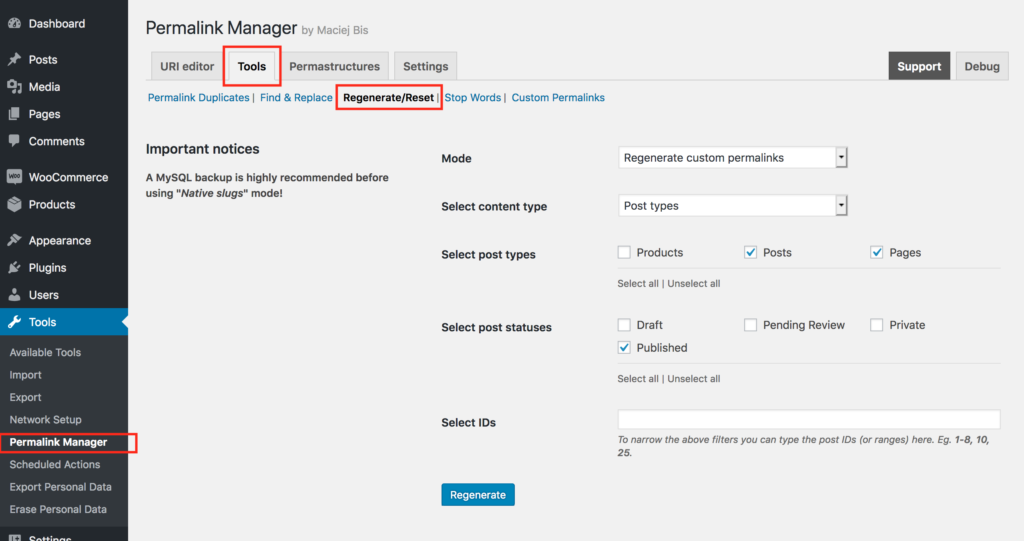
If you wish to apply new customized formats to previously existing WordPress URLs, you must regenerate them using the "Regenerate/reset" tool. You may skip this step if you did not previously add any posts or terms.
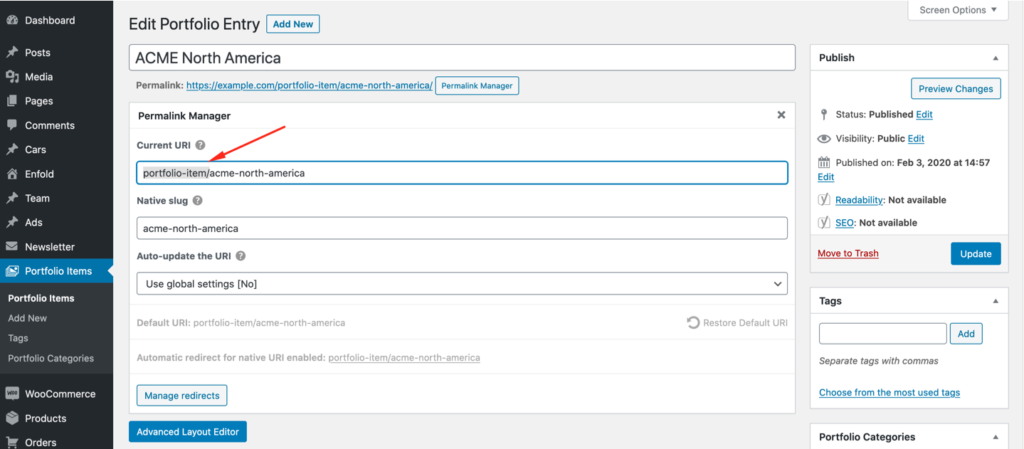
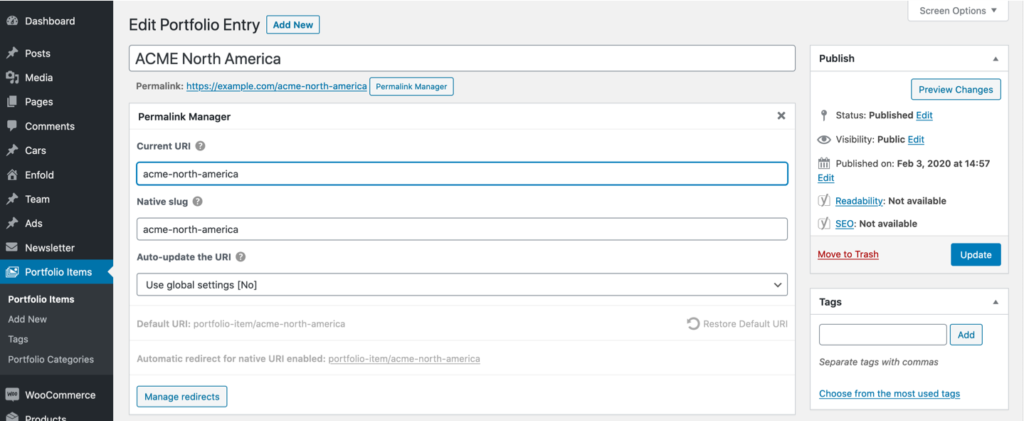
Method #2: Edit the custom permalinks individually
If you prefer precise control over your website’s URLs, you can remove slugs manually. This method takes more time, but it gives you more flexibility on how each URL.
For step-by-step instructions, check our separate article for tips on editing individual permalinks.
Custom Post Types' and Taxonomies' Default Permalinks
Default Permalinks and Rewrite Slug
Custom post types and taxonomies come with their own default permalink formats, which you can customize their permalinks to some extent by changing the "rewrite" parameter.
This slug is usually based on the post type/taxonomy name and helps WordPress handle URLs correctly. For a custom post type named "book", the URL for a single item should look like this:

Similarly, if you had a custom taxonomy named "genres", the URL for a single term will look like this:

If you need to remove the slug or reuse it for multiple content types, WordPress does not support this by default. To make it working, you need a custom solution that overrides WordPress’s default permalink rules, such as Permalink Manager.
Why Remove Custom Post Type and Taxonomy Slugs From WordPress URLs?
Google recommends organizing content URLs so that viewers can easily understand them. You can achieve this by eliminating custom post type and taxonomy slugs from WordPress URLs.
The rewrite slugs lengthen your permalinks, making them harder for users to remember and search engines to understand. However, please keep in mind that changing your present URLs may have an impact on your website's SEO as well as any existing backlinks.
Before making any modifications, evaluate your website's SEO performance. Keep an eye on how your modifications are affecting your visitors and SEO. Also, to keep as much traffic as possible, redirect old URLs to new ones.
FAQ
How Can I Remove a Taxonomy Slug in WordPress?
If you want to remove a taxonomy slug in WordPress, please follow the same instructions as for custom post type permalinks.
Permalink Manager handles custom post types and taxonomies as separate content types, each with its own Permastructure setting. This means you can strip the rewrite base from a taxonomy URL without affecting your CPT URLs, and the other way around.
What Content Types Does Permalink Manager Support?
Permalink Manager supports built-in WordPress post types and taxonomies including posts and pages, categories and tags. The plugin also fully supports custom post types and custom taxonomies controlled by 3rd party themes or plugins.
This includes custom post types and taxonomies declared with popular WordPress builders and field management plugins such as WooCommerce, Advanced Custom Fields (ACF), Toolset, JetEngine, and similar tools.
The plugin automatically detects all registered content types, so you can access them in the Permastructures settings and change their permalinks individually.
Will Removing Post Type and Taxonomy Slugs Affect SEO?
In general, modifying already indexed URLs can lead to SEO issues and broken links. For this reason, the best practice is to keep URLs stable and avoid changes unless they are required.
Permalink Manager follows this approach by applying new Permastructure settings only to new posts and terms. To update them, you must use the "Regenerate/reset" tool manually.
The plugin auto redirects old URLs so visitors are redirected from the original permalink to the new updated one, which prevents "404" errors.
Why Do I Need a Plugin or Custom Code to Remove Rewrite Bases?
When WordPress parses a URL, it uses the rewrite base to decide which content to show. Without a custom permalink plugin or code snippet, WordPress cannot reliably detect the content type from the URL because of rewrite rules conflict.
Rewrite rules conflict can occur when different post types or taxonomies use identical permalink formats. In such cases, WordPress might show the wrong post or trigger a "404" error.
Permalink Manager avoids this by using its own URL detection system, which compares the requested address to a custom permalinks array rather than relying on rewrite rules.