One of WordPress’s most powerful tools are its hooks, specifically actions and filters, which give you more control over how core, themes, and plugins work and interact.
Custom snippets are commonly used to implement these modifications. To use them correctly you need a basic understanding of PHP and how WordPress executes its hooks.
Many site owners install extra plugins to manage custom snippet for convenience, especially when they handle lots of them. If you need a more efficient alternative, in this article you will learn how to integrate them into your website without extra plugins.
What is a Code Snippet?
In WordPress terminology, code snippet is a small, reusable block of code - typically PHP, CSS, JavaScript, or HTML, used to add specific custom functionality or make minor modifications to a WordPress website.
Snippets are commonly used to achieve one, small, specific task — like disabling a feature, adding a filter hook, or injecting a analytics code to the frontend.
It makes it easier to customize your site without extra bloat. For example, you can embed Google Analytics tracking code instead of relying on a bulky plugin.
Interestingly, many plugins are built from code, which is technically composed of multiple such "code snippets", but a complete plugin is much more than just a collection of simple snippets.
Code Snippets vs. Dedicated Plugins
It is common to install yet another plugin each time one wants to tweak something on their WordPress site or add new functionality. It is understandable, since installing a ready plugin takes only a few clicks, which feels easier than writing custom code.
Relying on too many plugins brings two major disadvantages. It is because, each plugin can pose a security risk if it is not updated or no longer supported. On top of that, each of them injects extra scripts and styles into the frontend, which can slow down page load times, especially since many features are generic rather than designed specifically for your site.
Custom snippets allow to customize your site without installing extra plugins. To make sure they work safely, you must place them in the correct place. It is because, the code can easily be erased after theme updates if you are not using a child theme or a code manager.
Useful WordPress Code Snippets
If you would like to see some sample code snippets, I have put some of them on Gist. They may be used to deactivate the Gutenberg editor or to delete Emoji scripts from your website's HTML code.
Three Methods to Implement WordPress Code Snippets
There are multiple ways to add custom code. This guide covers three standard approaches. Choose the one appropriate for your setup, and avoid editing theme or plugin files directly.
Child Theme
Adding PHP code through a child theme is a safe and widely recommended approach. A child theme keeps your custom code isolated from the parent theme, so you can update the parent theme without losing it.
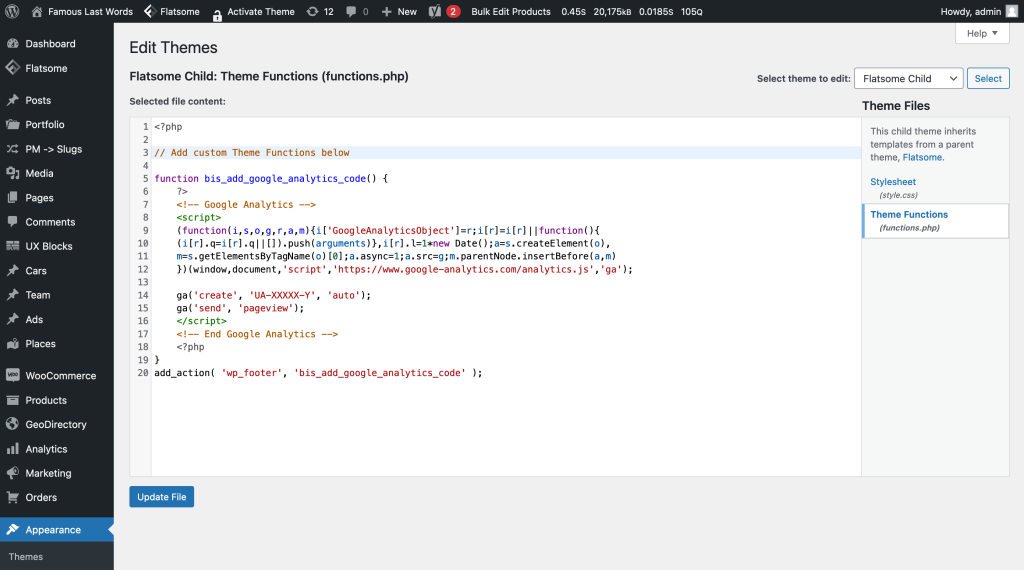
It is also very convenient. WordPress includes a Theme Editor, which allows you to edit child theme files directly in the dashboard by going to "Appearance -> Theme Editor".
When you try to save changes there, and a critical error such as a syntax error occurs, the theme editor will prevent the changes from being saved. A warning will appear to indicate where the issue is, though it might not catch every PHP error.
Generate a WordPress Child Theme Without a Plugin
"Barebone" Plugin
For those who cannot or do not want to use a child theme or a snippets plugin, a "barebone" plugin provides one more alternative. You can add code to it directly from the admin dashboard, much like you do in a child theme.
The main difference is that with a barebone plugin, you start by installing an empty plugin without any code. Then you add your own code inside it.
However, the biggest advantage of this approach is that it makes your code reusable. By creating a small, separate plugin, you can copy it and use it on multiple websites, no matter which theme is installed there.
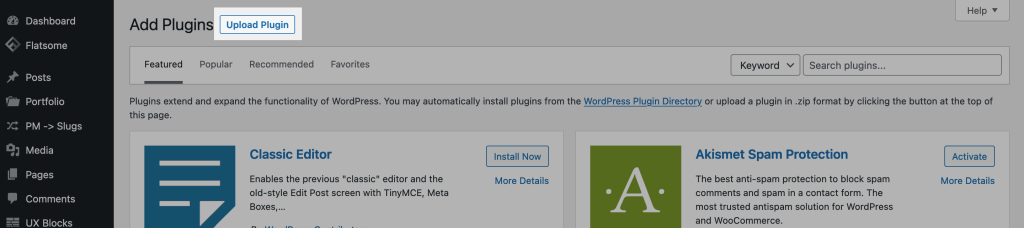
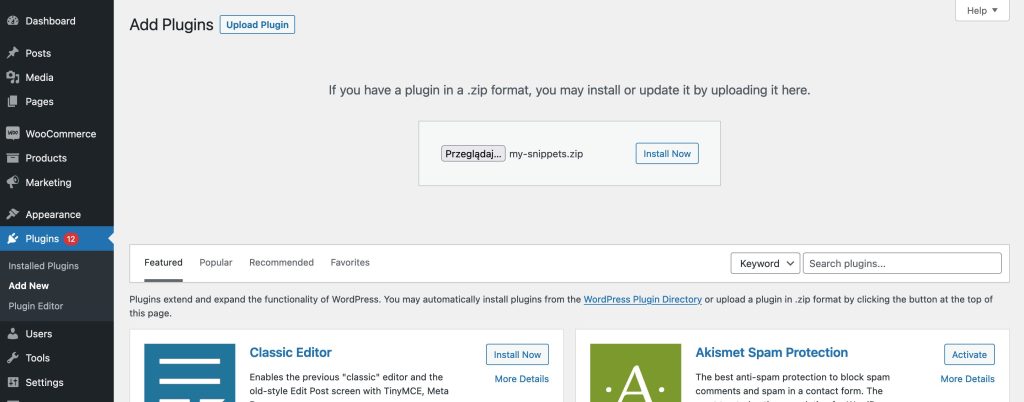
Now that the plugin has been installed and enabled, you may use WordPress to make changes to its content. For this, go to "Plugins -> Plugin Editor" page and choose "My custom code snippets" in the "Select plugin to edit" field.
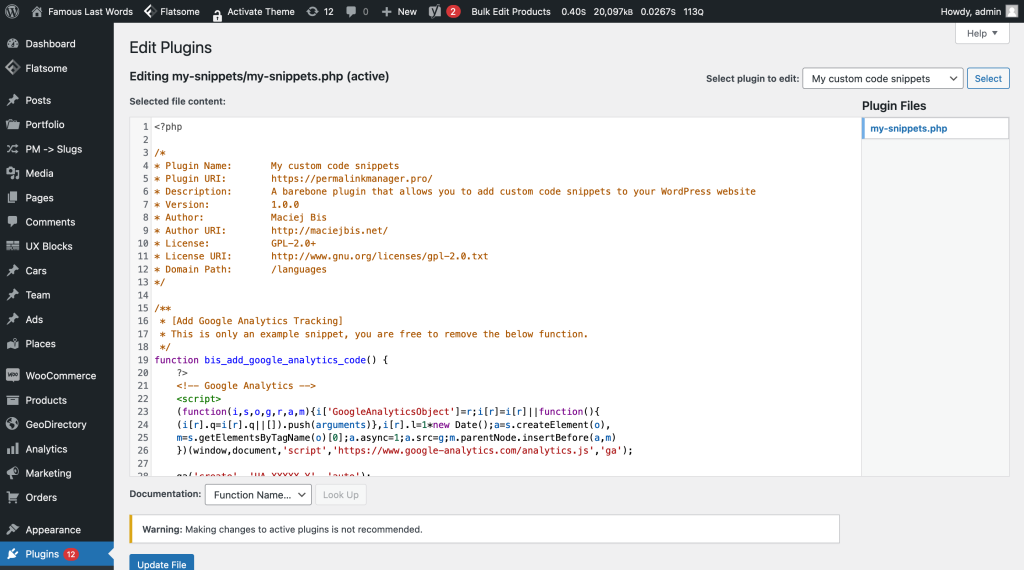
There is an initial snippet included in the mini-plugin that lets you install Google Analytics tracking code, but you can easily delete it and replace it with your own tracking code if you like.
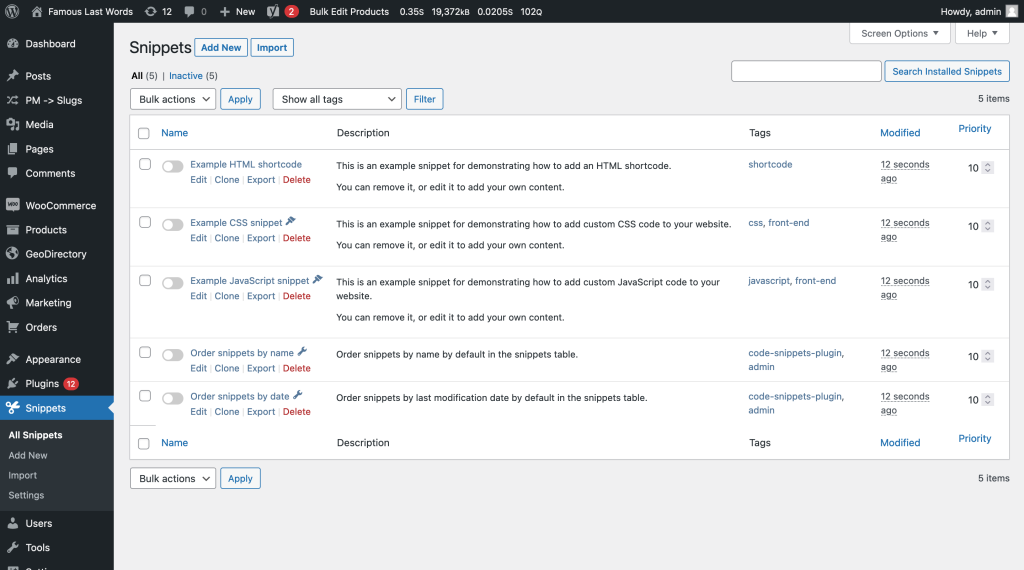
"Code Snippets" plugin
On the surface, the idea of using an additional plugin to remove an additional one may appear illogical. Although this is true, it is sometimes beneficial to replace a few plugins with a proven one. If you are unfamiliar with the WordPress framework, this is unquestionably more convenient. Among them, "Code Snippets" is the most widely used and simplest to use.
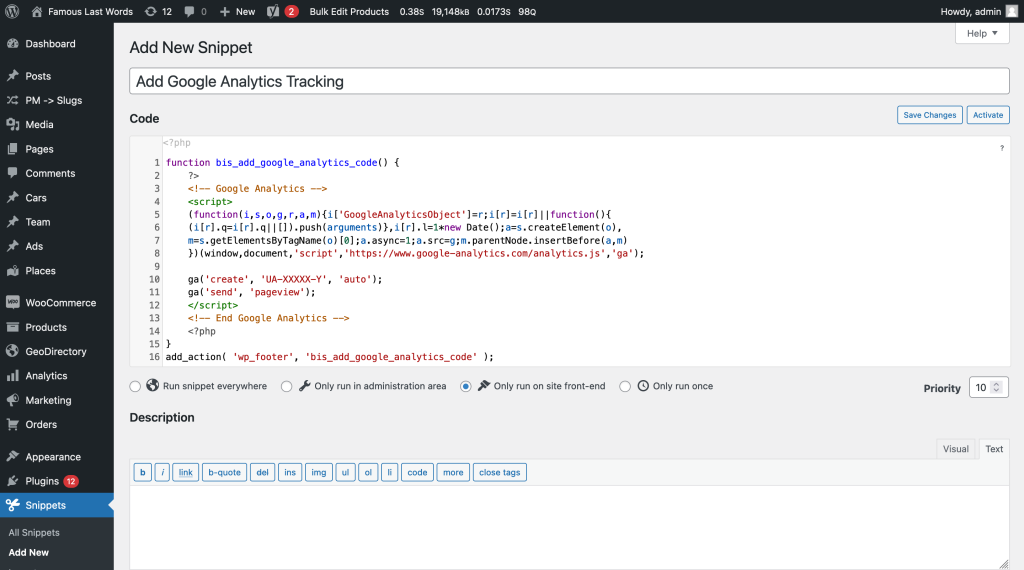
The Google Analytics tracking code should only be shown in the front-end, therefore pick the "Only run on site front-end" option below the code editor.
Leave a Reply