Adding category slugs to custom post type permalinks in WordPress works differently than it does for standard posts.
With standard posts, the category slug can be added using the native Permalinks settings in the dashboard. Custom post types do not support this feature out of the box and need extra setup.
To include custom taxonomy slugs in their permalinks, you would need to write complex rewrite rules using PHP-based code snippets.
If you prefer not to work with custom code, Permalink Manager offers a much simpler way. It allows you to fully customize custom taxonomy permalinks using a simple dashboard, without writing any code and technical knowledge.
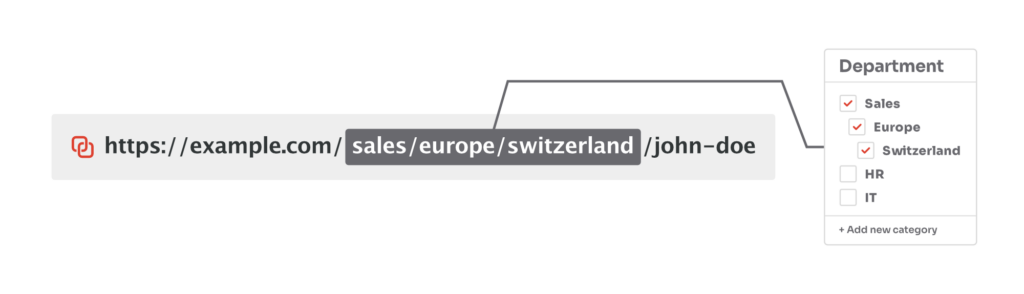
Adding a Custom Taxonomy Slug to Custom Post Type Permalinks
Depending on your content structure, you can insert a single taxonomy or combine several for hierarchical and more descriptive URLs.
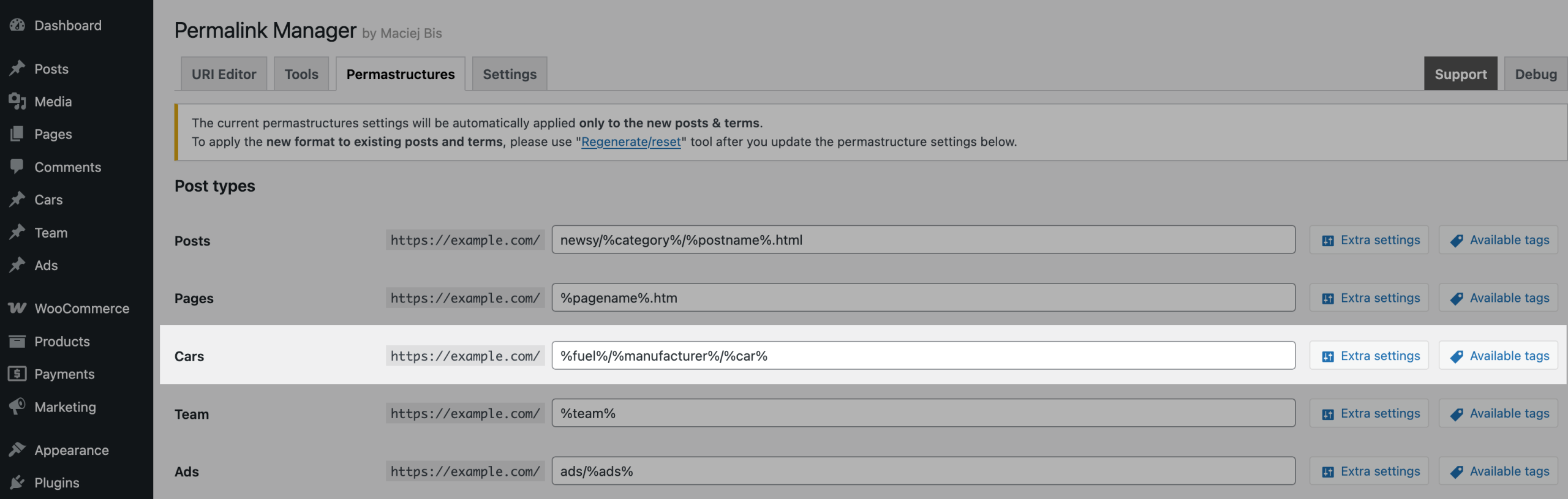
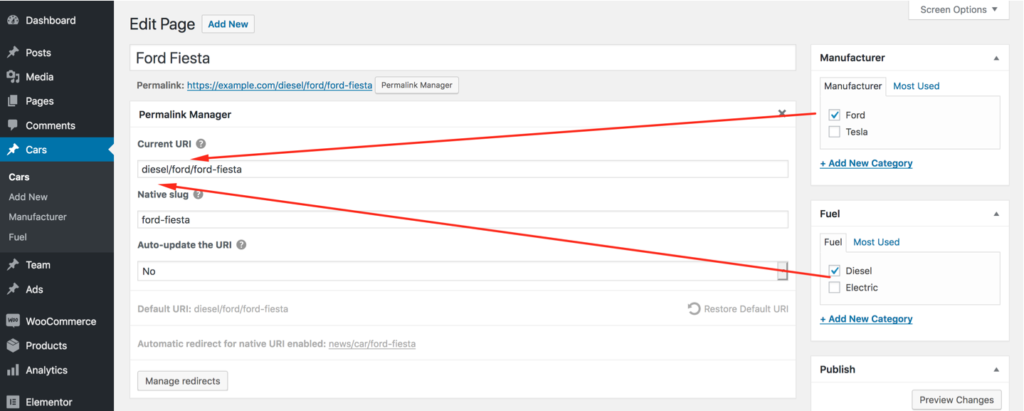
For example, "Cars" post type could use both "Fuel" and "Manufacturer" taxonomies in the permalink so that a URL reads:
http://example.com/%fuel%/%manufacturer%/%car%
http://example.com/diesel/ford/ford-fiesta/
Step 1: Configure Permastructure Settings
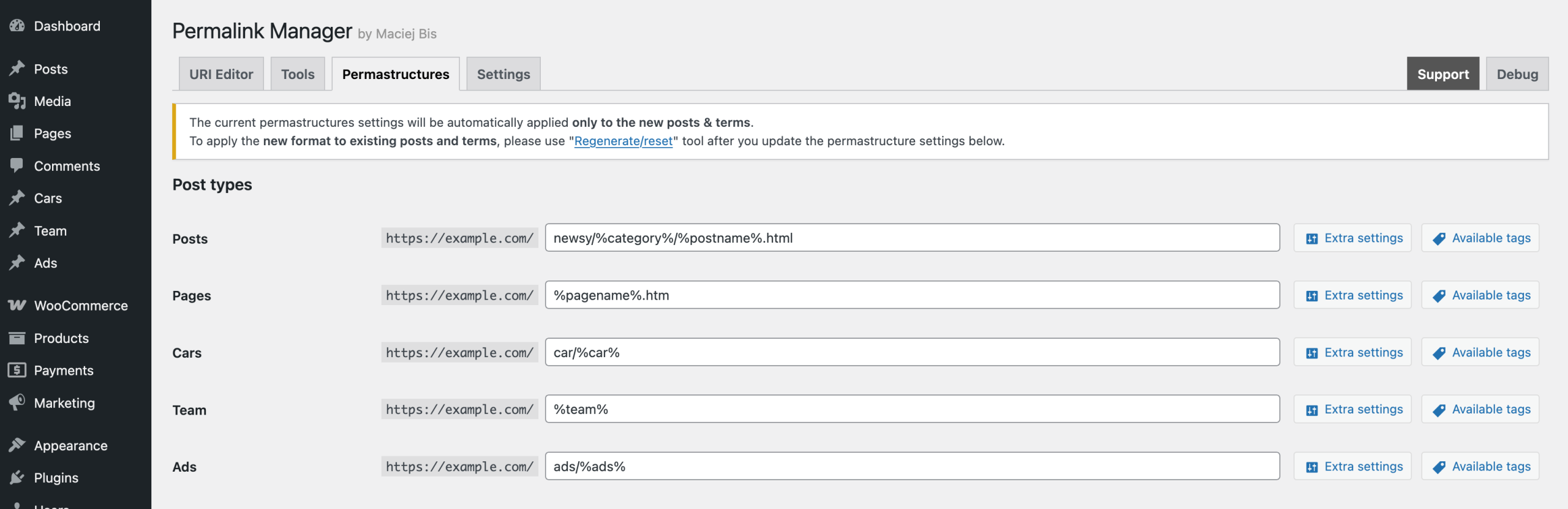
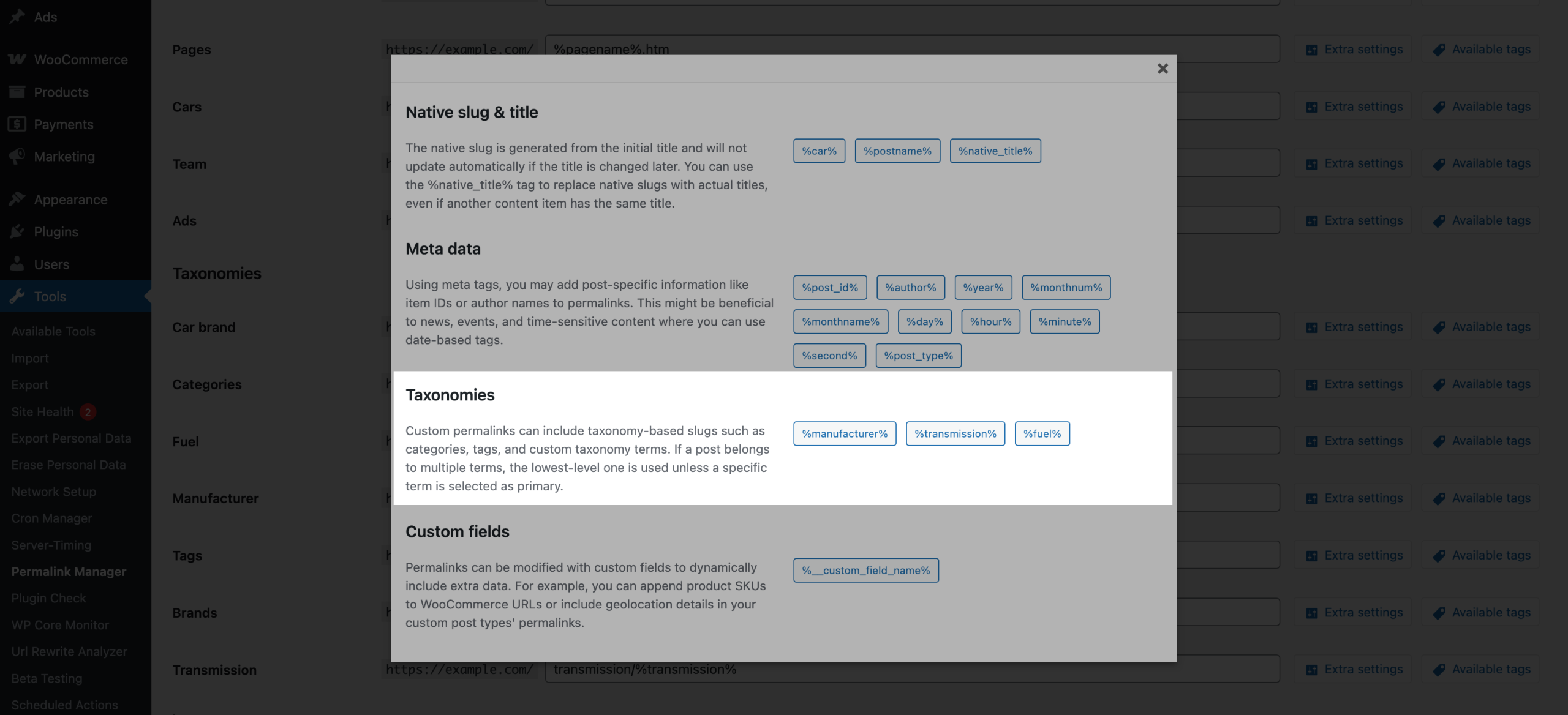
To insert a taxonomy slug into your CPT permalinks, go to "Tools -> Permalink Manager -> Permastructures" section.
Once there, find the custom post type you want to modify and insert the taxonomy tags directly into the input field, wrapping each taxonomy name in percent signs (e.g., %fuel% and %manufacturer%).
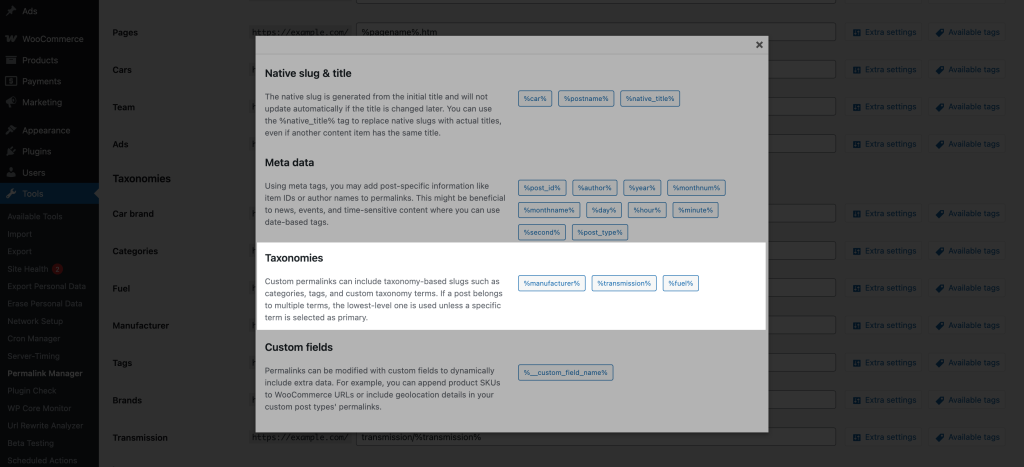
To view all available permastructure tags for your taxonomies, click the "Available tags" button below the input field.
 Step 2: Applying Changes to Existing Permalinks
New posts will automatically use the new permalink structure (with the taxonomy slugs) after you publish them. If you prefer to keep your old URLs unchanged, no further action is needed.
By design, the plugin keeps all existing URLs unchanged when you update the permalink structure. That prevents unexpected URL changes, broken links, and "404" errors.
If you need to apply the new format to old URLs too, you can still do so. In that case, you will need to regenerate them manually so they match the new structure.
Primary Category Support
Permalink Manager supports the Primary Category feature available in Yoast SEO, The SEO Framework, RankMath, and SEOPress.
When a primary category is set and its taxonomy is included in the Permastructure settings, the plugin automatically uses this category while generating the post permalink. This applies when a new post is published or when the "Regenerate/reset" tool is used.
Hierarchical Taxonomies
By default, for hierarchical taxonomies, when a selected category has parent terms, their slugs are included in the URL structure.
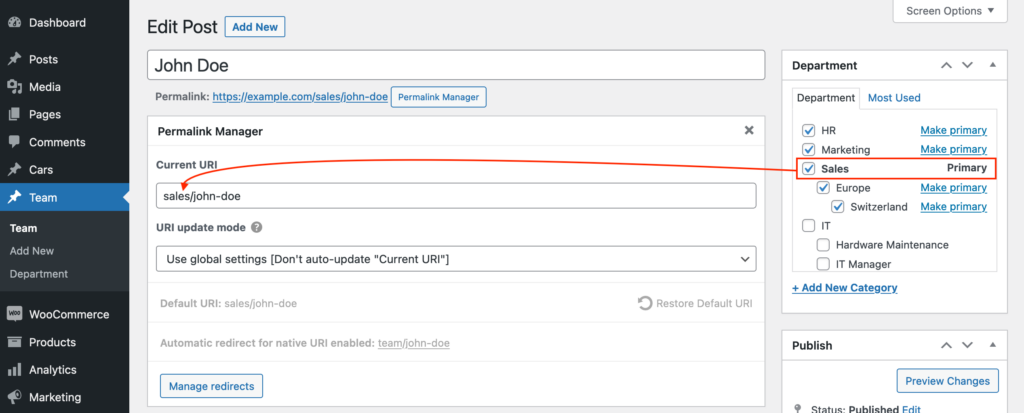
Example 1 – Top-level primary category selected
If a top-level category such as "Sales" is set as the Primary Category, the custom permalink will contain only that term’s slug. Even if the post is also assigned to subcategories: "Europe" or "Switzerland", those terms will not be added to the custom permalink.
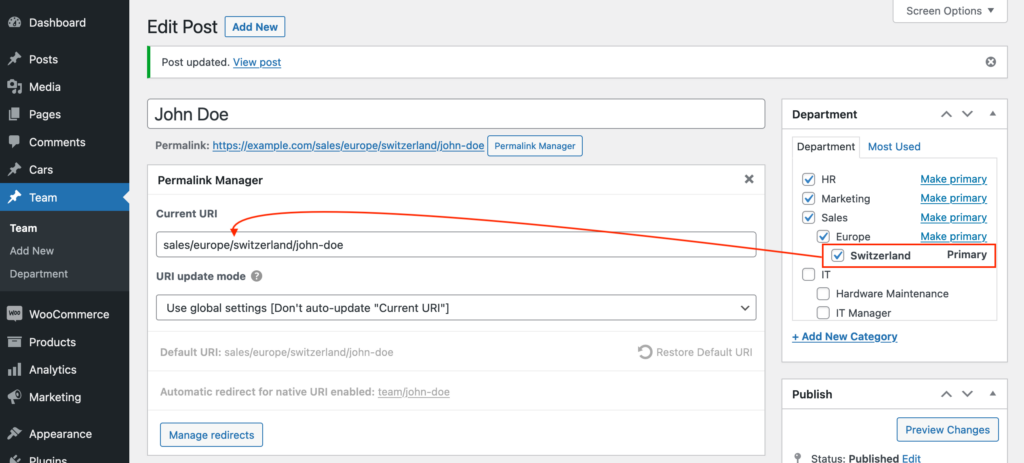
Example 2 – Lowest-level primary category selected
If you choose a lowest-level term, such as "Switzerland" as the Primary Category, Permalink Manager will add the slugs of all its parent terms to the custom permalink.
This will also happen if no primary term is selected or if primary category support is disabled. In those cases, the plugin will use the lowest-level assigned term and its parents by default.
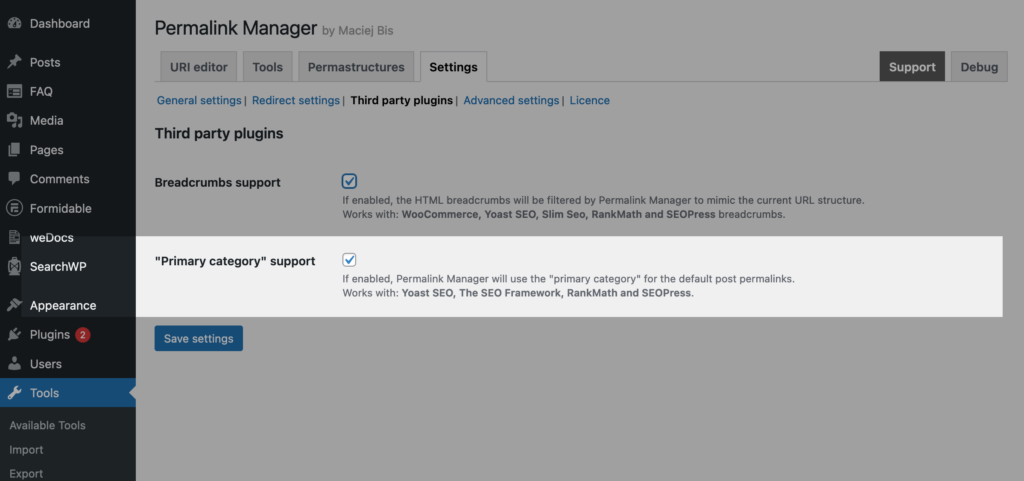
How to Disable “Primary Category” Support?
If necessary, you can turn off "Primary category" support in the plugin settings. Once disabled, the plugin will generate custom permalinks using the lowest category in the hierarchy, including its parent categories (when available).
Advanced Customization
Removing Parent Category Slugs from Permalinks
With Permalink Manager, you can add both hierarchical and flat (non-hierarchical) taxonomies to your custom post type permalinks. You can control how these appear in your permalinks using specific tag suffixes and remove parent category slugs automatically.
Depending on your requirements, you may either add a single slug of the highest-level parent or the lowest-level child.
Example
http://example.com/%product_cat%/%product%
http://example.com/clothing/t-shirts/cotton/happy-ninja
http://example.com/clothing/jackets/leather/biker-black
Use Highest-level Parent Only
To display only the highest-level parent category, append "_top" to your taxonomy tag.
For example, replace %product_cat% with %product_cat_top%.
http://example.com/%product_cat_top%/%product%
http://example.com/clothing/happy-ninja
http://example.com/clothing/biker-black
Use Deepest-level Child Only
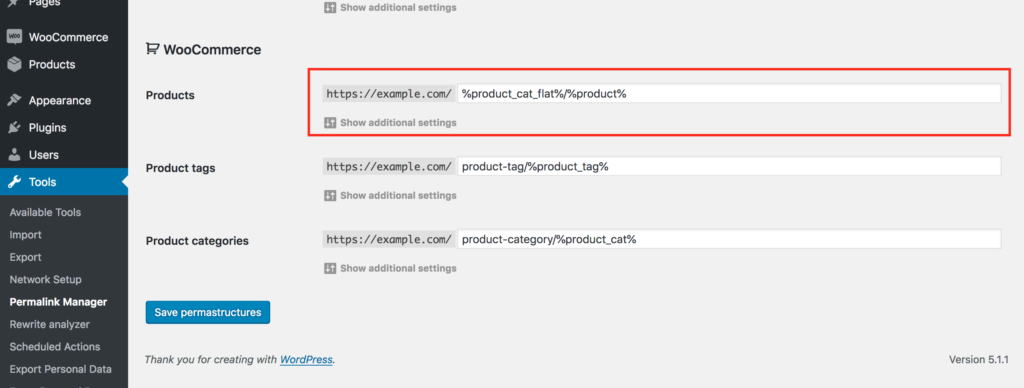
To display only the deepest child category, append "_flat" to your taxonomy tag.
For example, replace %product_cat% with %product_cat_flat%.
http://example.com/%product_cat_flat%/%product%
http://example.com/cotton/happy-ninja
http://example.com/leather/biker-black
Modifying the Term Slug Programmatically
When you need more control, you can override and dynamically change the category slug used in the default custom permalink.
permalink_manager_filter_term_slug($slug, $selected_term, $post, $all_terms, $taxonomy)| Variable | Description |
|---|---|
| $slug | The slug or slugs trail used to replace %taxonomy% tag (eg. %category%) in default post permalinks (string) Example input: europe/central-europe/slovakia |
| $selected_term | Term object chosen to be used in the default permalink of a post (WP_Term) |
| $post | The post object for which the default permalink is generated (WP_Post) |
| $all_terms | Array of all terms that are linked to the post that the default URL is generated for (WP_Term[]) |
| $taxonomy | The name of the taxonomy (string) Example input: category |
Adding Multiple Top-Parent Categories
The example below shows how to use this feature to adds the slugs of two top‑level categories to a single post permalink.
/**
* The snippet changes the category slug used when default custom permalink is generated for a post
*/
function pm_multiple_top_categories_in_uri($slug, $selected_term, $post, $all_terms, $taxonomy) {
	// Use the snippet only for ‘category’ slug in ‘post’ custom permalinks
	if(empty($post->post_type) || $post->post_type !== 'post' || $taxonomy !== 'category') {
		return $slug;
	}
	if(!empty($all_terms) && count($all_terms) > 1) {
		// Get only top-level categories
		$top_parent_terms = wp_filter_object_list($all_terms, array('parent' => 0));
		if(!empty($top_parent_terms) && count($top_parent_terms) > 1) {
			// Reset array keys
			$top_parent_terms = array_values($top_parent_terms);
			// We need two slugs, therefore the loop will repeat until $slugs_counter is “2”
			$top_parent_terms = array_slice($top_parent_terms, 0, 2);
			foreach($top_parent_terms as $top_parent_term) {
				if(empty($top_parent_term->slug)) { continue; }
				$new_category_slug = (empty($new_category_slug)) ? $top_parent_term->slug : "{$new_category_slug}/{$top_parent_term->slug}";
			}
		}
	}
	return (!empty($new_category_slug)) ? $new_category_slug : $slug;
}
add_filter('permalink_manager_filter_term_slug', 'pm_multiple_top_categories_in_uri', 10, 5);
FAQ & Troubleshooting
Will Adding Category Slugs to Permalinks Break Existing Links?
No, existing post permalinks remain unchanged. This prevents unexpected URL changes that might harm backlinks or search results visibility. By default, when you change your permastructure settings, Permalink Manager only applies the new URL format to newly created posts.
If you want your old URLs to match the new format, you need to regenerate them manually using included "Regenerate/Reset" tool.
After you do this, the plugin automatically sets up a canonical redirect that sends visitors from the old URL to the new one so you do not lose any traffic.
Why Are My Post URLs Missing the Category Slug?
If you see that new post URLs are missing the category, and a third‑party import or sync plugin is active, the plugin is probably saving the post too early (before it assigns the category). This is common in job board, directory, product sync, and bulk import plugins.
These plugins usually change how WordPress normally saves and publishes a post. Instead of doing everything in one call, they split it into two steps.
- Firstly, they create the empty post using wp_insert_post() function, usually with only the title and content.
- Then, after the post is saved and the custom permalink is generated, they assign taxonomies (like categories) and metadata.
The categories in step two are not processed by Permalink Manager because they have not been assigned at that stage, which causes incomplete URLs.
Recommended fix: Many plugins provide their own action hooks that are called after posts are created.
For instance, if you use Permalink Manager together with Dokan, you can fix this by regenerating the custom permalink after the
dokan_new_product_added
hook is called. This way, the permalink is saved correctly with the category slug once the product is added.
/**
* Regenerates the custom permalink for a newly added product in Dokan.
*
* This function is hooked into Dokan's 'dokan_new_product_added' action, which fires
* when a vendor creates a new product.
*
* @param int $product_id The ID of the newly created product.
*/
function pm_dokan_generate_product_permalink( $product_id ) {
	if ( class_exists( 'Permalink_Manager_URI_Functions_Post' ) ) {
		$new_uri = Permalink_Manager_URI_Functions_Post::get_default_post_uri( $product_id );
		Permalink_Manager_URI_Functions::save_single_uri( $product_id, $new_uri, false, true );
	}
}
add_action( 'dokan_new_product_added', 'pm_dokan_generate_product_permalink', 100 );
How to Update Permalink After Taxonomy Changes?
If no dedicated action hooks are available, you can also force Permalink Manager to regenerate the custom permalink after a category or taxonomy has been set using built-in
set_object_terms
hook.
The example below applies to WooCommerce products (with product categories), but you can modify the $taxonomy variable to apply it to other post types and taxonomies.
/**
* Regenerates the custom permalink for a post when its taxonomy terms are updated.
*
* This hook can be useful when third-party plugins assign categories
* or taxonomies *after* the post is created (e.g., during import or sync).
* It ensures the custom permalink is updated to reflect the assigned terms.
*
* @param int $post_id The ID of the post being updated.
* @param array $terms An array of term IDs.
* @param array $tt_ids Term taxonomy IDs.
* @param string $taxonomy Taxonomy slug (e.g., 'product_cat', 'category', etc.).
* @param bool $append Whether to append the new terms to the existing terms.
* @param array $old_tt_ids An array of old term taxonomy IDs.
*/
function pm_regenerate_product_permalink( $post_id, $terms, $tt_ids, $taxonomy, $append, $old_tt_ids ) {
	if ( $taxonomy === 'product_cat' && class_exists( 'Permalink_Manager_URI_Functions_Post' ) ) {
		$default_uri = Permalink_Manager_URI_Functions_Post::get_default_post_uri( $post_id );
		Permalink_Manager_URI_Functions::save_single_uri( $post_id, $default_uri, false, true );
	}
}
add_action( 'set_object_terms', 'pm_regenerate_product_permalink', 9, 6 );